.png?width=210&height=40&name=bleu%20et%20gris_Sigle+logo%20SBO%20(4).png)
Benefits of the feature ✨
- Time savings: Automated order checking based on the defined rules.
- Fewer routing errors: Better control of routing conditions.
- Optimized processing flow: Quick resubmission after correction.
1. Prerequisites
- This feature is available for users of the Multi-Shippingbo account.
-
You must be a seller with administrator access to use this feature.
2. How does routing error mapping work?
The Routing error mapping allows you to flag orders as “in error” when they do not meet certain routing conditions that you have defined beforehand. This feature thus lets you better control the routing of orders to warehouses and correct errors before a new routing attempt.
3. How to enable routing error mapping?
3.1 Go to the menu Configurations → Orders → Routing errors:

3.2 Click on Add and fill in the requested fields:

The errors you create will then appear in this tab and can be edited at any time:

3.3 Once the errors are created, go to the tab Routing error mapping via the menu Configurations → Orders → Routing error mapping:

3.4 Click on Add to select an error message from the drop-down list:

3.5 A rule is created, to which you must apply the desired conditions by clicking on Add a condition:

3.6 In the window that opens, enter the conditions for the order to end up in routing error, before clicking on Validate.
For example: if you want the rule to be: "all orders with a total weight above 1kg must be marked as routing error". You need to enter the items below:
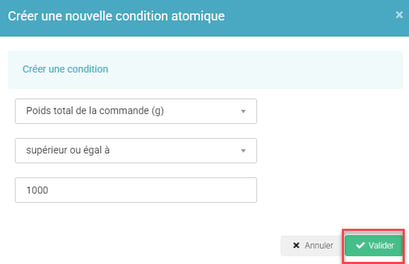
3.7 When your Mapping is complete, don't forget to activate your rules, as they are deactivated by default, by checking the box Enabled for the rules that are ready to be used:

3.8 To test your routing error mapping, you can enter the Shippingbo order ID of your choice and identify which rule, highlighted in green, is triggered, to check that your mapping works as you expect.

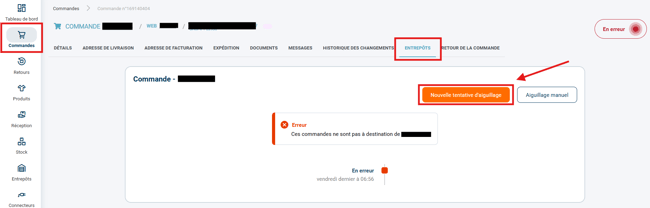
✅ When your rules are enabled, if an order meets the conditions of a routing error rule, the error message will appear in the tab Warehouse of this order.
Once the error is corrected, you can click on New routing attempt so that the order is routed to the warehouse again.
4. Practical example
You are an e-merchant in the fashion sector and you use this feature to quickly identify orders with incorrect addresses and correct them before resubmitting them to the right warehouse.
💠Note:
You can edit your errors and rules at any time by accessing the corresponding menus.
⚒️ Framework and responsibilities:
Before fully using the feature described in this tutorial, we strongly recommend running a test phase with your own settings to check that the result matches your expectations. As the customer remains fully responsible for the actions carried out in the Shippingbo account, these tests are essential to use the tool with complete peace of mind.
To go further 🛫:
- Existing order statuses in Shippingbo
FAQ ❔:
No related FAQ yet.
Contact us 📬:
Questions about this feature? Feel free to write to us here so that we can answer your questions.