.png?width=210&height=40&name=bleu%20et%20gris_Sigle+logo%20SBO%20(4).png)
1. Prerequisites✔️:
- This feature is available for all Shippingbo packs.
2. How does the service availability check work?
Shippingbo allows you to check the availability of its services as well as external services such as carriers, CMSs, and marketplaces. This also includes viewing scheduled maintenance and past incidents.
You can access this information in three ways:
-
Go to the help center and click on "Status Page".
Go to our help center and select the menu Status page to check service availability:

2. Via the help bubble in the Shippingbo interface.
Click on the help bubble located at the bottom right of your interface, then on the graphic icon representing connections:

3.Follow the URL directly :
Go to https://status.shippingbo.com/where you can check the availability of:
-
- Shippingbo
- Carriers
- CMS
- Marketplaces
Example : If you experience delays in generating shipping labels, you can quickly check the availability of the associated service via one of the methods above.
3. Enable service availability check
Enable service verification :
You don't need any special configuration to activate this feature. You can access the status page directly from the interface or by using the provided URL.
4. Use the service availability check feature
Once on the Status pageYou can consult the following items:
-
Shippingbo service status :
Check the availability of key Shippingbo services, including the app, sales channel information feeds, sales channel interface, label generation, and post-shipment tracking. -
Status of carriers :
Access the availability of carriers that can be connected to Shippingbo. -
Status of CMS :
Check the status of CMSs connected to Shippingbo. -
Marketplace Status :
Get information on the availability of connected marketplaces.
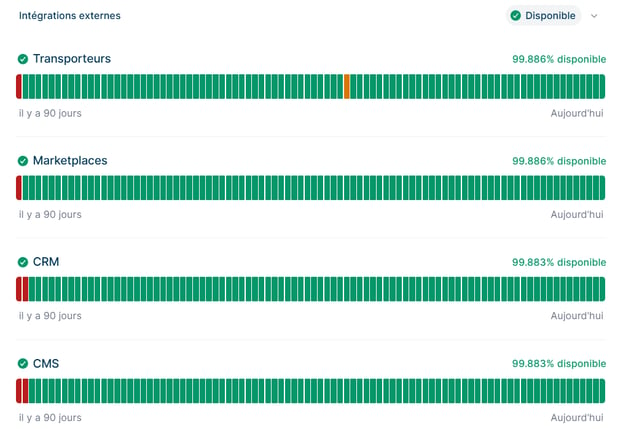
You will also be able to see the exact date and time of the last update.
View scheduled maintenance
-
Access scheduled maintenance :
Since the Status pageclick on the tab "Maintenance" in the main menu:
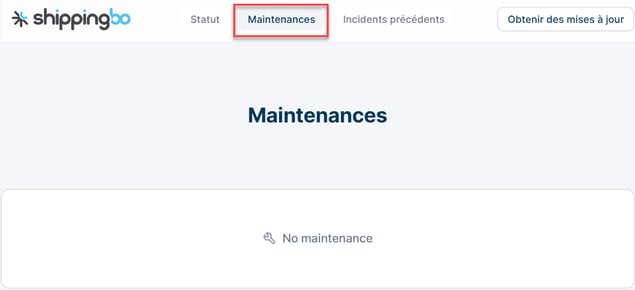
2. See maintenance details :
You will be able to view the dates, times, and services affected by scheduled maintenance. This allows you to anticipate interruptions and plan accordingly.
Example : If maintenance is scheduled for the shipping label generation module between 2pm and 4pm, you can schedule your shipments before or after this time slot.
View past incidents
-
Access past incidents :
Since the Status pageclick on "Previous incidents" in the main menu: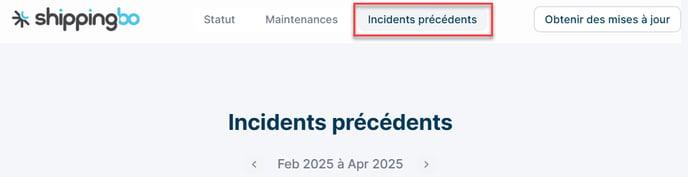
-
View incident history :
The history displays incidents by month, the services affected, and the resolution dates. This allows you to quickly understand past problems experienced by certain services.
Example : If you experienced a problem connecting to a marketplace in the previous week, you can check if an incident was logged about it and when it was resolved.
💠Note:
Scheduled maintenance and past incidents are also accessible through this interface. This allows you to anticipate periods of downtime.
📢Warning:
The information provided on this page is updated in real time. Please check this page before contacting support if you experience any issues with any of the services.
- Real-time visibility : Access the status of services in real time.
- Anticipating interruptions : Check the scheduled maintenance and incidents to better organize your work.
- Reduced support wait times Before contacting support, check if maintenance or an incident is in progress.
Contact us 📬:
Any questions about this feature?
Feel free to write to us here so that we can answer your questions.