.png?width=210&height=40&name=bleu%20et%20gris_Sigle+logo%20SBO%20(4).png)
Summary

- Simplification of managing partially shipped orders.
- Flexibility to modify orders according to customer requests.
- Synchronization automatic exchange between the OMS and the WMS after each modification.
2. Prerequisites✔️:
- This feature can only be activated on the account WHO Shippingbo. It is available to customers with the "Order line modifications for partially shipped orders"enabled in their OMS configuration.
3. How does order line modification work for partially shipped orders?
This feature allows you to modify the lines of unshipped products on a partially shipped order. When a modification is made, Shippingbo automatically updates the order in the WMS by canceling the old order and creating a new one with the changes.
Example :
You have a partially shipped order. The customer wants to change the quantity of a product that hasn't yet been shipped. Once the change is made in Shippingbo, the order will be updated and a new order will be created for the WMS.
4. Activating the feature on the SBO account
Enable line editing for partially shipped orders:
To activate this feature, go to your OMS Shippingbo account.
Access the menu Configurations -> Logistics then check the " optionAllow updating of product quantities on a partially delivered order" :
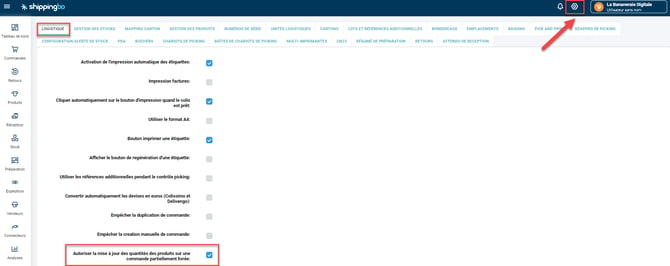
Example :
Once the option is enabled, you can modify the line item for an unshipped product in a partially shipped order. This modification will be automatically reflected in the WMS.
🔷 Note:
If the change is made to a sales source connected to an account WHOThe option to activate will be found in the connector settings on Shippingbo.
Example of the option in question for the Shopify connector on an account WHO :
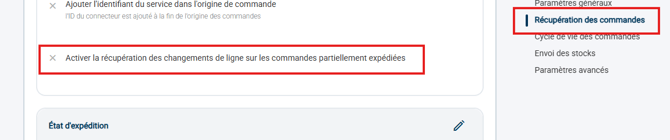
5. Use command line editing
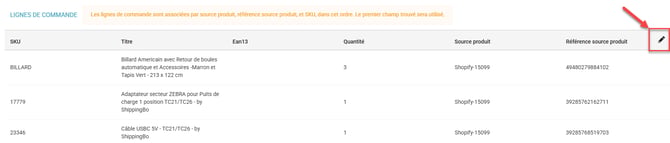
- Go to the details of the partially shipped order you wish to modify.
- Click the stylus icon to the right of the command line to make the change:
- Save the change:
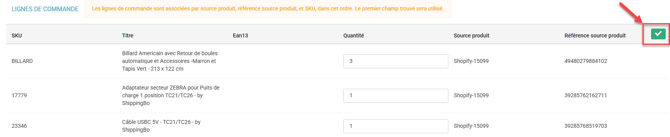
Example :
For an order with multiple product lines, if you change the quantity of an unshipped product, Shippingbo will update the order, and the WMS will automatically receive a new order including the changes made.
⚒️ Recommendation:
Before fully using the functionality described in this tutorial, it is strongly recommended to performa testing phasefollowing your own parameters to verify that the result meets your expectations. The remaining customerfully responsibleThese tests, based on actions performed on the Shippingbo account, are essential to ensure the tool can be used with complete peace of mind.
To go further 🛫:
Contact us 📬:
Questions about this feature? Feel free to write to us. here so that we can answer your questions.