.png?width=210&height=40&name=bleu%20et%20gris_Sigle+logo%20SBO%20(4).png)
Summary

-
Time saving: Quick PDA setup ready for use with the Shippingbo platform.
-
Error reduction: Keyboard and scan settings optimized to avoid incorrect input.
-
Seamless experience: Simplified navigation thanks to direct access to the application via a home screen shortcut.
-
Hardware compatibility: procedure adapted to Zebra TC21 and MC33 terminals.
2. Prerequisites✔️:
- To have a Zebra TC21 PDA Or MC33 charge.
- Having access to Wi-Fi network.
- To have a computer to transfer keyboard files.
3. Description of the functionality
This guide explains how to configure a PDA to prepare the device for its first boot with Shippingbo. This configuration includes:
-
the installation of a technical keyboard adapted for scanning
-
Configuring DataWedge to automatically send the key Entrance after each scan
-
Creating quick access to the web application PDA Shippingbo.
➡️ The objective is to obtain a terminal that is immediately operational for logistics operations (receiving, picking, shipping).
4. Activation and configuration
4.1 Initializing the PDA
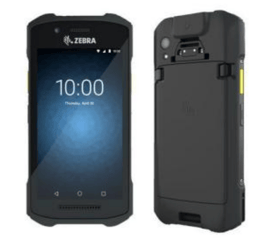
-
Insert the battery and turn on the device.
-
Select French (France) Then To start.
-
Enable Wi-Fi (updates can start).
-
Ignore all Google settings.
-
To the question Protect your device → Not now.
-
👉 For an MC33 PDA, skip directly to the next step 4.3 Regarding the DataWedge.
4.2 Keyboard Installation (optional)
- Contact Shippingbo's Customer Care service here for optimal configuration of your PDA's virtual keyboard.
4.3 Scan configuration (DataWedge)
-
Open the application DataWedge → Profile 0.
-
In Out of bounds :
-
Enable Keyboard event.
-
Tick Send Input as a string.
-
In Basic data formatting :
-
Tick Send the Enter key.
4.4 Access to the PDA application
-
Open a browser and go to:
👉 app.shippingbo.com/pda -
Scan the QR code to save the password.
-
Navigator menu (⋮) → Add to home screen.
-
Place the shortcut on the main page.
5. Example of practical application
A warehouse receives a new PDA for a receiving operator.
After configuration: the operator scans a product, validation is done automatically by sending the key Entrance, quick access to the application allows you to start receiving immediately.
➡️ The PDA can be set up in a few minutes to be operational.
⚒️ Recommendation
Before fully utilizing this feature, it is recommended to perform a testing phase according to your own parameters.
The customer remains fully responsible for the actions performed on their Shippingbo account.
To go further 🛫:
- PICK UP YOUR ORDER WITH YOUR PDA
Contact us 📬:
Questions about this feature? Feel free to write to us.hereso that we can answer your questions.