.png?width=210&height=40&name=bleu%20et%20gris_Sigle+logo%20SBO%20(4).png)

- Facilitates the shipment management and traceability with a precise summary of the contents of the packages.
- Improves the customer experience by offering a better transparency regarding the contents of the packages.
- Optimize the packaging process with a document containing all the important information about the order.
✔️ Prerequisites:
- Available from the pack Pro +.
- The functionality of the control picking must be activated on your account.
- The functionality is billedPlease contact your Shippingbo account manager to activate it.
1. How does the packing list work?
The packing list contains all the information related to the packages in an order, such as the shipping date, the number of packages, the type and dimensions of the boxes, and the detailed contents of each package. This document is generated and printed at the time of shipment, along with the other documents associated with the order.
Example : If you are shipping an order with multiple packages, the packing list will detail the contents of each package with the SKUs, quantities, weights, and dimensions.
2. Activate the packing list
To activate this feature on your Shippingbo account, you must submit a request to our support team. Once activated, the list will be automatically generated when the labels are created.
💠Noticed :
The list is generated only if a picking check is performed on the order. If this check is not performed, the list will not be available.
- To configure the shipping address on your packing lists, go to the menu Configurations -> Notifications and labels-> TabShipping addresses by origin. Then, follow our tutorial to Configure your shipping address by order source or origin.
3. Use the packing list
3.1 Retrieve the packing list
Once the packing list has been generated, you can find it in the tab Documents order details, under the name of Pre-generated document:
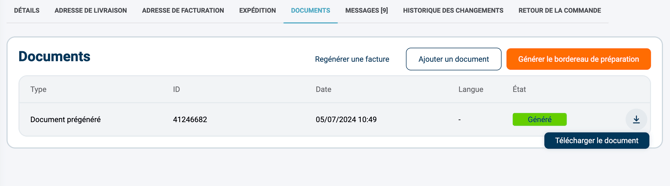
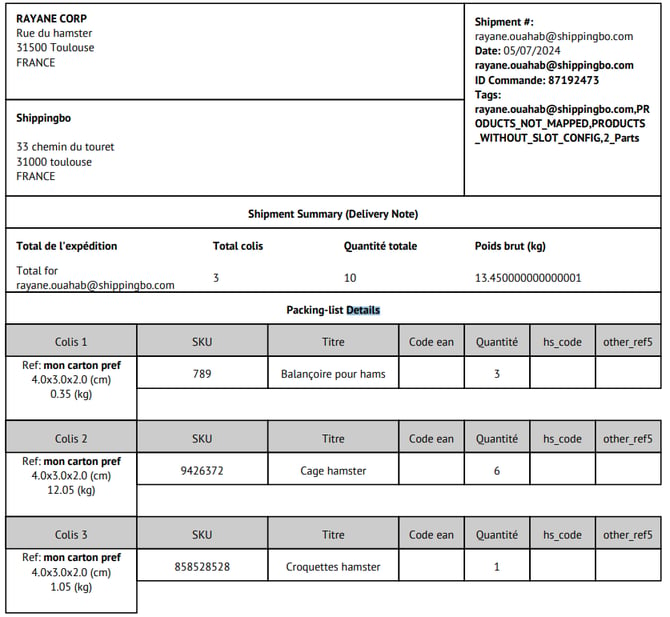
The document includes the following information:
- Shipping date
- Order number in Shippingbo
- Sender's and recipient's address
- Order tags
- Number of packages
- Type of cardboard used
- Dimensions and weight of each package
- Total quantity of products
- Product details: SKU, description, EAN, and quantities per package
- Product family (ref. from the "Other ref5" field)
- HS code
Example When shipping an order with multiple packages, the packing list will display the dimensions and weights of each package, as well as the corresponding products in each one.
3.2 Print the packing list
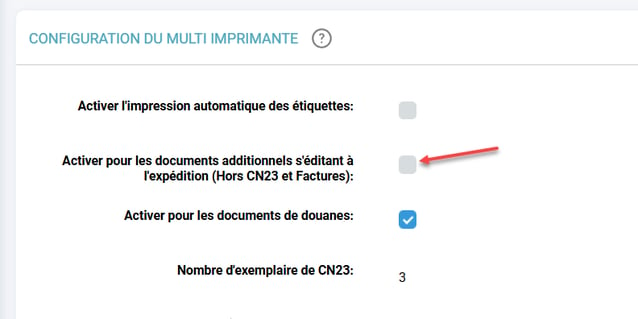
If you want the packing list to print automatically along with the label, go to Configurations → Logistics → Multi-Printersthen check the option Enable for additional documents generated upon shipment (excluding CN23 and invoices):
3.3 Send the packing list
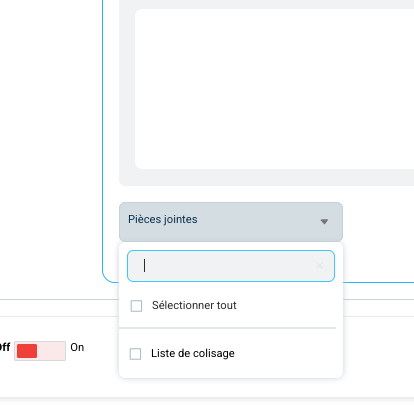
You can automatically send your packing list as an attachment when sending email notifications to your customers. To do this, go to your order shipment notifications and select "Packing list" as an attachment. For more information on email notifications, see our corresponding tutorial. here.
📢Attention :
Unlike other documents, the packing list is printed only once, even if multiple packages are included in the order.
⚒️ Recommendation:
Before fully using the functionality described in this tutorial, it is strongly recommended to performa testing phasefollowing your own parameters to verify that the result meets your expectations. The remaining customerfully responsibleThese tests, based on actions performed on the Shippingbo account, are essential to ensure the tool can be used with complete peace of mind.
To go further 🛫:
- Customize your preparation slips by source and origin
Contact us 📬:
Any questions about this feature?
Feel free to write to us here so that we can answer your questions.