.png?width=210&height=40&name=bleu%20et%20gris_Sigle+logo%20SBO%20(4).png)
Benefits of the feature ✨
- Improved traceability Precise monitoring of deliveries thanks to the direct link with the expected outcome.
- Stock reliability It avoids data entry errors and centralizes transactions.
- Time saving : Fast reception via product/location scan on PDA.
- Clear vision : Monitoring of reception sessions in your back office.
1. Prerequisites
- Available for Shippingbo packages working in advanced warehouse and with PDA.
2. How does the reception linked to an expectation work?
The operator uses the PDA to scan a delivery slip linked to an expected delivery, thus creating a reception sessionEach scanned product is automatically recorded in this session, ensuring complete traceability. You can also, under certain conditions, receive all the merchandise at once.
Example :
"If you receive a pallet of expected products, you scan your delivery slip, select the expected items, scan the received products, indicate the quantities, and then store them in the desired location. Everything is tracked and synchronized with Shippingbo."
💡 Trick :
Using a receiving session allows you to retrieve a Detailed history of stock variations related to what is expected. You will find it in Locations → Stock Variation Session.
3. How to receive goods?
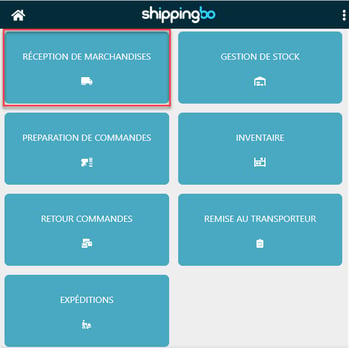
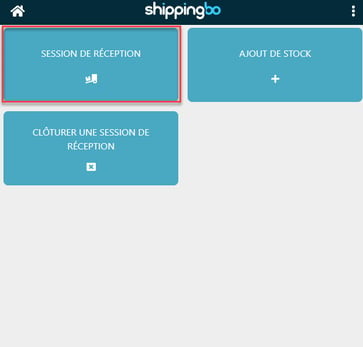
- Go to the menu Goods receipt → Receiving session on your PDA:
⭐ Key point:
It is essential to follow these steps to complete a reception session; otherwise, the link with the expected reception outcome will be lost. lost.
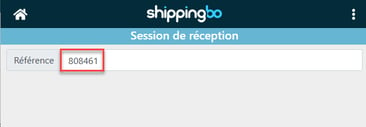
- Scan the delivery slip reference. This reference must be linked to an existing receipt:
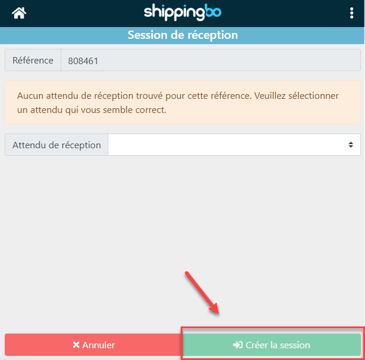
- Select the expected reception outcome corresponding to this reference, then create the reception session:
- A session opens and all stock additions made will be related to this expectation:
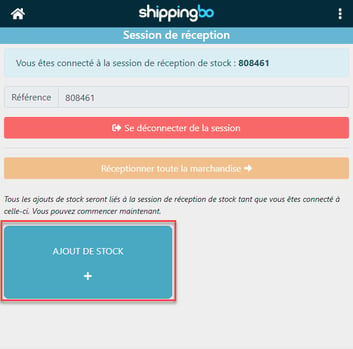
💡 Tip:
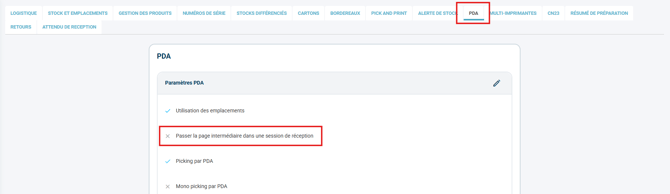
The button selection stepAdding stockcan be skipped automatically via the optionSkip the intermediate page in a receiving sessionin Configurations > Logistics > PDA:
-
Click on Adding stock Then scan the received products:
-
Each scan increments the quantity.
-
If necessary, enter the best before date or batch number before validation.
-
💠 Noticed :
A summary is displayed with the SKU, the expected quantity, its location, and a progress bar depending on the quantities received.
➡️ If the scanned reference does not exist, an error message will inform you.
-
Scan the storage location.
-
Shippingbo automatically suggests locations already used for the product.
-
A confirmation message is displayed after each addition.
-
- Repeat the operation for each product of the expected outcome.
-
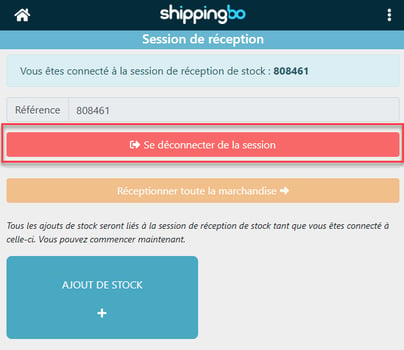
Log out of the session:
-
Go back to Goods receipt → Receiving session
-
Click on Closing a reception session if everything is received:
-
⭐ Key point:
If you do not finish the session, you can resume it via Adding stockand a message will indicate the current session.
💡 Tip:
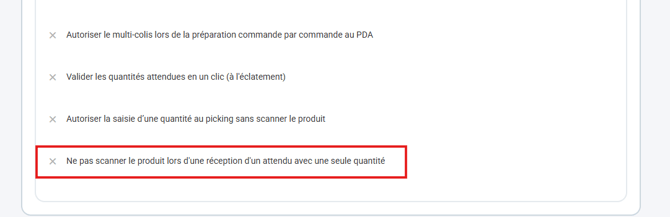
If you need to manage receiving orders containing only 1 product in 1 quantity, the optionDo not scan the product when receiving an order with only one quantityallows you to skip the product scanning step in Configurations > Logistics > PDA:
4. Configuration options for reception expectations
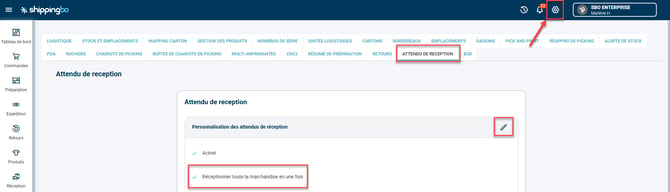
Several options are available to optimize and secure your receiving processes. To configure them, rgo to the menu Configurations → Logistics → Expected delivery date:
-
Tick the option Receive all the merchandise at once :
-
- Checking this option unlocks a new button on the PDA:
On the PDA, after opening the receiving session, you can click on the option Receive all the merchandise.
- Checking this option unlocks a new button on the PDA:
⭐ Key point:
This option requires two conditions to work:
-
No product should have a Best before date or batch number
-
The location used must be multi-product
➡️ The stock is added automatically in an empty location
-
Tick the option Enable strict reception :
-
Once selected, this option prevents the validation of more products than expected in the receiving order. It thus blocks the entry of larger quantities to avoid unintentional over-receipts.
-
-
Tick the option Automatically close the expected process upon complete receipt. :
-
When it is checked, this option allow to close the receipt of goods as expected automatically as soon as all expected quantities are reached on the ground.
-
- Tick the option Allow multiple expected reception :
- Checking this option allows access to this reception mode on the PDA.
➡️ More information in the dedicated tutorial: MULTI-EXPECTED RECEPTION ON THE PDA.
- Checking this option allows access to this reception mode on the PDA.
5. Example of practical application
You are an e-commerce retailer specializing in cosmetics. You receive a large restock of creams and serums, as expected in a delivery receipt.
You scan the slip with your PDA, select the expected item, then begin the receiving process.
Each product is scanned, placed in its location, and the quantity is updated in Shippingbo.
Result : your stock is accurate, the locations are up to date, and the receipt is tracked.
➡️ Reception sessions allow for a clear follow-up even if the reception is spread over several days.
To go further 🛫:
- Complete a goods receipt related to your expected delivery outside the advanced warehouse
Contact us 📬:
Any questions about this feature?
Feel free to write to ushere so that we can answer your questions.