.png?width=210&height=40&name=bleu%20et%20gris_Sigle+logo%20SBO%20(4).png)
Benefits of the feature ✨
- Optimizing time and travel : Overall collection limiting back-and-forth trips and improving the fluidity of the process.
- Increased productivity Separation of tasks (picking and sorting) allowing for greater efficiency and a reduction in errors.
- Improved quality and speed of service Fewer preparation errors, faster shipping and better management of peak activity.
1. Prerequisites
- Feature available from the Premium Pack + with PDA option, or from the Expert+ Pack.
- To have a PDA For scan the products And the fixed apiary boxes.
- You must have already set up your fixed apiary. More information is available in the dedicated tutorial: SET UP YOUR PERMANENT APIARY.
- Having taken note of the Part One of the process in the dedicated tutorial: PREPARATION PROCESS AT THE FIXED APIARY (1/2) - Global Picking.
⭐ Key point:
To start a burst session on your PDA, he is essential that the products of your preparation session have previously been picked using your PDA.
➡️ This condition is mandatory for splitting to a PDA, unlike splitting to a computer (PC) where this step is not required.
More information about the PC burst session can be found in the dedicated tutorial: PREPARATION PROCESS FOR THE FIXED APIARY (2/2) - Splitting the apiary on the PC.
2. How does the burst session work?
The splitting process allows the picked products to be distributed into cells within a beehive, where each cell represents an order. This facilitates the preparation of shipments.
Example You have finished a picking session and collected all the products. Using a sorting system, you place each product in a slot corresponding to an order. This allows you to group the products by order for easier shipping.
3. Activate the burst session
Activation of the bursting sessions is done automatically after picking, but it is necessary to configure your apiaries beforehand.
-
Configure the apiaries You have already configured your apiaries by following the dedicated tutorial. here.
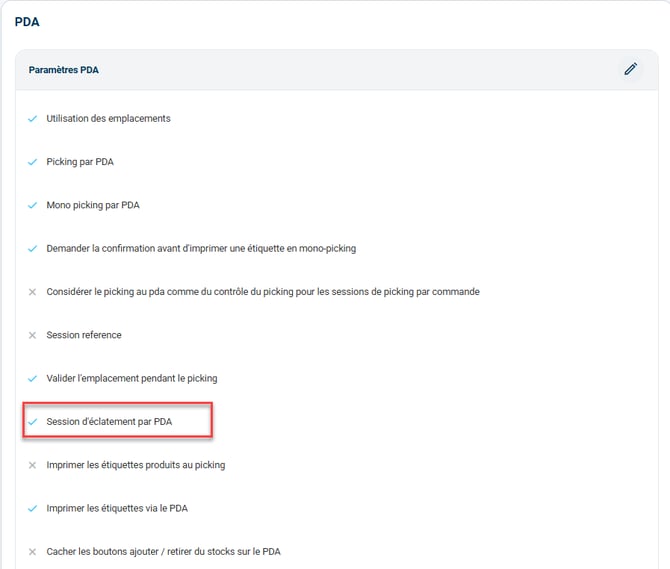
- Tick the option PDA burst sessionTo activate this option, go to Settings > Logistics, then to the tab PDA :
4. Use the burst session
4.1 Create a burst session from your PDA
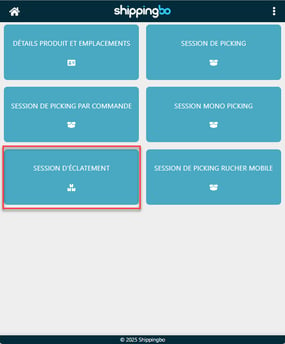
- Open the menu Order preparation Then Explosion session on your PDA:
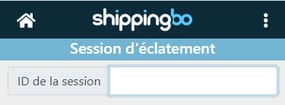
- Flash The barcode for your preparation session:
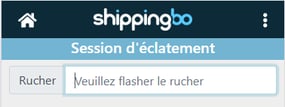
- Flash your apiary's barcode for identification:
- Flash a product (EAN or SKU):
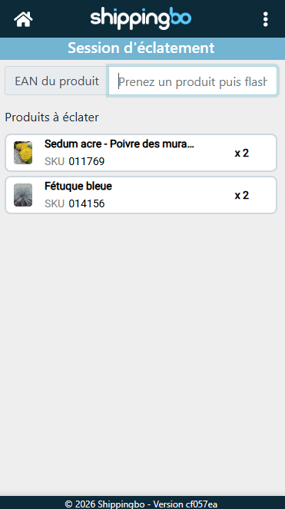
- Flash the box indicated on your PDA to place the product in this box:
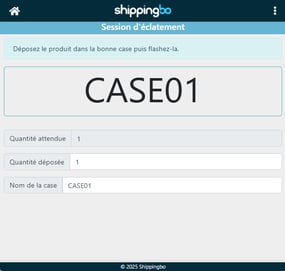
- Repeat these steps for all products in your prep session.
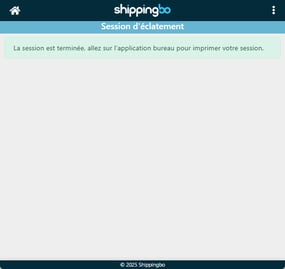
- A message will appear on your PDA once the explosion is complete, prompting you to finalize the operation on your computer:
💡 Tip:
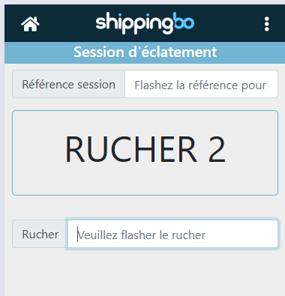
To resume an interrupted bursting sessionYou simply need to scan the session barcode again (as if you were starting it). If the session has already started, the PDA will automatically display a screen asking you to confirm that you are on the correct apiary in order to continue:
4.2 End the bursting session on your computer
- Access your preparation session via your workstation and click on Resume the burst session:
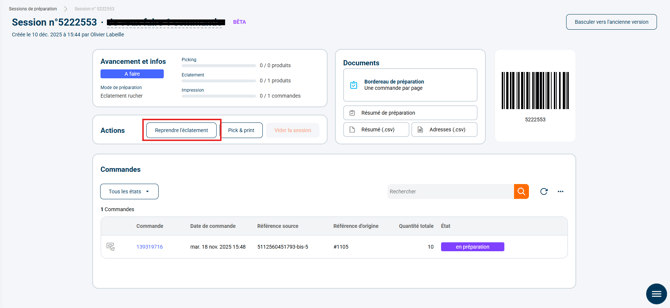
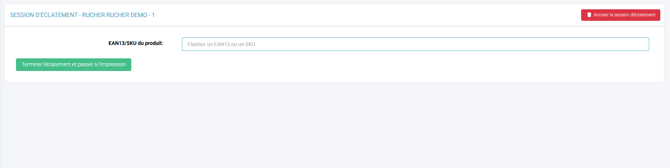
- Flash the prFirst box containing products (1 box = 1 order):
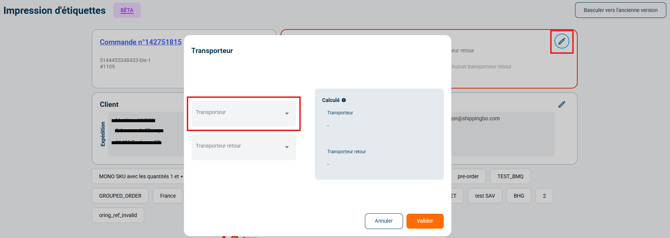
- Select the carrier for this order:
- Click on Print to generate the shipping label.
- RepeRepeat the operation for each box until all orders are shipped.
🚩 Special case:
If some commands are incomplete, a message will warn you when you scan the relevant box.
You can choose not to ship these orders by clicking on Exit the run and empty the box.

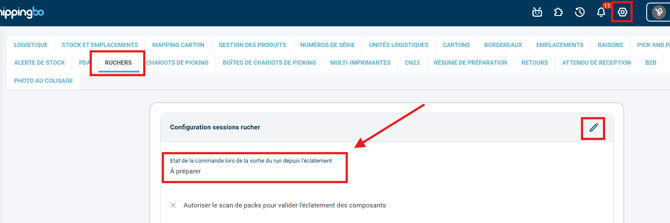
➡️ These orders will then change to the status To prepare Or Awaiting stock availability depending on the status indicated in the option Order status upon exiting the run from the burst, In Configurations > Logistics > Apiary :
➡️ In the case of an incomplete order, if you have configured thePartial shipmentYou will have the choice between Exit the run and empty the box, to postpone order preparation; or Ship partially.
More information on setting up partial shipments here: PARTIAL SHIPMENT OF AN ORDER.
6. When all your orders have been shipped and your boxes are empty, then click on End of print sessionto finish this splitting session and empty the apiary.
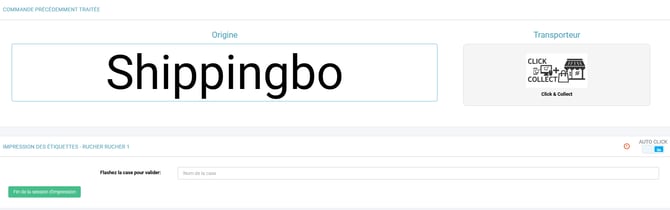
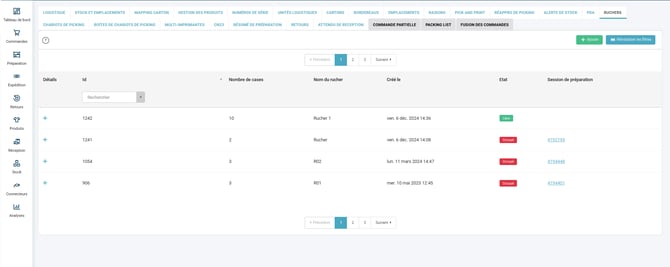
✅ You have completed the fixed apiary preparation process on PDA.
⚒️ Framework and responsibilities:
Before fully using the functionality described in this tutorial, it is strongly recommended to performa testing phasefollowing your own parameters to verify that the result meets your expectations. The remaining customerfully responsibleThese tests, based on actions performed on the Shippingbo account, are essential to ensure the tool can be used with complete peace of mind.
To go further 🛫