.png?width=210&height=40&name=bleu%20et%20gris_Sigle+logo%20SBO%20(4).png)
Summary

- Customization : Use your own email address to build customer trust.
- Security Emails are sent via your own SMTP server, ensuring secure communications.
- Flexibility : Possibility to configure different addresses depending on the command sources or notification types.
2. Prerequisites ✔️:
- This feature is available for all Shippingbo packs.
- This feature requires a server SMTP is working.
📢 Attention :
To use this feature you must use an "SMTP Server" (Simple Protocol for Email TransferAn SMTP server is required to enable sending and securing emails with your personalized address.
This system avoids sending emails directly on your behalf. Instead, we make a call to your SMTP server, which then triggers the email sending and ensures its delivery to the recipient.
That's why we don't intervene in the configuration or troubleshooting of your SMTP server. However, we need this service to be functional for our email sending system with personalized email addresses to work.
💡 Tip:
Your Gmail address may use Google's SMTP servers. More information on how to use this system here.
➡️ However, Google's SMTP servers via Gmail limit email sending to 200 per day. This solution is therefore not suitable for use with large volumes.
3. How does a notification sending email address work?
Shippingbo allows you to replace the generic email no-reply@shippingbo.com via a personalized address for sending notifications and invoices. This configuration requires the use of an SMTP server to ensure the security and sending of emails.
Example :
You want your customers to receive shipping notifications with your own email address instead of the default Shippingbo address.
4. Activate your email address configuration
Steps to set up a sending email address:
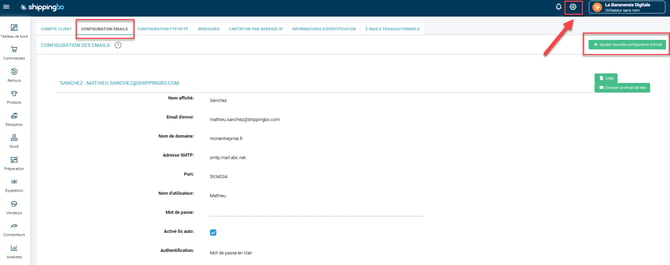
- Go to the menu Configurations → Accounts → Email configuration and click on "Add new email configuration":
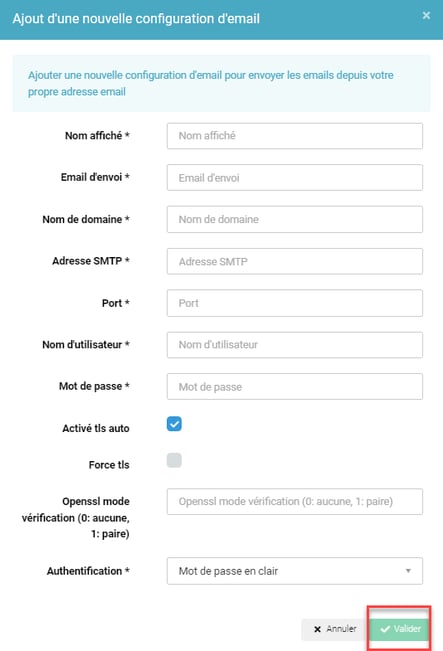
- Please fill in the required fields:
-
Display nameThe name displayed in your customers' email inbox
-
Sending emailThe email address used for sending.
-
Domain name : The domain name (to be retrieved from your SMTP server). Example: mycompany.fr
-
SMTP address SMTP address (to be retrieved from your SMTP server). SMTP stands for Simple Mail Transfer Protocol. It is a communication protocol used to send and receive emails over the Internet, for example: smtp.mail.abc.net.
-
Port587
-
Username: login to your email account
-
Password: password for your email account
-
TLS automatic activation : depending on your SMTP server configuration
- Force tls : depending on your SMTP server configuration
- OpenSSL mode verification : depending on your SMTP server configuration
-
AuthenticationLeave your password in plain text
Click on "Validate" once the information has been entered.
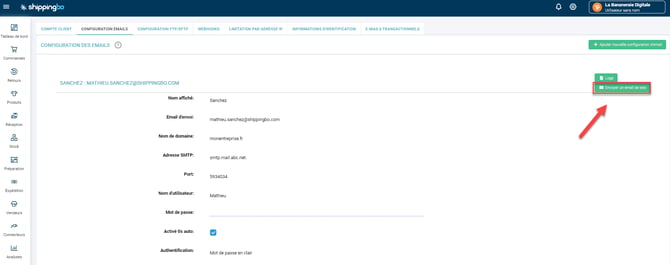
3. Send a test email to check the configuration:
5. Use a personalized email address for invoices and notifications
Configure invoice sending with your email address:
-
Terms :
- You must have activated the option Bill on your account. To request activation of this feature, please contact your account manager at Shippingbo.
- This feature may involve additional costs.
-
Configuration steps :
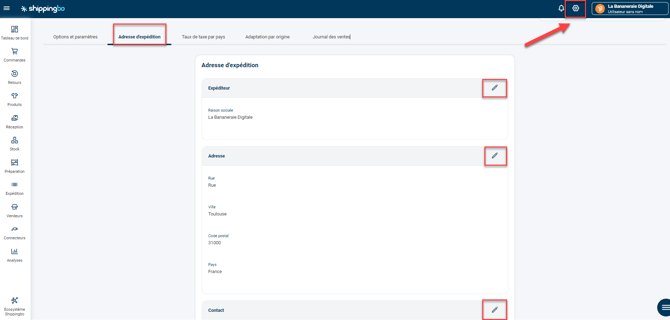
- See you in Settings → Billing → Shipping Address, Then fill in the requested information:
You can also customize this configuration according to the source or origin of the commands. To learn more about this, you can consult our tutorial. here.
Example :
You activate the sending of your invoices with the personalized email invoices@mycompany.fr for all orders originating from a particular source.
Configure email notifications:
- Go to Settings → Notifications and labels → Status notifications.
- In the field Sending emailSelect the custom email to send notifications to customers when order status changes.
Example :
Your customers will now receive status change notification emails (e.g., "order shipped") from the address notification@mycompany.fr.
⚒️ Recommendation:
Before fully using the functionality described in this tutorial, it is strongly recommended to performa testing phasefollowing your own parameters to verify that the result meets your expectations. The remaining customerfully responsibleThese tests, based on actions performed on the Shippingbo account, are essential to ensure the tool can be used with complete peace of mind.
To go further 🛫:
- Order status change notification and invoice sent by email
FAQ ❔:
Contact us 📬:
Questions about this feature? Feel free to write to us. here so that we can answer your questions.