.png?width=210&height=40&name=bleu%20et%20gris_Sigle+logo%20SBO%20(4).png)
Benefits of the feature ✨
- Structured organization : Optimized bursting thanks to a clear distribution of commands in each box.
- Increased efficiency Reduces preparation errors by assigning each product to a specific box corresponding to an order.
- Flexibility : Possibility of easily updating the boxes and apiaries as needed.
1. Prerequisites
- Available from Premium+ package with PDA option Or by default starting from Expert+ Pack.
2. How does a fixed apiary work?
The fixed apiary consists of several compartments, each corresponding to a specific order. This configuration allows for the efficient distribution of products after picking.
Example During a picking session, products are placed in different bins according to the orders. Each bin represents a single order, thus facilitating the distribution of items.
3. Activate and configure the fixed apiary on Shippingbo
1. Create a fixed apiary manually
- In your Shippingbo account, go to Configurations → Logistics → tab Apiarythen click on Add :

- Give your apiary a name, then click on To validate :
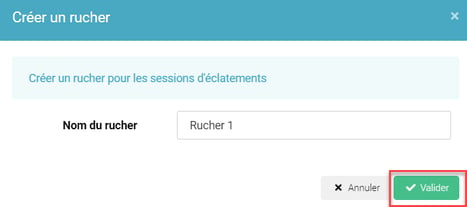
➡️ The apiary is now visible in the tab Apiary.
➡️ If needed, you can archive your apiaries in this view via the button ArchiveThe apiary must be empty :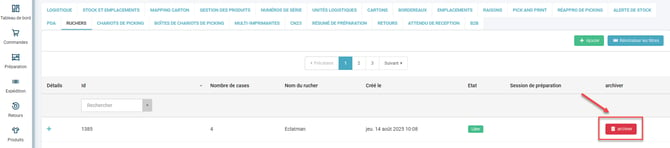
2. Create a fixed apiary by importing
- See you in Configurations → File management → Import → Apiary :
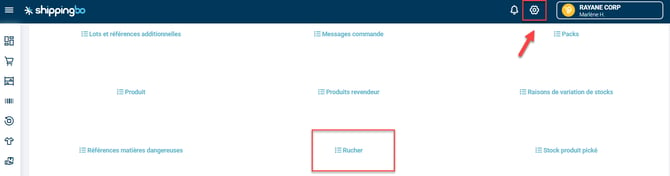
-
Click on Import a fileThen select the action to perform:
- Create to create new apiaries.
- To update to modify existing apiaries.
Download the example file to prepare your import:
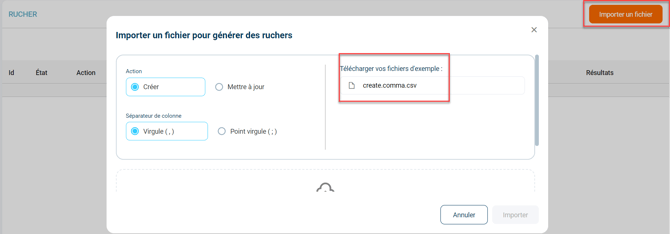
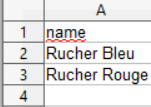
- Fill in the file with the names of your apiaries in column A name :
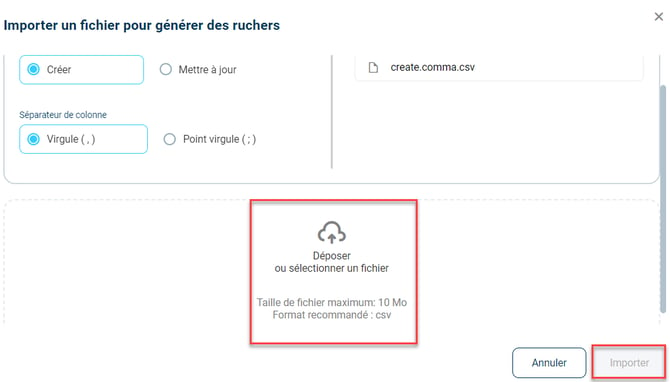
- Import the file by clicking on Upload or select a file:
 Once the file is imported correctly, your apiaries will appear in Configurations → Logistics → Beehives.
4. Create the apiary boxes
Once your apiaries are created, you need to configure the boxes. Each box corresponds to a command.
1. Create the apiary boxes manually
- Go to Configurations → Logistics → Apiary and go into detail about the apiary to be configured:
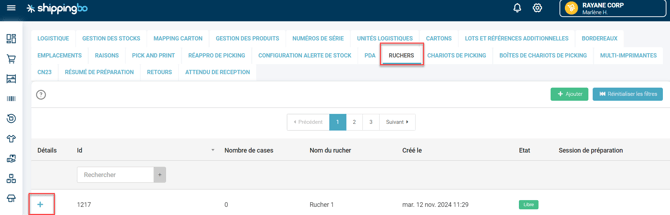
- Click on Add a boxEnter the name of the box, then click on To validate :

- Repeat this step to add all the necessary boxes.
2. Create the apiary boxes by importing
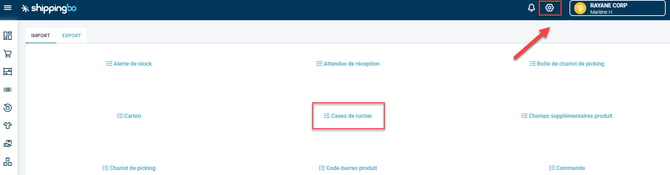
- See you in Configurations → File management → Import → Apiary boxes :
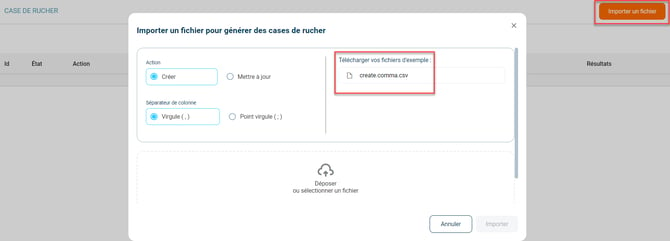
- Click on Import a fileThen select the action to perform:
- Create to add new boxes.
- To update to modify existing cells.
- Then, download the example file:
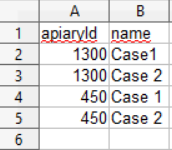
- Fill in the file with the apiary ID in the column A (apiaryId) and the names of the cells in the column B (name) :
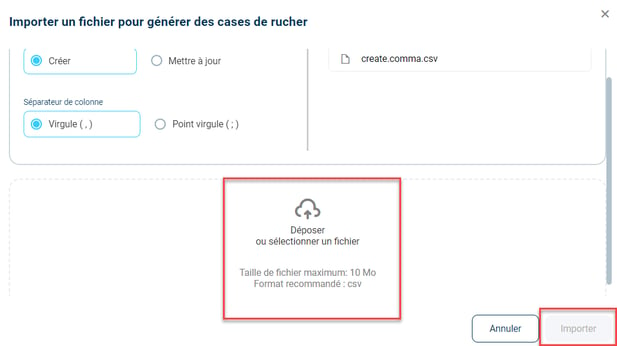
- Import the file by clicking on Drop or select a file :
5. Update the apiary boxes
You can change the names of the boxes at any time, either manually or by importing them.
1. Edit manually
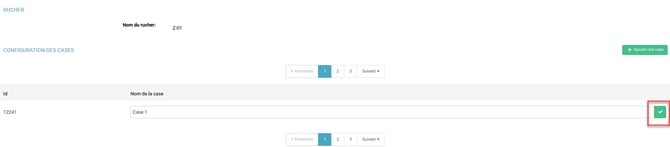
Go to your apiary details and click the pencil icon to the right of the cell name to edit it. Once you have entered the new name, click the green checkmark to confirm.
2. Modify by importing
- See you in Configurations → File management → Import → Apiary boxes and check Update :
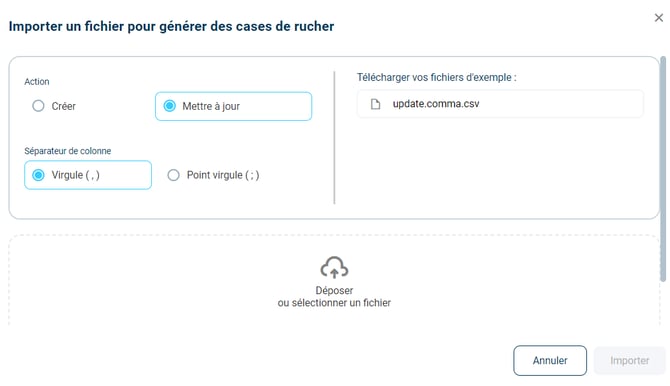
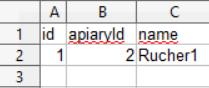
- Download the example file. Fill it in with the ID of the cell in the column A (id)the apiary ID in the column B (apiaryId) and the new name in the column C (name) :
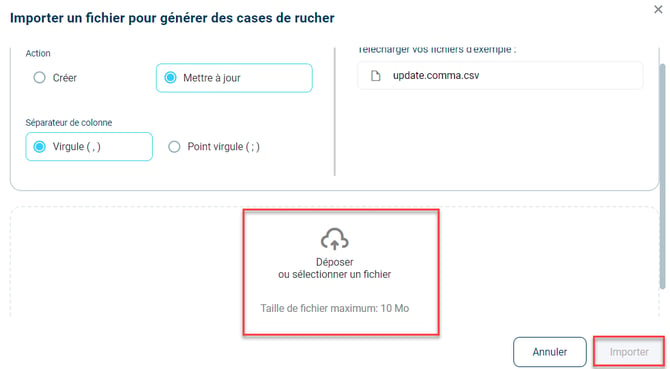
- Import the file by clicking on Drop or select a file :
⚒️ Framework and responsibilities:
Before fully using the functionality described in this tutorial, it is strongly recommended to performa testing phasefollowing your own parameters to verify that the result meets your expectations. The remaining customerfully responsibleThese tests, based on actions performed on the Shippingbo account, are essential to ensure the tool can be used with complete peace of mind.
To go further 🛫:
- Perform your picking using your PDA
Contact us 📬:
Any questions about this feature?
Feel free to write to us here so that we can answer your questions.