.png?width=210&height=40&name=bleu%20et%20gris_Sigle+logo%20SBO%20(4).png)
Benefits of the feature ✨
- Optimized time and movements: Global collection limiting back-and-forth trips and improving the flow of the process.
- Increased productivity: Separation of tasks (picking and sorting) allowing better efficiency and fewer errors.
- Higher quality and faster service: Fewer preparation errors, faster shipment and better handling of peak activity.
1. Prerequisites
- Feature available from the Premium + pack with the PDA option, or from the Expert+ pack.
- Have a PDA to scan the products and the fixed apiary slots.
- Have already configured your fixed apiary. More information in the dedicated tutorial: CONFIGURE YOUR FIXED APIARY.
- Have read the first part of the process in the dedicated tutorial: FIXED APIARY PREPARATION PROCESS (1/2) - Global picking.
2. How apiary sorting works
Once the picking of your preparation session is finished, sorting sessions let you sort your products to distribute them into an apiary.
An apiary is a sorting unit with a certain number of slots: one slot corresponds to one order. Once all your products have been collected during your picking session, this feature lets you group them by order and easily ship these orders afterwards.
➡️ The rest of this tutorial describes the apiary sorting session on the PC. If you want to run the sorting session from your PDA, please follow the dedicated tutorial: FIXED APIARY PREPARATION PROCESS (2/2) - Apiary sorting on the PDA.
3. Running your sorting session
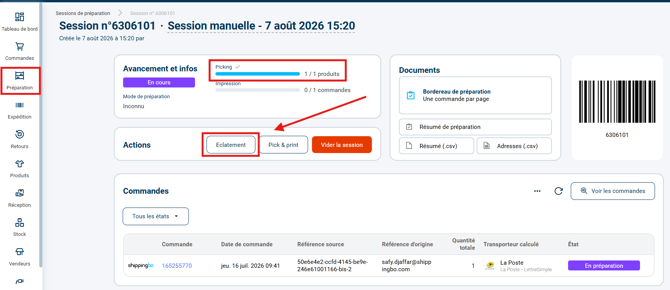
Step 1: In the Preparation pane, select a preparation session for which you have done your picking session.
Click on the Sorting button in the Actions section to start a sorting session :
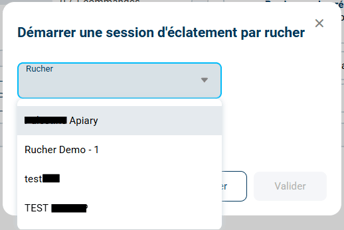
Step 2: In the window that appears, select from the drop-down list the apiary in which you want to sort the orders of your preparation session:
Step 3: Once you have selected the apiary you want to use, start scanning your products so that Shippingbo tells you in which slots to place them:

Step 4: After scanning the product, Shippingbo shows you the slot in which to place it. At this point, scan the slot to confirm your action:
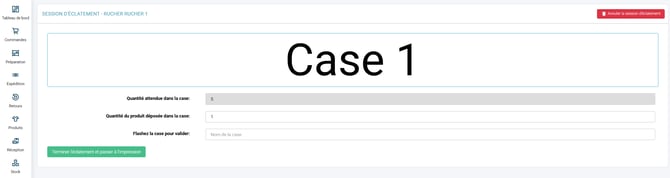
➡️ If you scan a product that belongs to an order whose picking was incomplete, you will be asked to scan the restocking bin to put the product in it
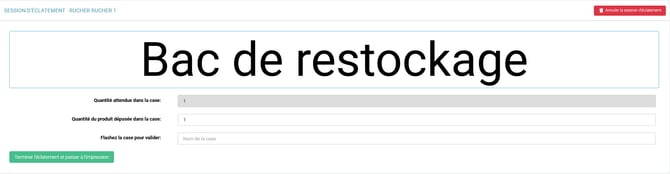
Step 5: When you have finished your sorting session and all your products have been assigned to a slot (order), click on the "Finish sorting and go to printing" button.

If the picking was incomplete and you had to put products in the restocking bin, when you click on the button, you will have to remove the orders from the run in order to proceed with printing.

Step 6: Scan the 1st slot and you will access the printing page. If you have automated label generation, the label will come out as soon as you scan your apiary slot.
Once the first label is generated, the screen takes you back to the page where you scan the apiary slots, and you will need to scan all your slots in turn.

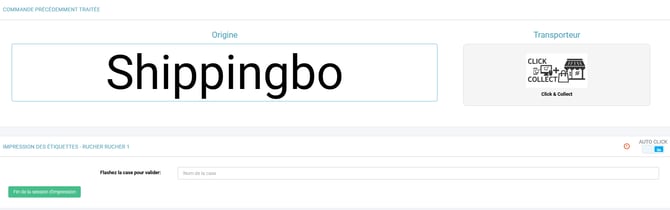
When all your orders have been shipped and your slots are empty, click on "End of printing session" to finish this sorting session and empty the apiary.
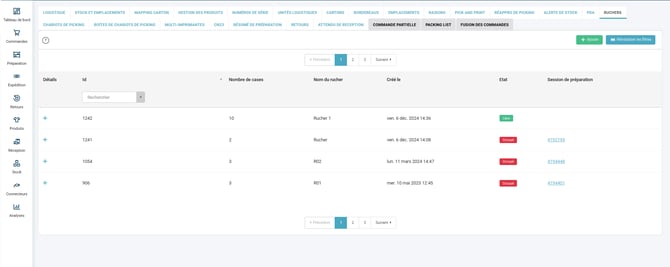
✅ You have completed the fixed apiary preparation process.
For more information, we also invite you to watch our video describing how the fixed apiary preparation process works:
⚒️ Framework and responsibilities:
Before fully using the feature described in this tutorial, we strongly recommend running a test phase with your own settings to check that the result matches your expectations. As the customer remains fully responsible for the actions carried out in the Shippingbo account, these tests are essential to use the tool with complete peace of mind.
Contact us 📬:
Questions about this feature? Feel free to write to us here so that we can answer your questions.