.png?width=210&height=40&name=bleu%20et%20gris_Sigle+logo%20SBO%20(4).png)

Automatic document printing: as soon as an order is validated, the shipping label (and other documents if needed) is printed automatically, which speeds up the shipping process.
Use of the PDA: preparation and picking management is centralized on the mobile terminal, optimizing operators' mobility and productivity.
Picking reliability: only the exact references of the order can be scanned, which prevents product or quantity errors.
Prerequisites✔️:
- Available from the Pack Premium + with PDA
- Use the PDA to prepare your orders
- Print carrier labels via the PDA (network print server)
The single-order preparation process allows you to process your orders one after the other, performing the picking and label printing for each order.
It is particularly suited to picking orders with many product lines or preparing orders with bulky products
1. How does the Mono Picking session via PDA work?
Mono Picking order preparation via PDA displays the products of one order at a time so that you can scan them one by one. When all the products of an order are picked, the shipping label is printed and you can move on to the next order.
Example: For a preparation session containing several orders, the PDA will first display the products of one order. Once these products have been scanned and picked, the label is generated automatically before moving on to the next order.
2. Enable the Mono Picking session via PDA
Go to Configurations → Logistics → PDA, then check the following options:
- Mono picking via PDA
- Print labels via the PDA
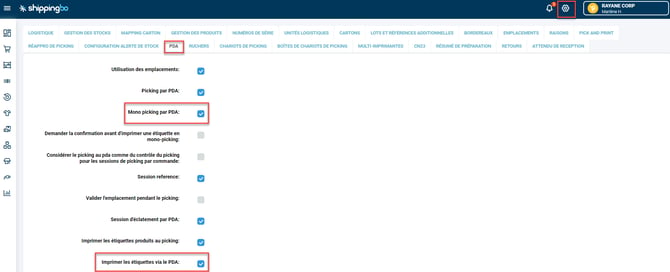
3. Use the Mono Picking session via PDA
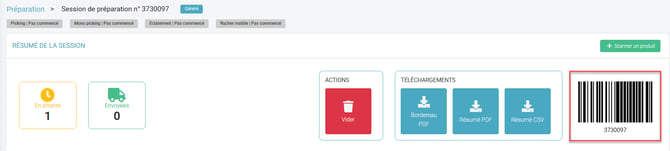
- In the Preparation menu, generate a preparation session with your predefined filters. Then, retrieve the ID of this session:
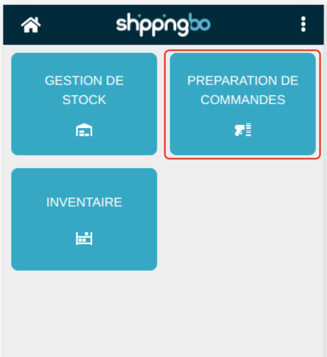
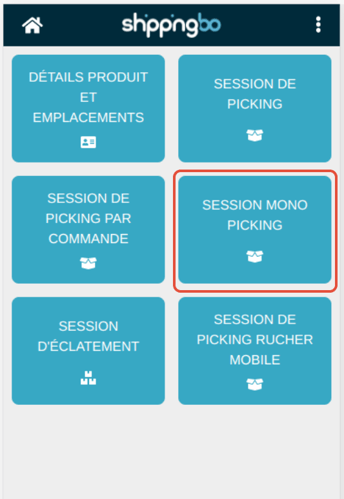
- On the PDA, go to the Order preparation menu, then select Mono Picking Session:
- Scan your session ID to start:
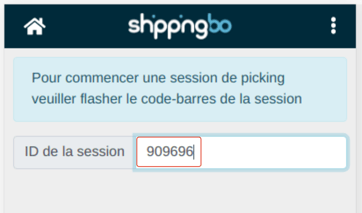
- Scan each product of the first order following the instructions displayed on your PDA:
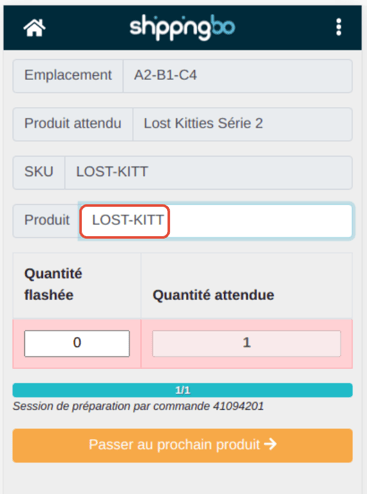
Note:
You cannot scan an additional reference or a pack.
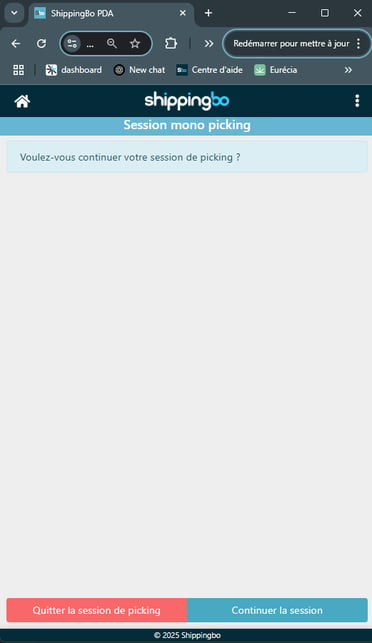
5. Once all the products in the order have been scanned, the shipping label is printed and you must click on Continue session to continue picking the remaining orders :
6. Repeat the previous steps for each order in the session until all orders are picked and ready for shipment.
4. Retry the shipment in case of error
💠Note:
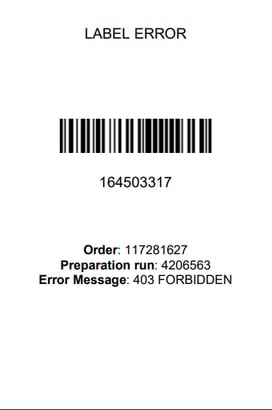
If any information is missing to generate the shipping label, an error label will be printed.
- An error label with the following information will be generated:
- Parcel number
- Order number
- Preparation session number
- Error message
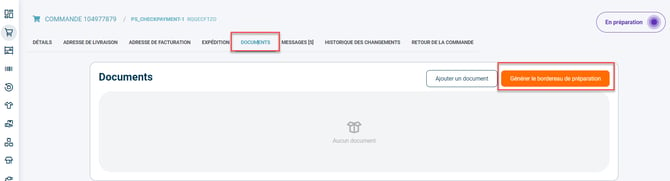
2. In the Shippingbo interface, go to the details of the order concerned, open the Documents tab, then click on Generate preparation slip:
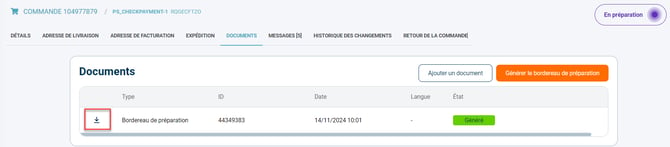
3. Select the carrier and download the slip:
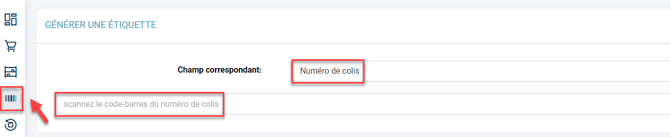
4. Scan the error label in the Generate a label menu to fix the blocking issues and restart the generation of the shipping label:
To go further 🛫:
- Configure the multi-print print server for the PDA
- Single-order preparation process