.png?width=210&height=40&name=bleu%20et%20gris_Sigle+logo%20SBO%20(4).png)
- Simplified partial shipment: Quickly ship an order even if not all products are available yet.
- Automated backorder management: Backorders are created automatically for the remaining products.
- Workflow optimization: Simplifies the logistics process, with integrated management of labels and shipments.
Note:
To enable the order splitting at shipment feature, please make a request to our support team.
Prerequisites ✔️:
- Have a Shippingbo Expert + pack.
- Have configured the mobile apiary, the picking carts and the corresponding boxes.
1. How does order splitting at shipment work with the mobile apiary?
This feature makes partial order shipment easier. You can split an order into several parcels depending on how the products were prepared via the mobile apiary.
Example: If an order contains several items and you have only prepared some of them, you can ship the ready items while automatically generating a backorder for the remaining items.
2. Enable order splitting at shipment with the mobile apiary
To enable this feature, you need to contact Shippingbo support so that they can activate it.
3. Use order splitting at shipment with the mobile apiary
Prepare your order with the mobile apiary
-
Start the picking session
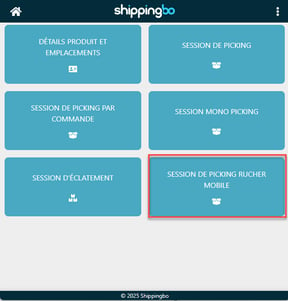
From the PDA, go to the "Order preparation" menu and select "Mobile apiary picking session":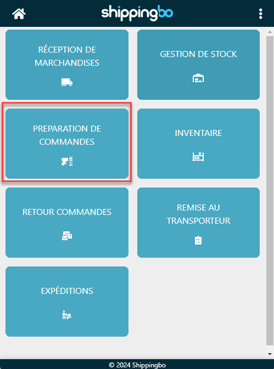
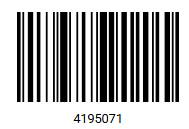
- Scan the session ID
Scan the ID of the session generated during preparation: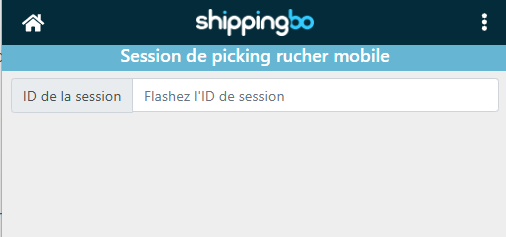
- Pair the cart and the boxes
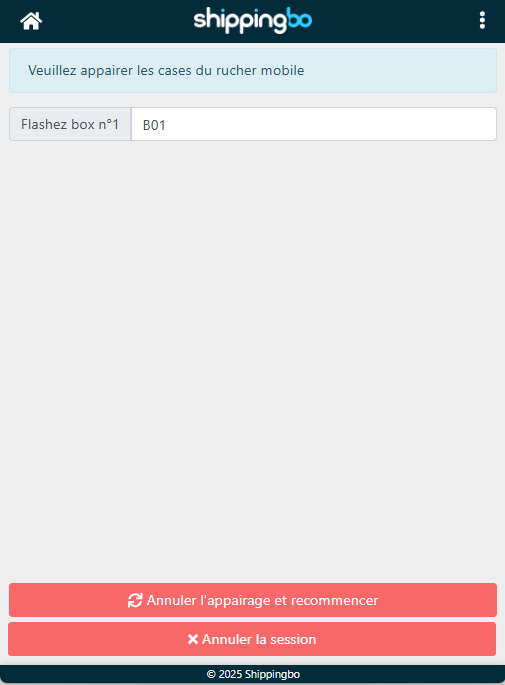
Scan the barcode of the cart, then scan the boxes (the number of boxes matches the number of orders in the session)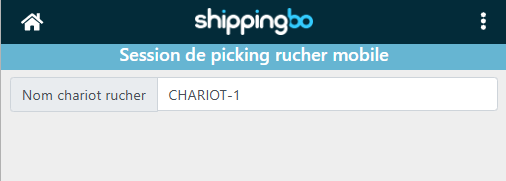
- Pick the products
You can scan the products without having to prepare the full requested quantity, if necessary: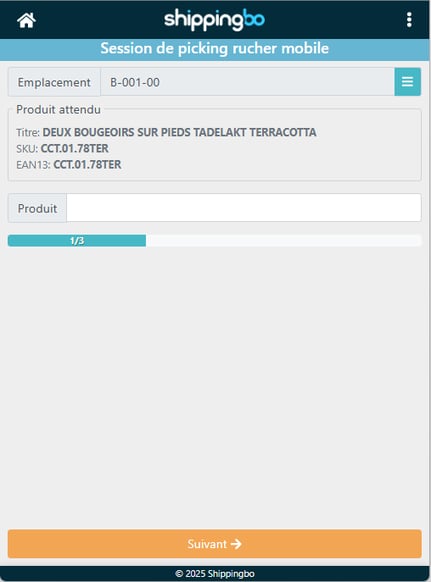
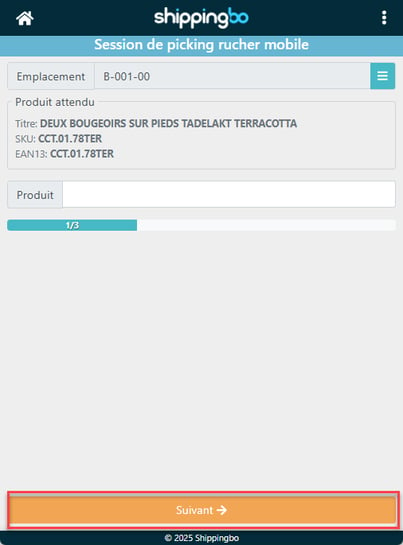
If products are not available, you must press Next
- Scan the designated box
Scan the box indicated by the PDA to confirm that you are placing the products in the right box.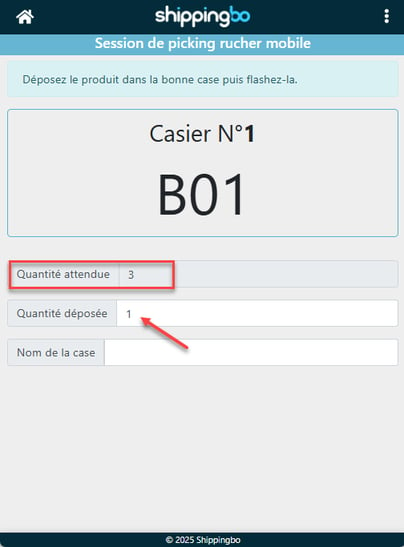
-
Validate the partial picking
When you have finished picking, an error message will be displayed to indicate a partial picking, and you will have the choice to validate or to resume the preparation: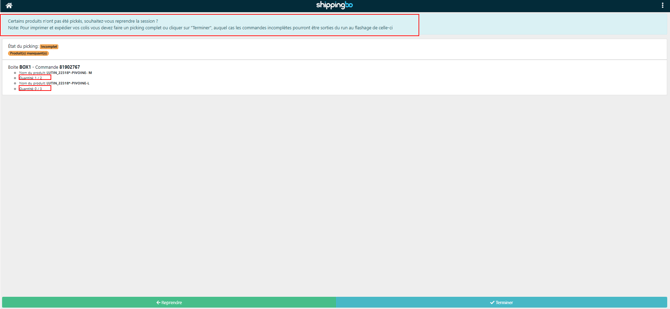
Generate the shipping labels
-
Access the Shippingbo account
From your computer, go to the Shipment -> Picking cart printing menu and scan the box of the apiary cart in the field provided:
-
Partial shipment
An error message will appear to indicate that the picking is incomplete. Then click on Ship partially:

Note:
If you use picking control, declare the number of parcels, carry out the item check, then click on Ship partially:

3. Label generation
Once the label is generated, the order changes to the "Shipped" status in the WMS. A backorder will be automatically created for the products that were not prepared:

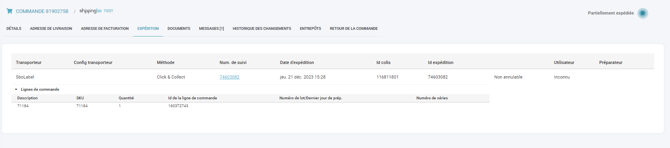
4. Tracking in the OMS
In the OMS, the order will appear with the "Partially shipped" status:
Note:
The partial picking process automatically generates a backorder for all items that have not yet been shipped.
📢 Warning:
It is essential to configure the mobile apiary correctly and to make sure that all boxes and carts are properly set up in your Shippingbo account.
⚒️ Recommendation:
Before fully using the feature described in this tutorial, we strongly recommend running a test phase with your own settings to check that the result matches your expectations. As the customer remains fully responsible for the actions carried out in the Shippingbo account, these tests are essential to use the tool with complete peace of mind.
To go further 🛫:
- Configure your mobile apiary
Contact us 📬:
Questions about this feature?
Feel free to write to us here so that we can answer your questions.