.png?width=210&height=40&name=bleu%20et%20gris_Sigle+logo%20SBO%20(4).png)
Benefits of the feature ✨
-
Time savings: Immediate access to product and location information by scanning barcodes.
-
Improved visibility: Accurate real-time tracking of available and reserved stock.
-
Stock management optimization: Better replenishment planning thanks to a clear view by location.
1. Prerequisites
- This feature is available from the Premium + pack.
- Feature intended for e-merchants using advanced stock management in Shippingbo.
2. How to view the details of a product or a location?
This feature allows you to check the availability of products in different locations or access stock-related information, such as the total virtual stock in Shippingbo and the stock reserved per location.
Example: You receive a large order for a specific product. By scanning its barcode, you instantly access the available stock, the reserved stock and the exact location in the warehouse.
3. Enable viewing the details of a product or a location
3.1 Go to the Stock management section from your PDA.
- Navigate to Product and Location Details.
- Make sure the option is enabled in the module configuration.
- Go to the "Product and Location Details" module via the Stock management: menu
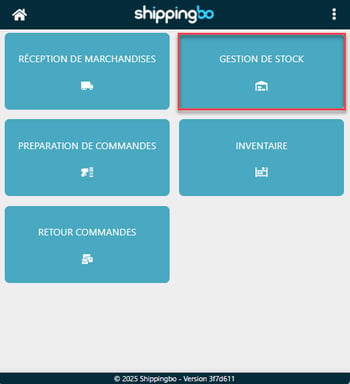
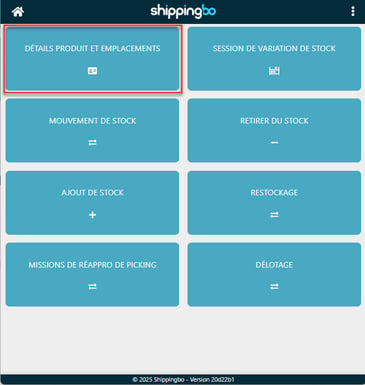
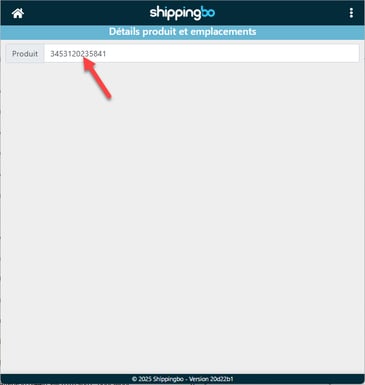
2. Scan the barcode of your product or location to display the details:
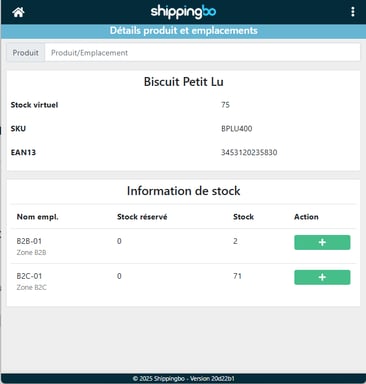
3. Review the information available:
-
- Virtual stock: Total stock of the product in Shippingbo.
- Location: Quantity of stock reserved and present in the selected location.
📢 Warning:
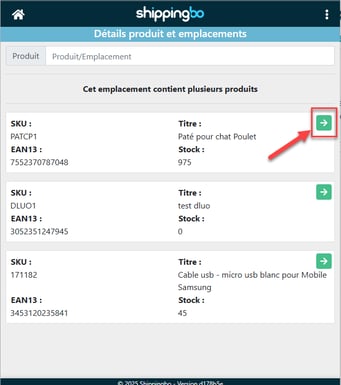
If you are in "multi-product" mode per location, all the products in the location will be displayed. You can then click on "Details" to get the information specific to each product:
💠 Note:
If you want to make a stock entry from this menu, see the following tutorial: Make a stock entry from a product rather than a location.
To go further 🛫:
- Configure a usage for a location
- Create locations manually and by import
- Create a location from your PDA
Contact us 📬:
Questions about this feature?
Feel free to write to us here so that we can answer your questions.