.png?width=210&height=40&name=bleu%20et%20gris_Sigle+logo%20SBO%20(4).png)
Benefits of the feature ✨
- Increased productivity: process more B2B orders in less time.
- Guaranteed compliance: compliance with Amazon FBA standards and customs obligations.
- Logistics reliability: granular tracking from the pallet down to the shipped unit.
- Fewer errors: guided workflow, mandatory scans and automations.
- B2C experience applied to B2B: speed and fluidity even on complex volumes.
1. Prerequisites ✔️
- This feature is available from the Expert + pack.
- Paid option: Contact your sales representative to enable this feature.
- Carry out your order preparation on the PDA
- Print your shipping labels on the PDA. This means having a portable thermal printer.
2. How does the "Advanced B2B Order Process" work?
The feature allows you to:
- Prepare B2B orders containing many items to be prepared in several boxes and pallets.
- Print labels for each box and each pallet, track the picking of quantities in detail, and generate the documents required for B2B shipment:
- Box labels
- Pallet labels
- Transport labels
- Complete B2B packing list with the layout of the boxes on the pallets.
3. How to activate the Advanced B2B Order Process?
The advanced B2B process is a paid option. Please contact your account manager.
⭐ Key point:
The Advanced B2B order process is not compatible with the B2B order process. You can only prepare your B2B orders with one of these processes.
4. Box/pallet qualification
Glossary:
As part of the B2B process, here are definitions to help you set up your boxes:
- "Box" = Container of items to pick (preparation unit). A box label is generated automatically for each "box".
- "Pallet" = Overall container of Boxes (shipping unit). A pallet label and a transport label are generated per "pallet".
Context:
When preparing orders via the advanced B2B process, your operators will be asked to select the type of "pallet" (which may physically be a box or a pallet) via the PDA.
If a physical box is declared only as a "box", it will not be offered to the operator when selecting the shipping unit.
Likewise, if a physical pallet is declared only as a "pallet", then it will not be offered to the operator when selecting the preparation unit.
-
Go to Configurations -> Logistics -> Boxes:
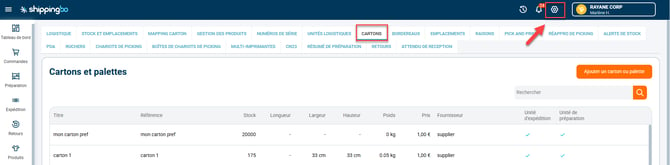
-
Open the details of your physical box or pallet, then scroll down to the B2B Settings category:
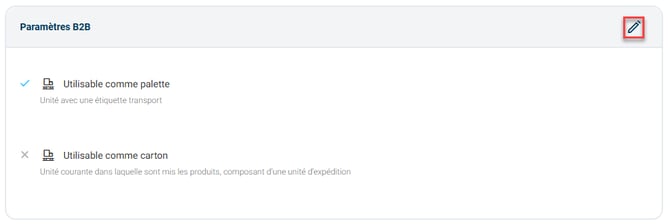
-
Check the options for the use of your box as needed during the advanced B2B preparation process.
5. Use the feature:
5.1 Start a B2B session
⭐ Key point:
The preparation session filter must have the B2B slip format, and the orders must have a calculated carrier. You can force the carrier in the filter settings.
-
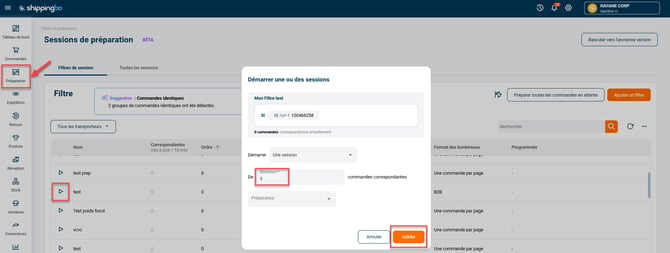
Go to the Preparation menu and start a "B2B" preparation session
-
Add as many orders as you want per session (limit of 200).
- Confirm the preparation session to start it:
5.2 Prepare a B2B session
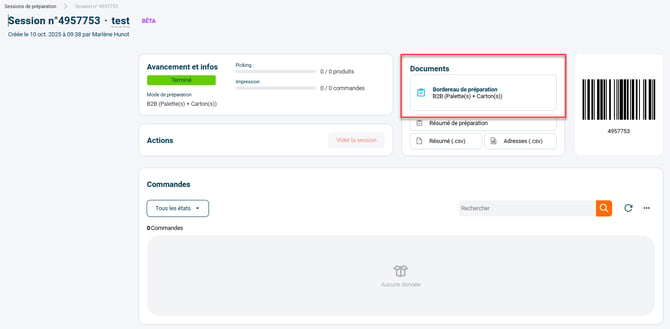
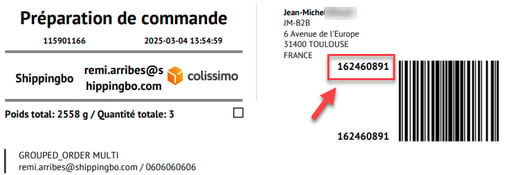
- On the session detail page, download the slips to retrieve the IDs linked to the orders (Order-by-order Picking Session on PDA):
- Other option: Retrieve the preparation session ID (Mono-Picking Session on PDA).
-
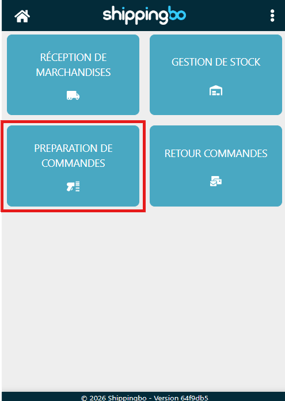
Go to the PDA, menu Order preparation:
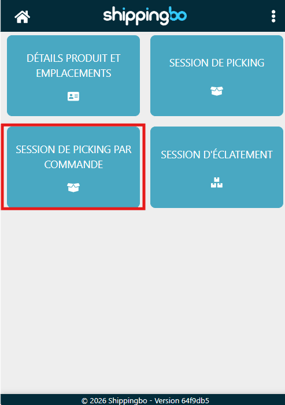
- Choose the type of preparation you want (Order-by-order picking session (parcel ID) or mono-picking (session ID)):
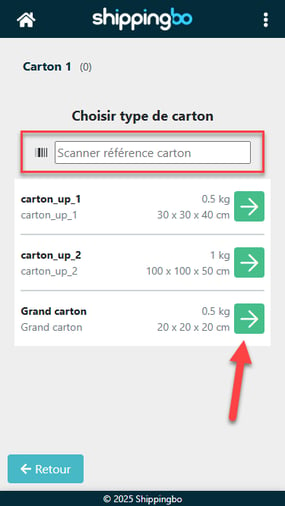
- Session preparation starts by choosing the first box in which to place the products to pick. You can scan a box with its barcode or select one manually.
💬 Good to know:
Only the physical boxes declared as "box" in the previous step appear in this list.
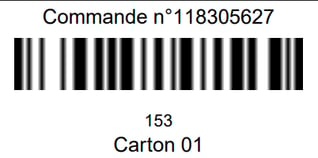
- A box label is generated. Stick it on the corresponding box.
- Then, scan each product to pick according to the instructions (location, quantity to pick). Click again on the icon at the bottom right and add a new parcel or a new pallet.
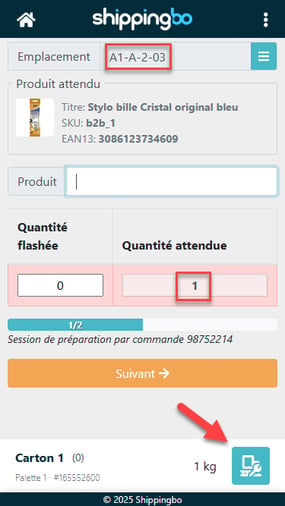
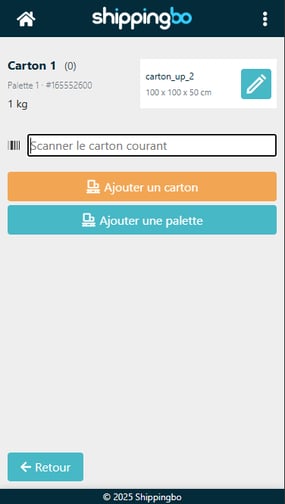
- Once you have clicked on the icon, you will be redirected to the management page of the B2B process. From this page you can:
- View various information about the current box
- Edit the type of the current box if needed
- Add a new box if the current box is full. This will create a new box whose type you will need to choose as in the previous step, a box label will be generated automatically and you will be redirected to picking.
- Add a new pallet if your first pallet is full (explanations below).
- Return to the picking page via the "Back" button
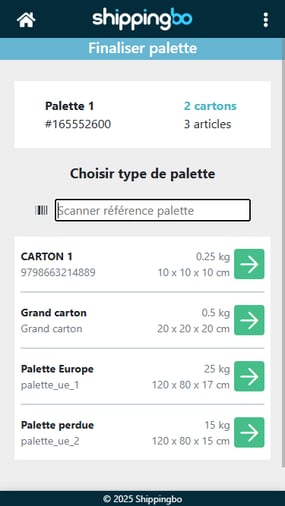
- If your current pallet is full, then you can, as explained above, add a new pallet to your preparation via the management page. This will redirect you to a screen for qualifying the type of pallet used. You can scan a pallet barcode or select one from the displayed list:
💬 Good to know:
In this list, only the physical boxes declared as "pallet" in the box qualification step appear.
- Once the pallet is qualified, a pallet validation screen is displayed.
➡️ You will find the number of boxes and products on the pallet, as well as its dimensions.
➡️ You can change the pallet type via the pencil. An editable field with the pallet weight is also provided to declare a weight different from the weight calculated automatically.
➡️ A Validate button lets you confirm the information: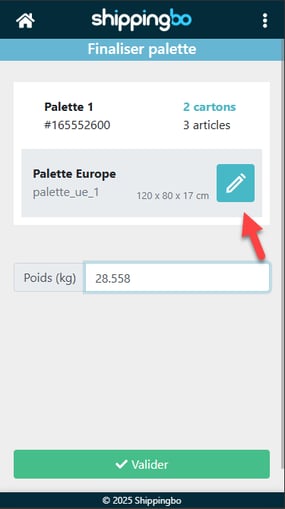
- Once the pallet is validated, a pallet label to stick on it is generated:
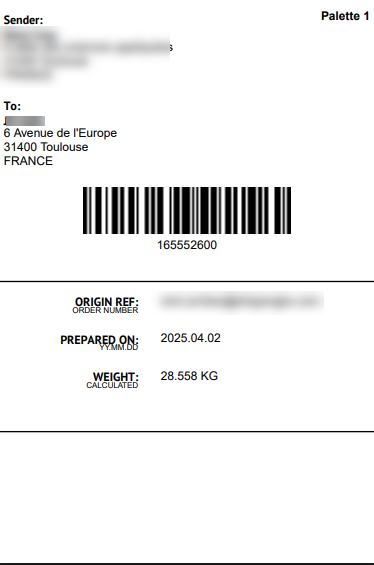
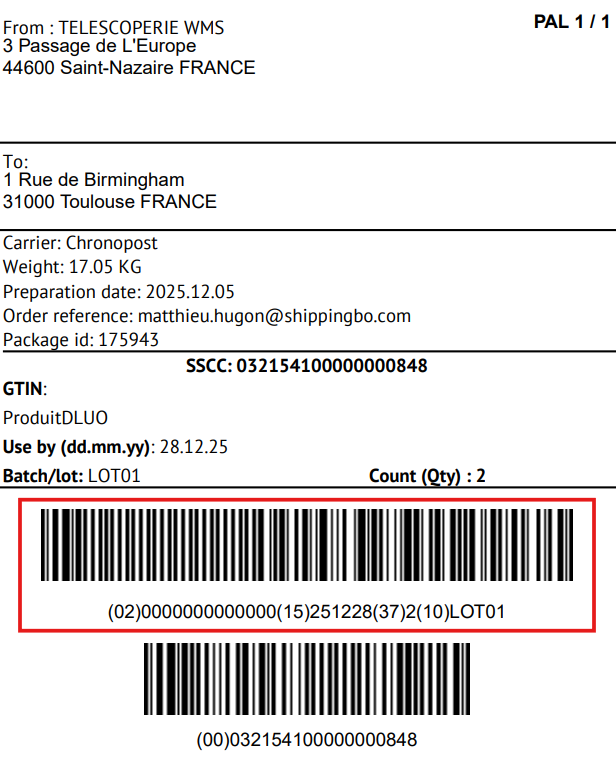
💬 Good to know:
Three formats are available for the pallet label: classic format, A5 format, and A6 format according to the GS1 system. If it is a homogeneous pallet (same product, same lot, same Best-Before Date), an additional EAN128 containing this information is added.
- If the picking of the order's products is finished, you will be automatically redirected to the previous steps in order to qualify and validate the information of your pallet.
- If picking is finished, once the current pallet is validated, you will be redirected to the order picking validation screen. There you will find the total number of pallets, boxes and products as well as the total weight of your order. You can modify your pallets or finish the preparation of this order:
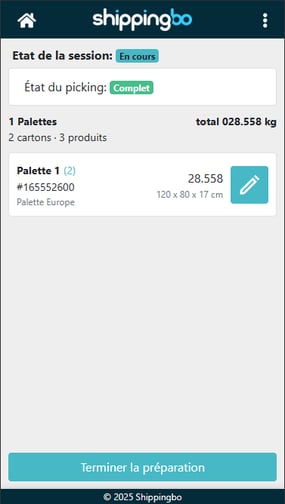
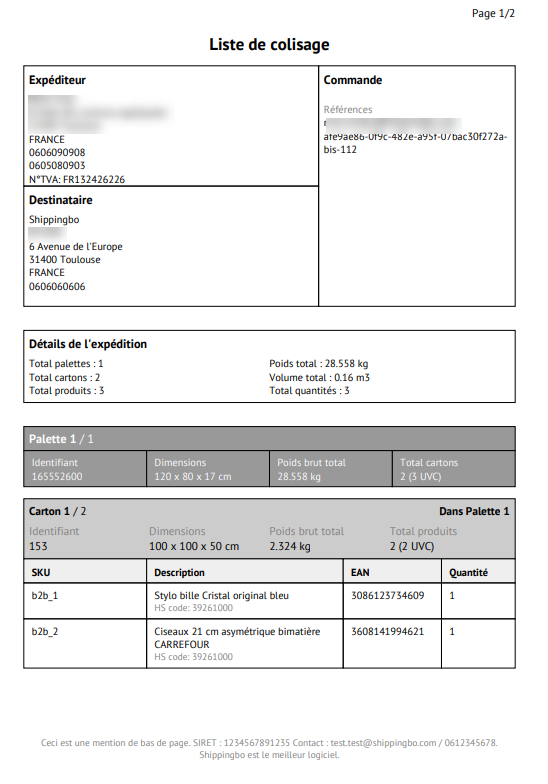
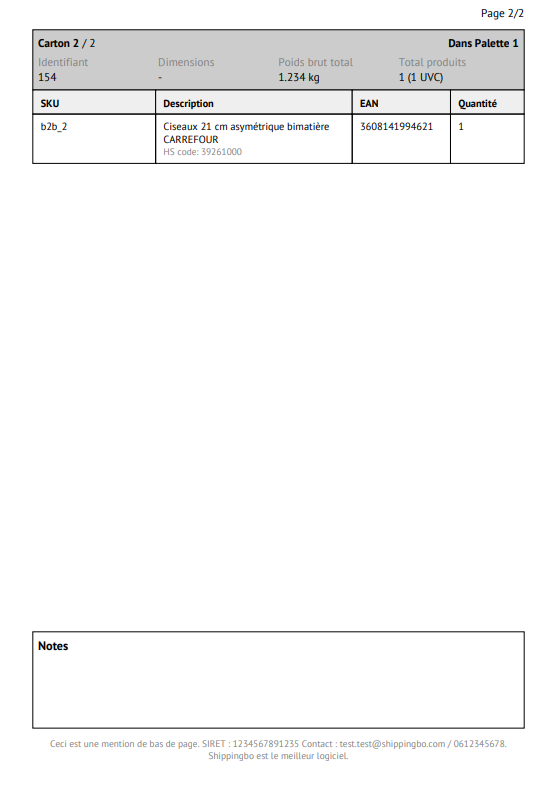
- Once the preparation of the current order is finished, the final documents are generated: the B2B packing list as well as the transport labels (1 per pallet, as a reminder). Here is a preview of the B2B packing list:
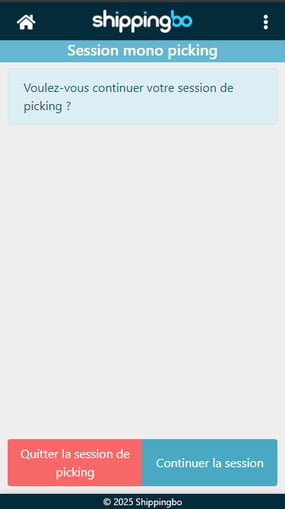
- Finally, if several orders were included in your preparation session, you can leave the session to pause it, or proceed with picking the next orders:
6. Advanced configuration of the feature
If the advanced B2B process is enabled on your account, you will find a new configuration section in Configurations > Logistics > B2B:
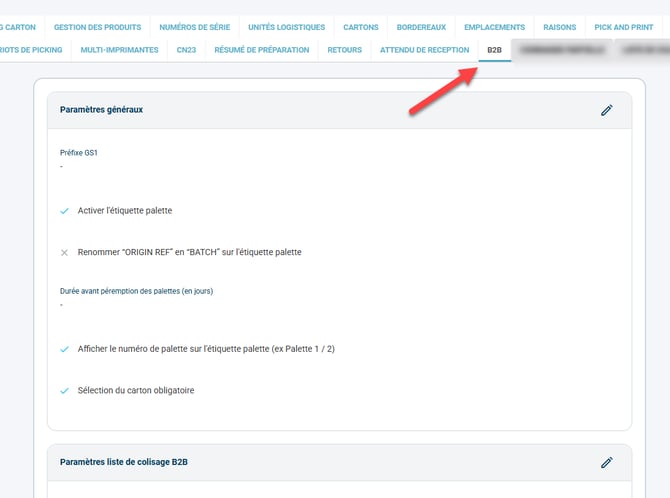
This configuration page has two sections:
- a section dedicated to the general settings
- a section dedicated to the B2B packing list settings
6.1 General settings
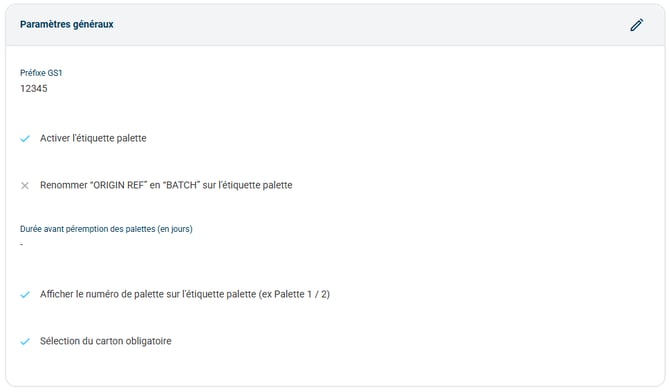
- GS1 prefix: makes it possible to display GS1 128 barcodes on your pallet labels and on the packing list.
- Pallet label settings:
-
- Rename “ORIGIN REF” to “BATCH” on the pallet label: renames origin ref to batch on the pallet label
- Time before pallet expiry (in days): lets you enter a duration in days after which the pallet expires. This will display a BEST BEFORE date on the pallet label.
- Display the pallet number on the pallet label (e.g. Pallet 1 / 2)
-
- Mandatory box selection: If this option is disabled, box qualification is not forced in the preparation flow. The weight of the boxes will therefore not be taken into account if they are not qualified via the management page.
6.2 B2B packing list settings
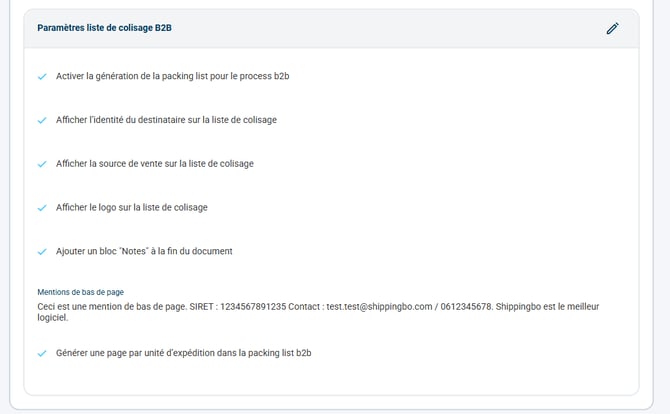
- Enable packing list generation for the b2b process
- Display the recipient's identity on the packing list
- Display the sales source on the packing list
- Display the logo on the packing list: lets you display the logo defined in the logo configuration by order origin (Configurations > Orders > Logo customization) on the B2B packing list.
- Add a "Notes" block at the end of the document
- Footer notes: lets you display custom information in the page footer (SIRET, VAT number, etc ...)
- Generate one page per shipping unit in the b2b packing list: generates one packing list page per shipped pallet so that you can slip the corresponding page onto each pallet.
- Select the sources for printing the packing list: Lets you choose precisely the sales sources (customers or channels) for which the packing list must be generated and printed. This option is ideal for allowing the WMS to target specific customers for which the packing list is enabled.
➡️ This last source-filtering option only works if your account has the paid option Advanced B2B (advancedB2bEnabled) and the option Enable packing list generation for the b2b process is checked. It does not apply to packing lists outside advanced B2B.
7. Re-palletization
After picking and packing the products of an order, you may find that a better pallet organization is possible. This process lets you, at the end of the chain, easily move preparation units (for example a box) from one shipping unit to another (for example from one pallet to another), in order to optimize pallet build-up and distribution.
- To do this, click on Redo palletization, again on your PDA:
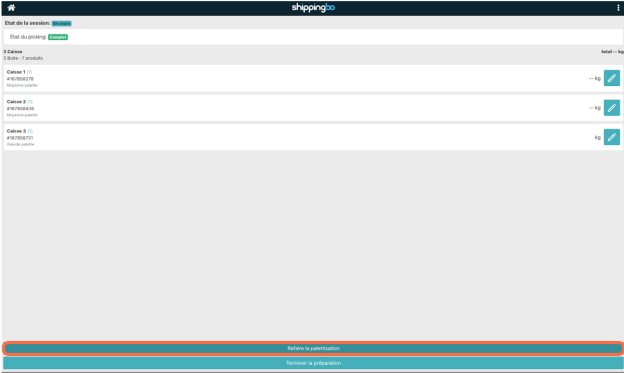
- A confirmation message appears:
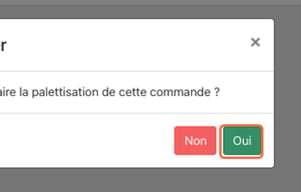
⭐ Key point:
By confirming the action, you will have to rescan all of your preparation units.
- Then select the shipping unit on which you will place the preparation units:
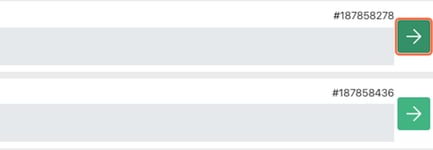
- Then scan the preparation units onto the selected shipping unit, then confirm:
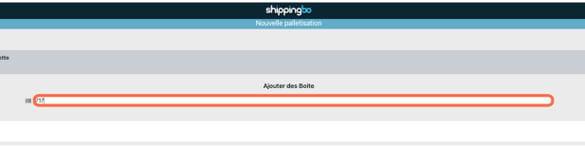
- Finally, click on Finish preparation:
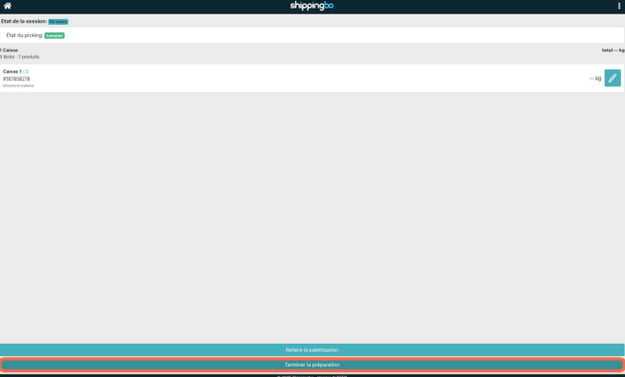
8. Example scenario
Context:
You are an e-merchant specializing in electronics and need to ship several B2B orders to the same customer. Thanks to the "Advanced B2B Order Process" feature, you can group these orders into a single preparation session and automate the shipping labels and documents.
Using the feature:
-
Preparation menu: Add several orders to a session, confirm and retrieve the barcode.
-
PDA: Go to Order preparation, choose your picking type and follow the instructions. The labels for each box are generated automatically.
-
Boxes and pallets: Scan or select the boxes used. You can add a new box or a pallet if necessary.
-
End of session: The transport labels and the packing list are generated automatically.
Result:
You have prepared several B2B orders in a single session, with all the necessary documents automatically generated, saving you time.
⚒️ Framework and responsibilities:
Before fully using the feature described in this tutorial, we strongly recommend running a test phase with your own settings to check that the result matches your expectations. As the customer remains fully responsible for the actions carried out in the Shippingbo account, these tests are essential to use the tool with complete peace of mind.
To go further 🛫:
FAQ ❔:
No related FAQ at the moment.
Contact us 📬:
Questions about this feature? Feel free to write to us here so that we can answer your questions.