.png?width=210&height=40&name=bleu%20et%20gris_Sigle+logo%20SBO%20(4).png)
Summary

- Real-time stock tracking: Instantly view stock variations
- Fewer stock errors: Limit inventory discrepancies with location-based management
- Simplified logistics process: Manage logistics operations with complete traceability of every step.
- Industrialization of order preparation: Prepare your orders with advanced preparation processes to optimize your business and increase your throughput
2. Prerequisites ✔️:
- This option is available only on the Shippingbo packs LMS Expert+ and WMS Expert.
- To enable the Advanced warehouse on your Shippingbo account, please contact our support team here.
3. How does the Advanced warehouse work?
Once enabled, this option transforms the logistics management of your account with a strict logic of physical locations, manual or assisted stock movements (via PDA), and traceability of actions (entries, exits, reservations, preparations, etc.).
📦 The available stock is calculated as follows:
Available stock = Location stock - Reserved stock + Picked stock + Stock in transition + Stock in replenishment.
Example: You have 50 products in location A, of which 20 are reserved for orders, 10 are already picked, 5 are in transit and 5 are in replenishment. The available stock is therefore: 50 - 20 + 10 + 5 + 5 = 50.
4. Activation and configuration of the advanced warehouse
4.1 Enable the advanced warehouse
To enable the Advanced warehouse on your Shippingbo account, please contact our support team here.
4.2 Configure the locations
To create and configure your locations, please follow our dedicated tutorial here.
Make sure to fill in the following items:
- The name of the location.
- The picking priority (the higher the value, the higher the priority (e.g. 3 > 1) )
- The other information if necessary (zones, sizes, categories...)
💬 Good to know:
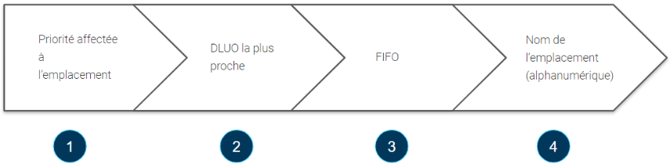
To identify which location will be used first for picking, Shippingbo follows these prioritization rules:
-
The first is the priority set on the location (the highest value comes first)
- The second is the Best-Before Date of the products if it is filled in
- The third is the FIFO if the option is enabled (First In First Out = first in, first out)
-
The last rule is the location name (Name in alphanumeric order)
4.3 Enable automatic assignment of products to locations
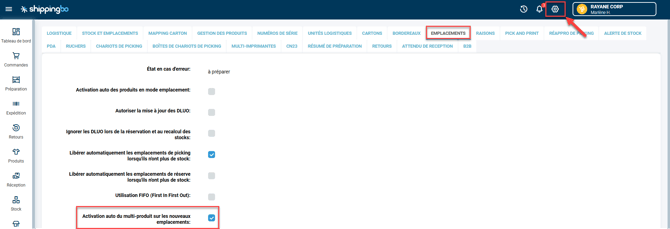
Go to the menu Configurations -> Logistics -> Locations -> Check the box Auto-activation of products in location mode:
📢 Point to watch:
- To be able to make a goods entry, the location must exist and be empty.
-
To release a location, you must have 0 stock on it.
4.4 Perform a goods entry into a location
The goods entry allows you to assign a product to an empty location.
Steps to follow:
-
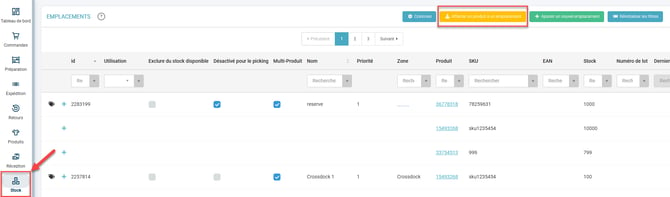
Go to the menu Stock -> Locations -> Click on Assign a product to a location:
-
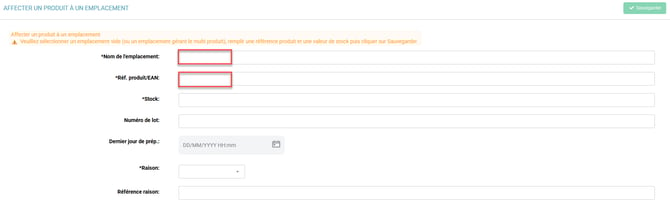
Enter the location name concerned, then fill in the EAN reference of the product to add:
-
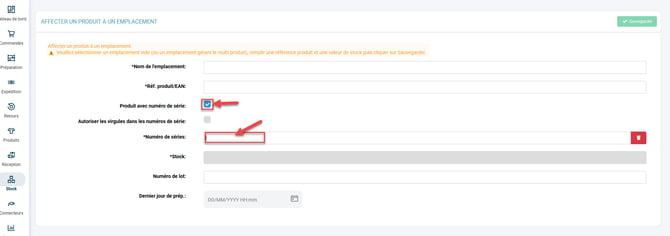
If you manage serial numbers, check the box and enter or scan each number:
💬 Good to know:
If the product manages serial numbers, the quantity incremented will automatically be 1. You will need to repeat this action for each product.
4. If there is no serial number: enter the stock quantity to add.
5. If you manage lots / Best-Before Dates: fill in the lot number and the last preparation day.
4.5 Release a location
To find out how to release a location, please refer to our dedicated tutorial here.
📢 Point to watch:
The location must be empty (stock = 0) for the Release the location button to appear.
💠 Note:
You can make these changes in bulk via a CSV file. Go to Configure a CSV file for advanced warehouse-related Imports.
💡 Tip:
If you use a PDA configured by Shippingbo, you can also generate a stock entry session from the terminal.
5. Example of practical use
You are an e-merchant in cosmetics, with several storage zones: a buffer stock for new products, a main stock, and a zone for returns. Thanks to the advanced warehouse, you have:
-
Created locations for each zone (with picking priorities)
-
Assigned your products to these zones according to stock rotation
-
Tracked entries/exits via PDA and lot numbers
➡️ Result:
-
+40% time savings on preparation
-
Fewer than 5% stock errors thanks to traceability by location
-
Better tracking of Best-Before Dates for your perishable products
⚒️ Recommendation:
Before fully using the feature described in this tutorial, we strongly recommend running a test phase with your own settings to check that the result matches your expectations. As the customer remains fully responsible for the actions carried out in the Shippingbo account, these tests are essential to use the tool with complete peace of mind.
Contact us 📬:
Questions about this feature? Feel free to write to us here so that we can answer your questions.