.png?width=210&height=40&name=bleu%20et%20gris_Sigle+logo%20SBO%20(4).png)
Summary
- Benefits of the feature
- Prerequisites
- Feature description
- Activation and configuration
- Example of practical use
- Contact us

✔️ Fully automated multi-parcel: automatic generation of several carrier labels based on the quantity of products or the weight of the order.
✔️ Operational time savings: no more need to manually create several shipments for the same order.
✔️ Fewer logistics errors: consistent, standardized splitting according to defined rules (per product or globally).
✔️ Suited to business constraints: ideal for bulky, fragile or batch-packaged products (e.g. cartons of 6 bottles).
2. Prerequisites ✔️
-
This feature requires support intervention. You can contact them by clicking here.
-
Feature available only for the following preparation processes:
-
Integrated labels
-
Labels only
-
Labels + list
-
📢 Warning:
This feature does not apply to other shipping processes.
3. Feature description
The Automatic multi-parcel feature lets you generate several carrier labels for the same order, based on:
-
The number of products
-
The total weight of the order
-
A specific configuration per product
Example:
If you want to generate one label per product, the system will automatically split the order into several parcels, each with its own slip.
4. Activation and configuration
4.1 Activation by our support team
This feature requires support intervention. You can contact them by clicking here.
4.2 General configuration
Path:
Configurations → Orders → Automatic multi-parcel
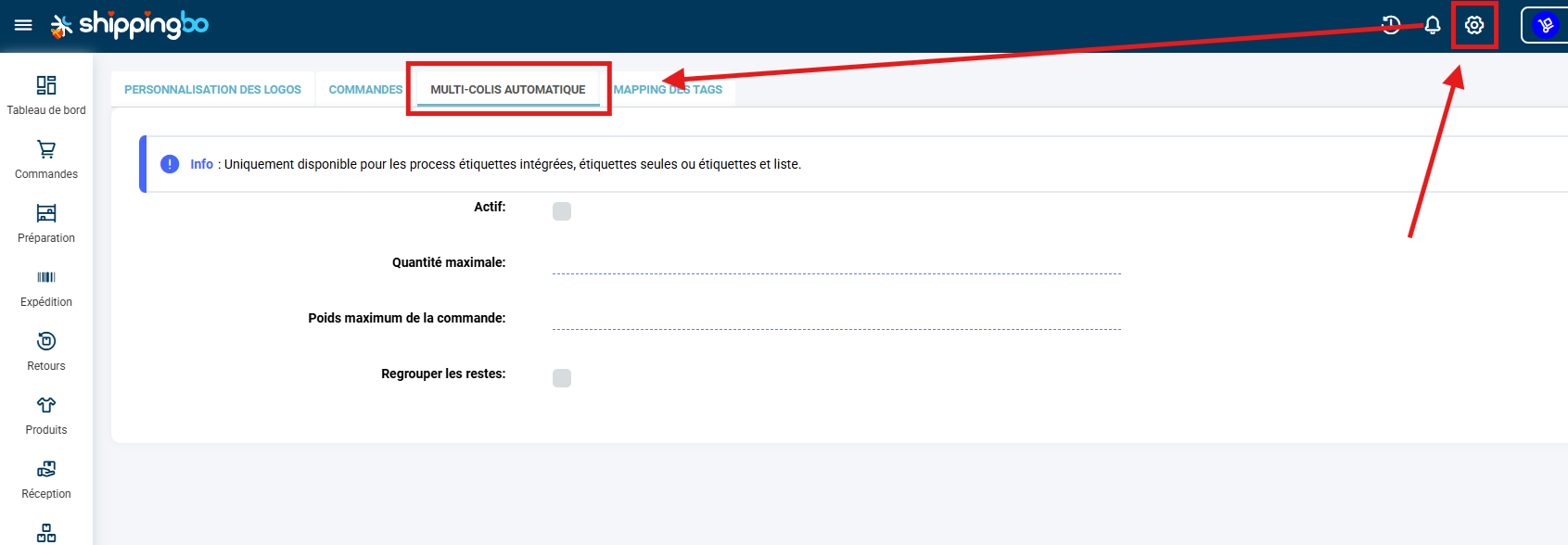
Several fields are available:
Maximum quantity: applies to all products; enter the number of products per parcel. For example, a customer sells bottles of wine in cartons of 6. If I have 12 bottles in the order, SBO will automatically generate 2 labels.
Maximum order weight : Allows automatic splitting based on the total weight. As soon as the configured weight is reached, a new parcel is generated.
Group the leftovers: If some products are not covered by the splitting rule:
-
✅ Option checked → the remaining products can be grouped with a product that has already been split.
-
❌ Option unchecked → an additional label will be generated for the leftovers.
Example:
Configuration: 1 label per TABLE.
Order: 2 TABLES + 1 TABLECLOTH
-
✅ Option checked →
-
1 parcel: 1 TABLE + the tablecloth
-
1 parcel: 1 TABLE
→ Total: 2 parcels
-
-
❌ Option unchecked →
-
1 parcel: 1 TABLE
-
1 parcel: 1 TABLE
-
1 parcel: 1 TABLECLOTH
→ Total: 3 parcels
-
4.2 Configuration per product (optional)
Path:
Product sheet → Tab Preparation
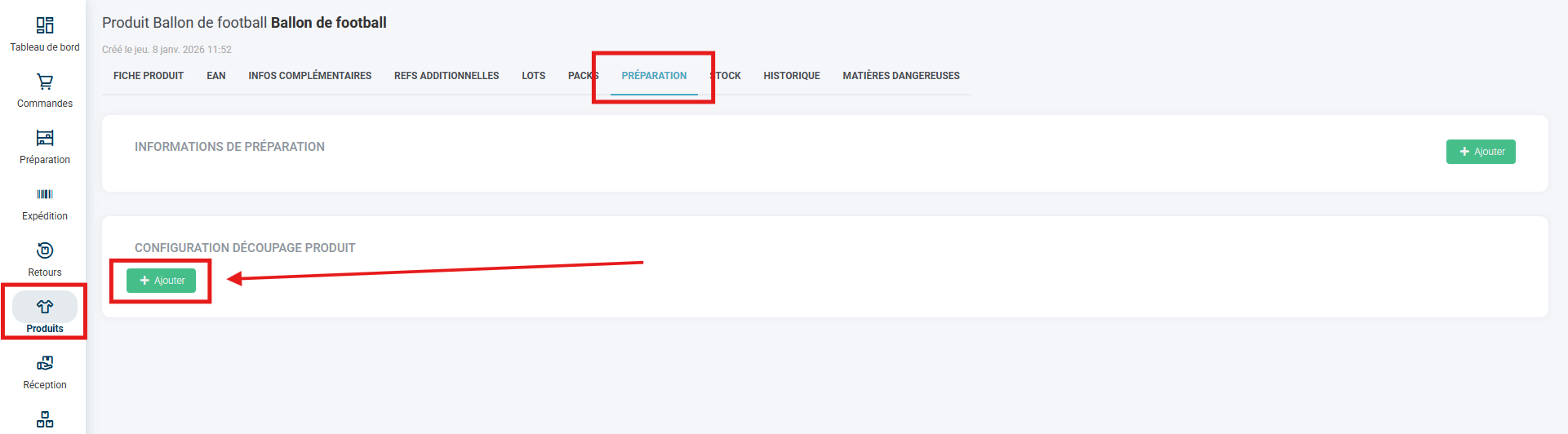
This configuration allows a specific splitting per product. Once a maximum quantity is defined for a product (in our example here: 1), a configuration is displayed:
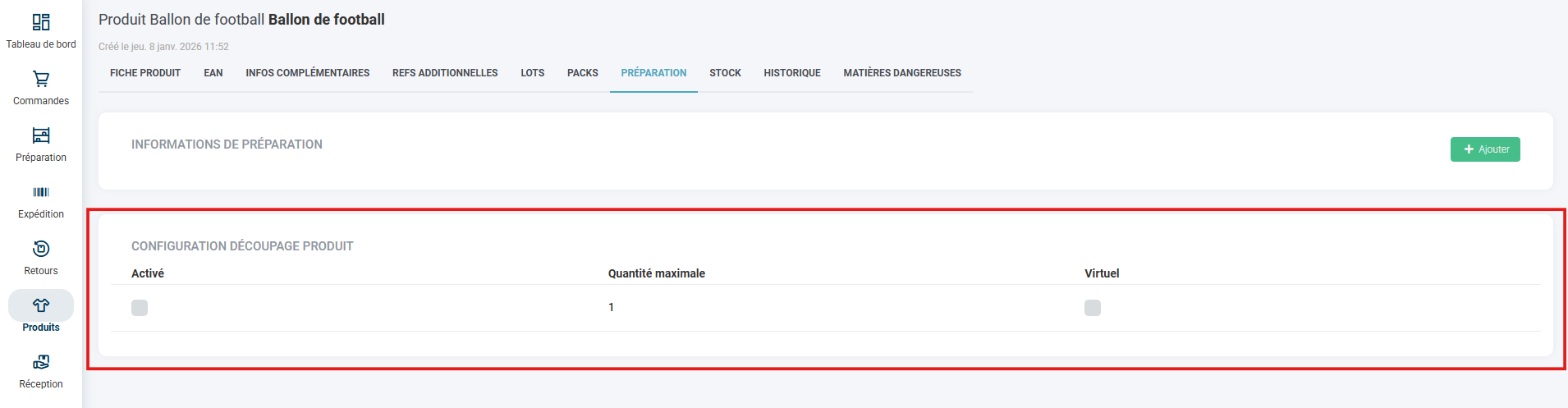
The available parameters are as follows:
-
✅ Enabled
-
Maximum quantity in the parcel (for this product only)
-
🔲 Virtual: check if the product is virtual (leaflet, flyer…) → this makes it possible to ignore it and not count it in the splitting.
4.3 Bulk import (optional)
It is possible to set up this per-product splitting described in step 4.2 via import.
Path:
Configurations → File management → IMPORT → Product splitting config
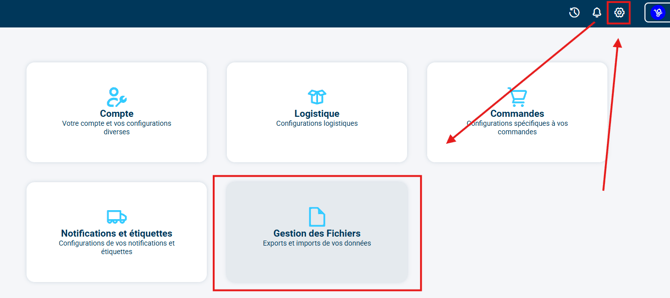
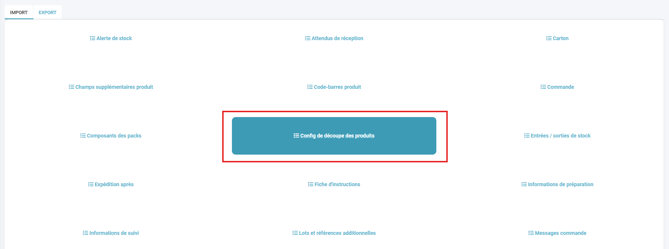
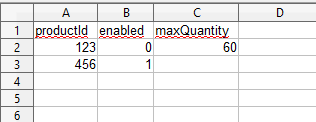
You can download the template file to add splitting per product, whose columns directly mirror the parameters in the product sheet:

-
In the column productId, products are identified by their Shippingbo id (to retrieve the ids of your products, you can perform a product export, more information here)
- In the column enabled:
- for the splitting to be enabled for this product, you will need to enter 1;
- for the splitting not to be enabled for this product, you will need to enter 0.
- In the column maxQuantity, you can enter the quantity from which a new parcel will be required.
5. Example of practical use
Configuration:
-
Product TABLE → max quantity = 1
-
Product CHAIR → max quantity = 2
Order received:
-
1 TABLE
-
4 CHAIRS
Automatic result:
-
1 parcel with the TABLE
-
1 parcel with 2 CHAIRS
-
1 parcel with 2 CHAIRS
→ Total: 3 carrier slips generated automatically
⚒️ Recommendation:
Before fully using the feature described in this tutorial, we strongly recommend running a test phase with your own settings to check that the result matches your expectations.
As the customer remains fully responsible for the actions carried out in the Shippingbo account, these tests are essential to use the tool with complete peace of mind.
Contact us 📬:
Questions about this feature? Feel free to write to us here so that we can answer your questions.