.png?width=210&height=40&name=bleu%20et%20gris_Sigle+logo%20SBO%20(4).png)
1. Create a carrier service in Shippingbo
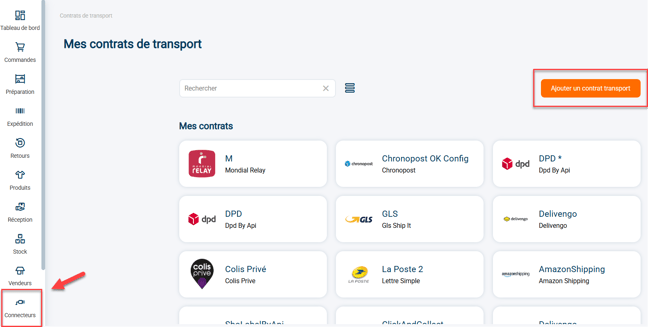
1.1: Go to your Shippingbo interface to create your carrier connection in the menu Connectors -> Carrier -> Click on Add a carrier:
1.2: Search for Toopost in the search bar, then click on the Toopost tab that appears:
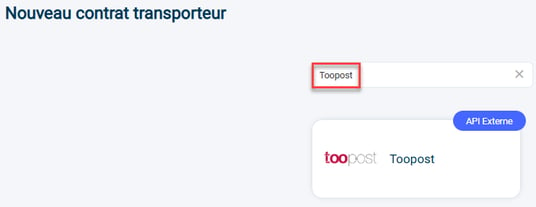
Your connector opens and a first category appears:

1) The pencil to the right of the service lets you change the name of your connector.
2) The Logs button redirects you to the past calls made to the carrier. For more information on this, you can read our tutorial here.
3) The View help button redirects you to this tutorial.
2. Configure the carrier account
2.1 Click on Link / Relink your account:

2.2 Click on Authorize:
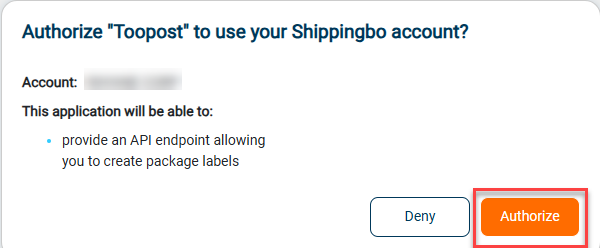
Then, log in to your Toopost account:

2.3 Go to My service configurations to create a new configuration:
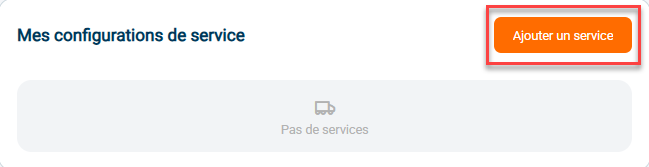
2.4 The configuration will be activated by default:
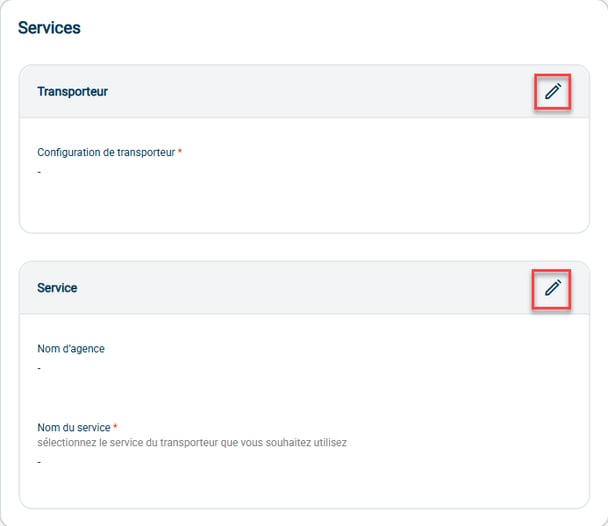
-
Service: select the name of the service to connect: BPost, Chronopost, Colis Privé, Colissimo, Collect Plus, Correos, CTT, DHL, DHL Connect, DPD Poland, Mondial Relay, Poste Italiane, PostNL, Postnord, UPS. The list of services is subject to change.
⭐ Key point:
There is no need to create a configuration for each service. One service per transport contract is enough.
Example: I have a Colissimo contract with two services So Colissimo with signature and So Colissimo without signature. In my Toopost contract on Shippingbo, I create a single Colissimo service.
- Labels & slips: select here the information you want to appear on the labels
- Parcels and insurance: configure your insurance if you have one.
2.5: You can delete this carrier by clicking on Delete the connector:

⚒️ Framework and responsibilities:
Before fully using the feature described in this tutorial, we strongly recommend running a test phase with your own settings to check that the result matches your expectations. As the customer remains fully responsible for the actions carried out in the Shippingbo account, these tests are essential to use the tool with complete peace of mind.
Contact us 📬:
Questions about this feature?
Feel free to write to us here so that we can answer your questions.