.png?width=210&height=40&name=bleu%20et%20gris_Sigle+logo%20SBO%20(4).png)
1. Information required for the configuration
To set up the connection, you will need to collect the following information:
- your Chronopost account number (8 digits)
- your Chronotrace password (6 digits)
- the list of services used: Chrono Relais - Chrono 18 - Chrono 10 - Chrono 13 - Chrono Classic International - Chrono Express International - Chrono Premium International - Chrono Relais Europe - Chrono Fresh 13 - Chrono Marchandises Dangereuses 13 - Chrono Marchandises Dangereuses 18 - Chrono Instance Agence - Chrono Freeze 13 - Chrono Fresh Classic - Chrono 18 BOITE AUX LETTRES - Chrono 12 - 2SHOP Direct - Chrono 13 Instance Relais - Chrono 18 Instance Relais - Chrono Ambient 13 (instance agence) - Chrono Ambient 13H (instance relais) - Chrono 10 Instance Agence - Chronopost 18 Instance Agence - Chrono 13 Instance Bureau de Poste - Chrono Medical 13.
- if you use the Chronofresh or Chronofreeze services: what is the shelf life of the products, and is it the same for all products?
- If you have subscribed to the customs documents dematerialization service, you will need access to the Chronopost SFTP information:
-
demat_sftp_host: SFTP server IP address
-
demat_sftp_port: port used
-
demat_sftp_user: SFTP account user
-
demat_sftp_password: SFTP account password
-
demat_sftp_dir: destination folder
⭐ Key point:
You will not be able to add the Chronopost SFTP information yourself. Once you have collected it, you will need to contact our support team so that they can add it for you.
2. Create a carrier service in Shippingbo
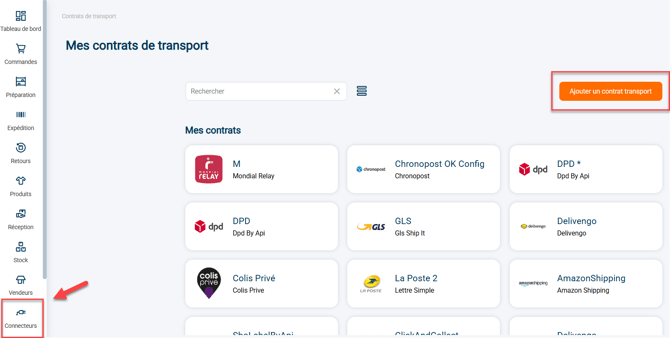
2.1: Go to your Shippingbo interface to create your carrier connection in the menu Connectors -> Carrier -> Click on "Add a carrier":
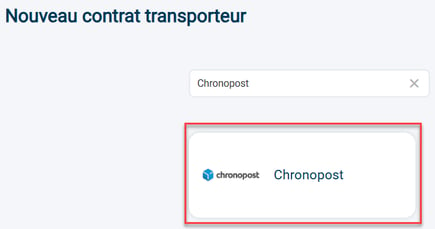
2.2: Search for "Chronopost" in the search bar, then click on the Chronopost tab that appears:
2.3: Your connector opens and a first category appears:

1) The pen to the right of the service lets you edit the name of your connector.
2) The "Logs" button redirects you to the past calls made to the carrier. For more information on this subject, you can consult our tutorial here.
3) The "View help" button redirects you to this tutorial.
3. Configure the carrier account
3.1: Fill in the information of your carrier contract:
- Account number: your Chronopost account number (8 digits)
- Password webservices: your Chronotrace password (6 digits)
⭐ Key point:
Here, it is indeed the webservices access that is required, not your back office access.
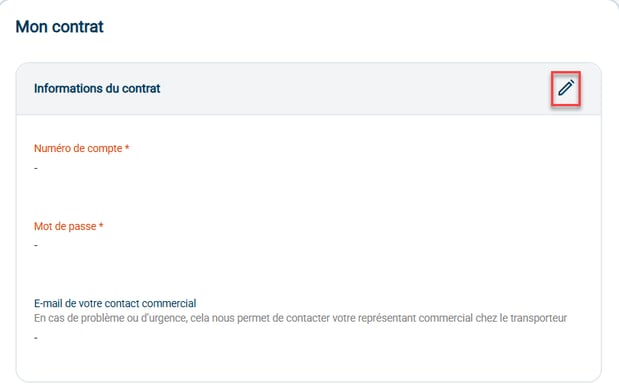
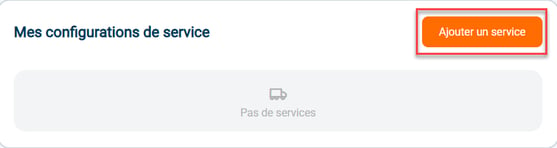
3.2: Go to "My service configurations" to create a new configuration, then click on "Add a service":
3.3: The configuration will be enabled by default:
Then fill in the information required for the configuration:
- the service: select the name of the main (national) service to connect from the following list: Chrono 10 / Chrono 13 / Chrono 18 / Chrono Fresh 13 / Chrono13 Instance Agence / Chrono Fresh Classic / Chrono Freeze 13
- the sub-services: fill in the sub-services used for
- the international service - home delivery
- the Europe service - home delivery
- the national service - pick-up point
- the Europe service - pick-up point
- labels & slips: select here the information you want to appear on the labels
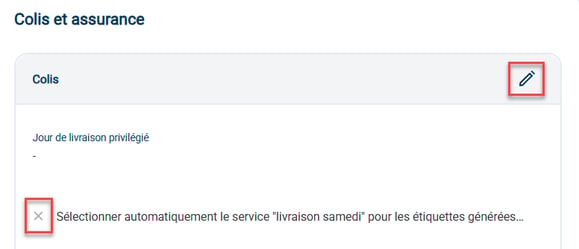
- parcels and insurance: configure your insurance if you have one. In addition, if you want to force Saturday delivery of your parcels for labels generated on a Friday, enable the option Automatically select the "Saturday delivery" service for labels generated on Friday:
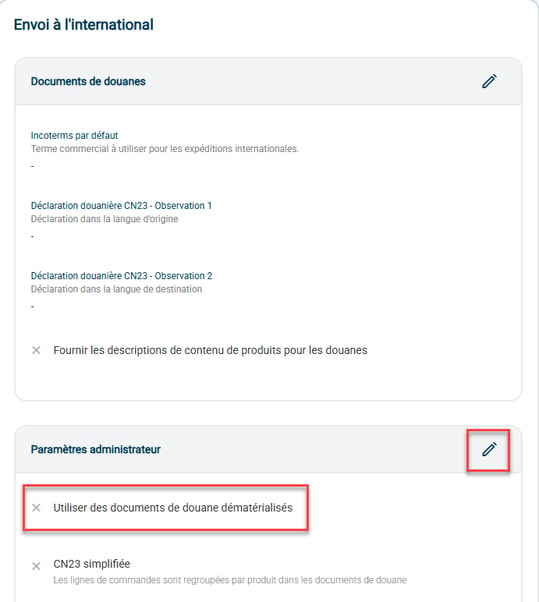
- international shipping: check the option if you want to use paperless customs documents. The incoterm is also mandatory for international shipments:
💡 Tip:
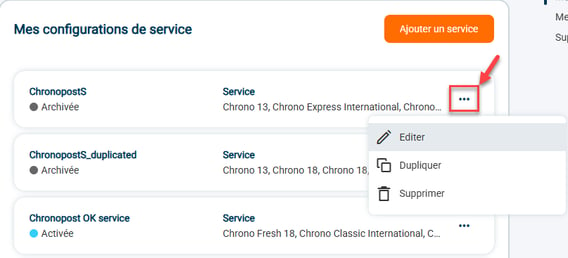
You can edit / duplicate or even delete a service that has already been created by going to the "My services" category and clicking on the three dots to the right of the service concerned:
⭐ Key point:
To retrieve pick-up points in your orders, you need to check that your CMS is correctly configured to transmit this information.
If in doubt or if you need help with the configuration, feel free to contact our support team.
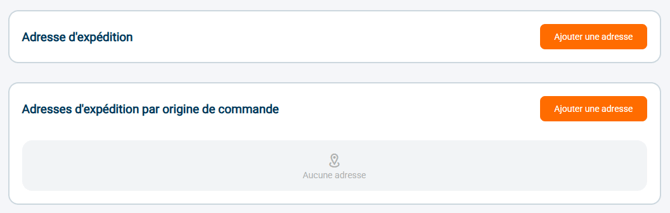
3.4: You can add a shipping address by clicking on Add an address. You can also add a shipping address based on the origin of the order.
3.5: If needed, you can delete this carrier by clicking on Delete the connector:

4. Perform the tests required to create labels
Once the configurations are done, you will need to run label test sets, as requested by Chronopost.
To do this, please follow these steps:
-
Generate a label for each configured service in Chronopost.
-
Then go to the logs (calls) of each service to retrieve the request files. Enter the order ID for which you generated the label:

Then, download the files (there will be 2 for each order).
For more information about retrieving logs in Shippingbo, see our tutorial here. - Send the downloaded files to your account manager at Chronopost.
5. Configure the return account
To connect your Chronopost return contract, you can consult our tutorial Carriers - Connect Chronopost.
⚒️ Recommendation:
Before fully using the feature described in this tutorial, we strongly recommend running a test phase with your own settings to check that the result matches your expectations. As the customer remains fully responsible for the actions carried out in the Shippingbo account, these tests are essential to use the tool with complete peace of mind.
To go further 🛫:
FAQ ❔:
- Chronopost: error when generating a return label