.png?width=210&height=40&name=bleu%20et%20gris_Sigle+logo%20SBO%20(4).png)
Summary
Time savings: from the creation of cartons to their automatic assignment, all steps are centralized and streamlined.
Fewer errors: the mapping automatically applies the right cartons and the “mandatory” option prevents omissions.
Optimized shipping costs: by entering weight and dimensions, Shippingbo chooses the most suitable carton, avoiding carrier surcharges.
Always up-to-date packaging stock: quantities are automatically decremented after each shipment.
Consistent logistics process: all your pickers follow the same rules, ensuring consistent shipments.
2. Prerequisites✔️:
- Have at least one Shippingbo Pro + pack to create cartons.
- Have at least one Premium + pack to create a carton mapping.
3. Create cartons in Shippingbo
You can add your cartons manually (one by one) or by import (in bulk via file).
Each carton contains useful information (reference, weight, dimensions, price, supplier) that will be used automatically during shipment.
💡 Tip: Entering weights and dimensions correctly allows Shippingbo to anticipate the calculation of shipping costs and avoid shipping errors.
To create your cartons in Shippingbo, please see our corresponding tutorial here.
4. Create a carton mapping in Shippingbo
The carton mapping in Shippingbo allows you to create rules that automatically associate a carton with an order according to conditions (weight, destination, etc.).
If no condition is met, a default carton can be defined.
To create your carton mapping in Shippingbo, please see our corresponding tutorial here.
5. Option depending on usage
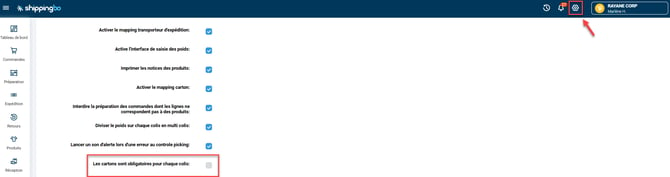
You can make the use of cartons mandatory during preparation in your Shippingbo account.
To do this, go to the menu Configurations -> Logistics -> check the option Cartons are mandatory for each parcel:
6. Practical example
You are an e-merchant in the ready-to-wear sector. You sell both t-shirts and coats, and you have 4 different carton formats.
-
Creating the cartons: you start by recording your 4 carton formats in Shippingbo, with their weight, dimensions and initial stock.
-
Setting up the mapping: you create automatic rules so that, for example, orders under 500 g go in an S carton, and those containing coats are sent in an XL carton.
-
Activating the “mandatory” option: to prevent a picker from forgetting to enter a carton, you enable this option in the logistics configuration.
Result:
-
When an order arrives, Shippingbo automatically selects the right carton according to your rules.
-
The weight of the carton is added to the carrier calculation.
-
The packaging stock is updated in real time after shipment.
-
No parcel can be validated without a carton, ensuring the accuracy and consistency of the logistics process.
💠 Note:
This organization reduces your shipping costs, avoids carton selection errors and speeds up the preparation of your orders.
⚒️ Recommendation:
Before fully using the feature described in this tutorial, we strongly recommend running a test phase with your own settings to check that the result matches your expectations. As the customer remains fully responsible for the actions carried out in the Shippingbo account, these tests are essential to use the tool with complete peace of mind.
To go further 🛫:
- Create cartons manually and by import
Contact us 📬:
Questions about this feature?
Feel free to write to us here so that we can answer your questions.