.png?width=210&height=40&name=bleu%20et%20gris_Sigle+logo%20SBO%20(4).png)
Benefits of the feature ✨
- Time savings: Instantly get the status of your orders, stock and receipts without manually navigating the interface.
- Simplified control: Query your account and trigger logistics operations directly from your AI assistant in natural language.
- Controlled security: Precisely define the level of authorization granted to each assistant and keep control over write actions.
1. Prerequisites
-
This feature requires the Advanced plan of Shippingbo Intelligence, please contact your Shippingbo account manager for activation, or go to the Modules and extensions page to activate it on your own.
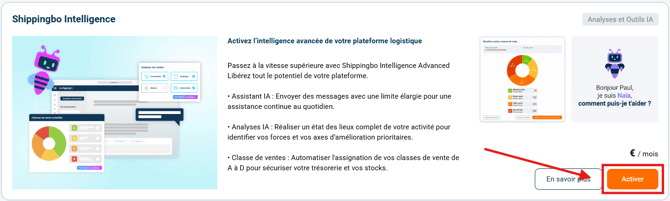
➡️ More information on Shippingbo Intelligence here: SHIPPINGBO INTELLIGENCE. -
Access to your Shippingbo account with the appropriate rights over the data to be exposed (orders, products, stock, receipts).
-
An AI LLM Assistant account (such as Claude or ChatGPT, for example) allowing custom connectors to be added (on Team and Enterprise plans, this action may require administrator rights).
2. How the Shippingbo MCP connection works
The Shippingbo MCP (Model Context Protocol) server establishes a secure gateway between your artificial intelligence assistant (Claude or ChatGPT) and your Shippingbo account. This protocol allows the AI to directly query your logistics data in real time and to perform authorized actions.
⭐ Key point:
The connector relies on OAuth secure authentication to communicate with your account. It is recommended to create a separate Shippingbo application for each AI assistant in order to partition and manage access independently.
3. Configuring and activating the MCP connector
3.1 Create your Shippingbo developer application
-
Create a developer account on oauth.shippingbo.com/developers/sign_up (or simply log in if you already have one).
- Go to dev.shippingbo.com and click on New application.
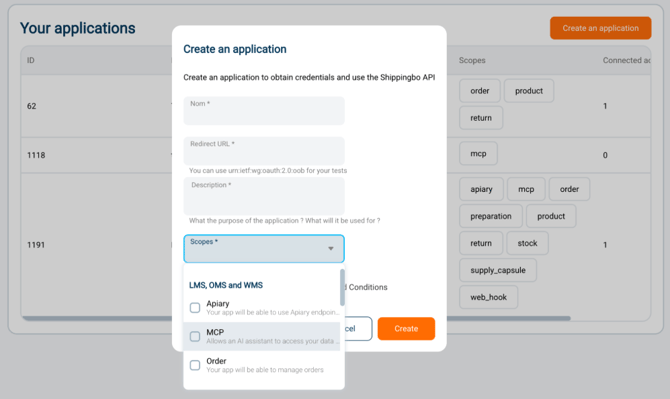
- Give the application an explicit name (e.g.: “MCP Claude Shippingbo”).
- Fill in the Redirect URL according to the assistant used:
- For Claude: https://claude.ai/api/mcp/auth_callback
- For ChatGPT: the URL is dynamically generated by ChatGPT in the next step (you will come back to paste it here).
- Select the permissions (scopes): check the mandatory MCP right, then check only the rights required for your use cases.
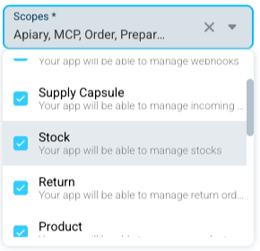
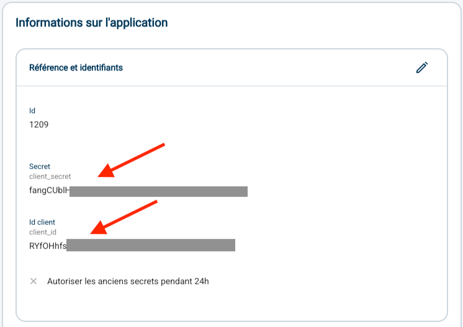
- Confirm to generate the application, then carefully copy the Client ID and the Client Secret displayed.
💬 Good to know:
Apply the principle of least privilege when choosing rights (scopes): only authorize the scopes strictly necessary for your actual use cases in order to secure your flows.
3.2 Add the connector in your AI assistant
In Claude:
- Open Settings > Connectors, then click on Add custom connector.

- Name the connector (e.g.: “MCP Shippingbo”).
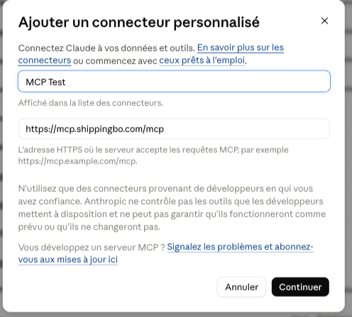
- Enter the URL of the MCP server:
https://mcp.shippingbo.com/mcp - Expand the advanced settings and paste your Client ID and your Client Secret, obtained at the end of step 3.1.
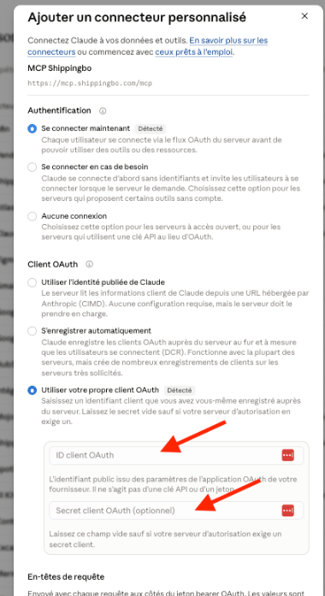
- Click on Add.
In ChatGPT:
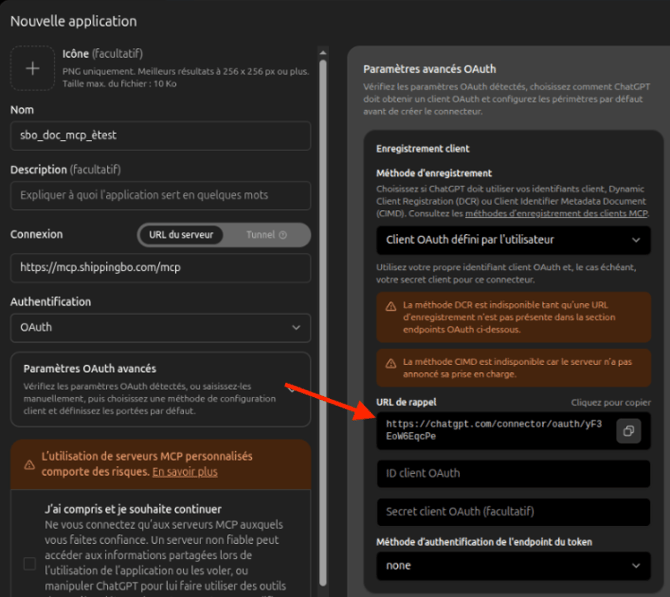
- Go to the ChatGPT settings and create a custom connector/app.
- Enter the URL of the MCP server:
https://mcp.shippingbo.com/mcp - Select the authentication mode OAuth, then fill in the Client ID and the Client Secret.
- Copy the callback URL generated by ChatGPT and paste it into the Redirect URL field of your application on dev.shippingbo.com, then save.
3.3 Authorizing access and testing the integration
- Log in to your Shippingbo account from your usual web browser.
- In your AI assistant, click on Connect next to the Shippingbo connector.
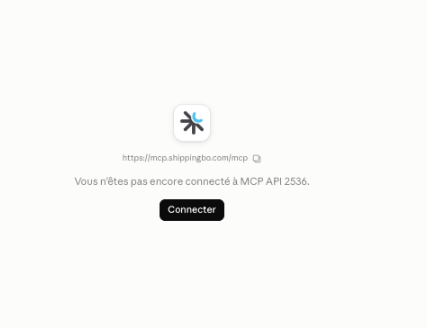
- A Shippingbo authorization page is displayed: check the requested access and click on Authorize.
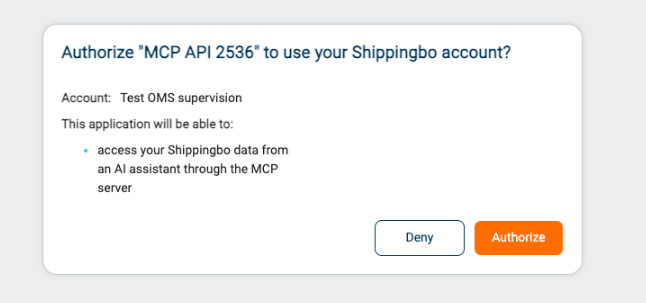
- Run a natural-language test in the chat (e.g.: “List my 5 latest orders”) to confirm that communication is established.
🚩 Special case:
Some write actions (updating or duplicating an order, stock adjustment, product deletion) actually modify your production data. Always keep manual approval requests enabled in your AI assistant before each action is confirmed.
3.4 Revoking access
To disable the link:
-
Disconnect the connector directly from your AI assistant's settings.
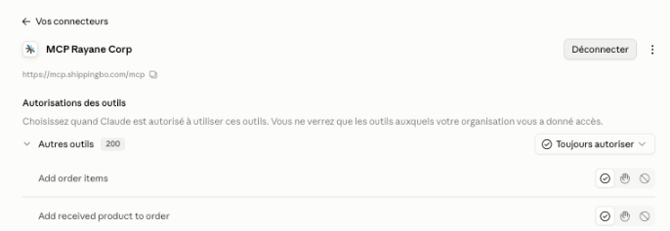
-
Go to Shippingbo in the Connectors > External Applications menu to revoke the permissions granted to the application.
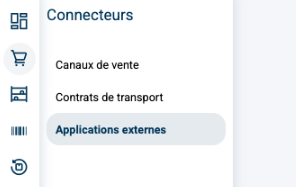
-
Then click on the Trash icon to delete the external application:

4. Practical example
Once the connector is connected, you can ask your assistant your operational questions:
- Order diagnosis: “Why is order 12345 blocked?”
- Shipment tracking: “Give me the carrier tracking for the orders shipped yesterday.”
- Supply management: “Which supplier receipts are expected this week?”
⚒️ Framework and responsibilities:
Before fully using the feature described in this tutorial, we strongly recommend running a test phase with your own settings to check that the result matches your expectations. As the customer remains fully responsible for the actions carried out in the Shippingbo account, these tests are essential to use the tool with complete peace of mind.
To go further 🛫
Contact us 📬
Questions about this feature?
Feel free to write to us here so that we can answer your questions.