.png?width=210&height=40&name=bleu%20et%20gris_Sigle+logo%20SBO%20(4).png)
Summary

Time saved in preparation: session filters let you gather orders that are similar to prepare according to your business criteria.
Better team organization: each preparation session can be dedicated to a specific type of order (products, carrier service, source, etc.).
Fewer errors: by automating the sorting of the day's orders, you avoid confusion during preparation and shipping.
2. Prerequisites ✔️
-
Have a Shippingbo Pro+ Pack or higher
-
Have a user with access to the Preparation features.
3. Definitions of terms
Preparation session
A preparation session is a filtered display of orders, based on defined criteria (products, statuses, exclusions, etc.), in order to optimize the pickers' work.
Preparation session filter
A filter lets you define which orders must appear in (or be excluded from) a preparation session, according to one or more conditions.
4. Create a preparation session filter
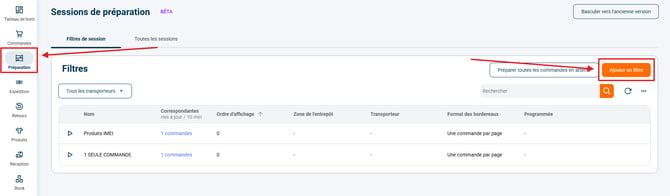
In the Preparation pane, you will find the button Add a filter:
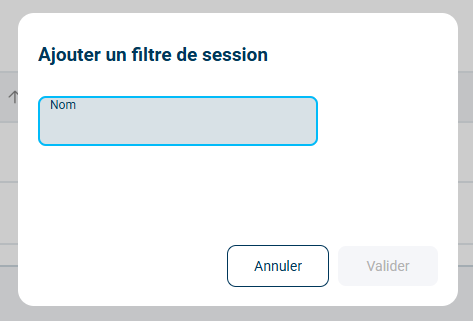
You can define a name for your preparation session filter:
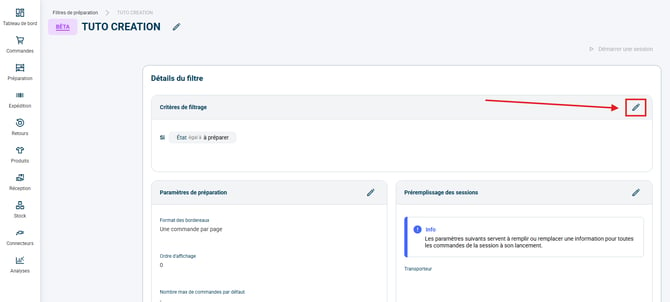
And edit its filtering criteria by clicking on the pencil to the right of the section:
In this section, you can add and configure a new condition:
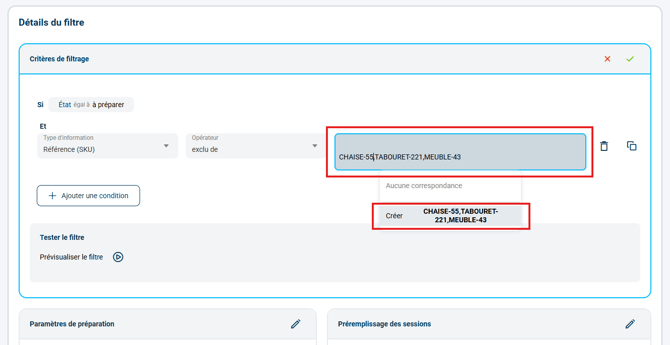
Once the condition is created, you can confirm your filtering criteria with the green check mark:
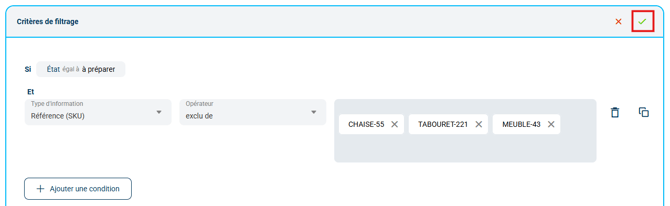
➡️ In this example, this preparation session filter will include all the To prepare orders except those that contain at least one of the products in the list (so here, either the product sku CHAISE-55, or TABOURET-221, or MEUBLE-43)
🔷 Note:
Whatever the field, lists must always be written in the format "xx,xx" in Shippingbo.
In the example given, you must therefore enter "CHAISE-55,TABOURET-221,MEUBLE-43" without spaces so that orders containing at least one of these three products are excluded.
📢 Warning:
The Excluded from operator does not work the same way as the operator Different from:
- The Excluded from operator works like an AND: at least one of the items,
- The Different from operator does not allow listing several items.
⚒️ Recommendation:
Before fully using the feature described in this tutorial, we strongly recommend running a test phase with your own settings to check that the result matches your expectations. As the customer remains fully responsible for the actions carried out in the Shippingbo account, these tests are essential to use the tool with complete peace of mind.
Contact us 📬:
Questions about this feature? Feel free to write to us here so that we can answer your questions.