.png?width=210&height=40&name=bleu%20et%20gris_Sigle+logo%20SBO%20(4).png)
Summary

- Time savings: Your sellers directly access the right carrier services without manual configuration.
- Fewer errors: Limits service selection errors.
- Simplified logistics management: Centralization of carrier contracts.
2. Prerequisites✔️:
- Available for the Main Bridge packs and Virtual Bridge packs.
📢 Warning:
This tutorial is dedicated to the Virtual Bridge packs. The activation procedure is different for the Main Bridge packs. To follow the tutorial dedicated to the Main Bridge packs, click here.
3. How does the shipping service mapping work?
The shipping service mapping lets you create a correspondence between the carrier services defined in your Warehouse account and those used by your sellers.
Each service can be named and identified by a code, then assigned to sellers on a case-by-case basis.
Example: if you use Colissimo 48H as your main service, you can map it and share it with one or more specific sellers.
📢 Warning:
Make sure the service code entered in the mapping matches the one used in your order flows.
4. How to activate and configure the shipping service mapping?
4.1 Creating a shipping service
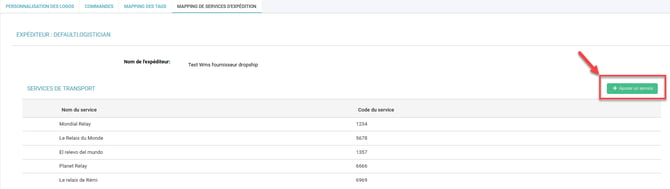
- Go to the menu Configurations -> Orders -> Shipping service mapping:

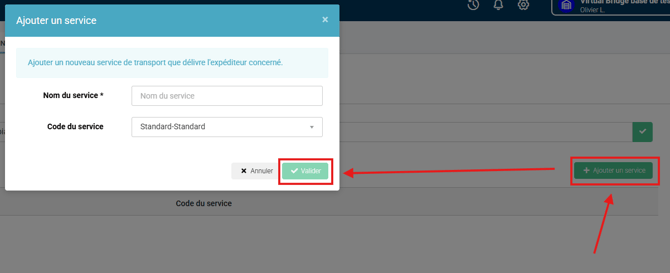
- Click on Add a service:
-
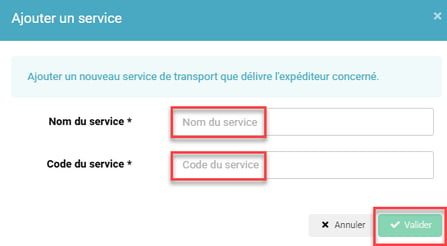
A form opens, allowing you to enter:
-
The name of the carrier service (e.g. Chronopost Express)
-
The code used in your order flows (e.g. chrono_express)
-
Then click on Confirm.
💡 Tip:
You can edit or delete a service at any time in this tab if you stop a carrier contract or want to reorganize your mappings.

4.3 Configuring your mapping rules
-
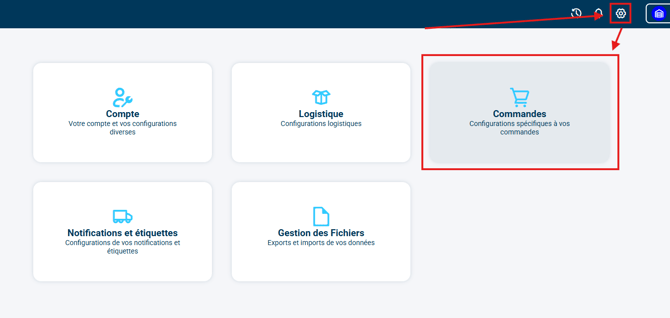
Go to the menu Configurations>Orders:
- In the Shipping service mapping section:
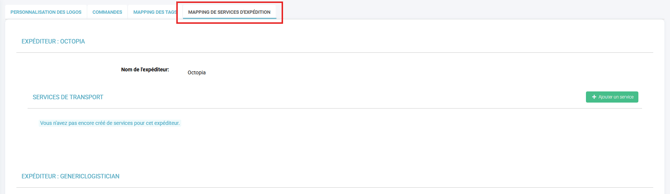
- You can add one or more service(s) for each logistics provider:
-
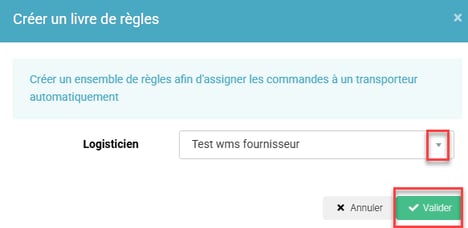
You can then create a rulebook for each logistics provider by clicking on Add in the section Rule types:

-
Select the relevant logistics provider in the drop-down menu before confirming:
-
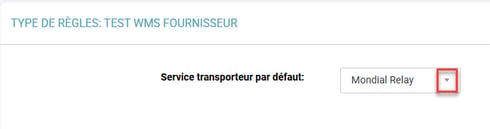
Then click on the + to the left of the new line in the rulebook that has just appeared:

-
You can select a default carrier from those available:
- Then add your mapping rules in the rules section.
💡 Tip:
If you need more information on mapping rules in Shippingbo, you can follow the dedicated tutorial COMPLETE CARRIER MAPPING🔷 Note:
Your configuration is complete on the Virtual Bridge side, and no setup is required on the OMS to create the shipping service mapping.
⚒️ Recommendation:
Before fully using the feature described in this tutorial, we strongly recommend running a test phase with your own settings to check that the result matches your expectations. As the customer remains fully responsible for the actions carried out in the Shippingbo account, these tests are essential to use the tool with complete peace of mind.
To go further 🛫:
- Create a shipping service mapping on the seller side
Contact us 📬:
Questions about this feature?
Feel free to write to us here so that we can answer your questions.