.png?width=210&height=40&name=bleu%20et%20gris_Sigle+logo%20SBO%20(4).png)

- Anticipating quality-related stockouts: automatic detection of lots nearing expiry.
- Improved logistics management: quick actions on sensitive products.
- Less waste: better rotation of short-dated stock.
- Simplified monitoring: centralized view of alerts through a dedicated table and a schedulable export.
- Easier communication: automatic sending of alert emails to the teams concerned.
2. Prerequisites ✔️:
- Feature available only from the Expert + Pack, working with advanced locations (LMS / WMS).
-
It applies only to physical stock in a location.
3. How does the stock alert before expiry work?
The feature continuously compares the expiry date of the stock with:
-
a general period,
-
or a product-specific period.
As soon as a stock falls below this period, an alert is generated.
Stocks already expired also appear, even if the alert is not activated for the product.
You can:
-
configure a global period,
-
define a specific period product by product,
-
automate the sending of emails at regular intervals or at a fixed time,
-
view the alerts in a dedicated table,
-
export a complete file containing all the necessary information (lot, Best-Before Date/Use-By Date, priority, location, stock, etc.).
For example:
If you set a period of 10 days and a lot is 9 days from its expiry, the alert is triggered automatically and appears in the dedicated menu, and/or in an email depending on your settings.
4. Activation and configuration of the feature
4.1 Activate alerts at the global level
- Go to the menu Configurations -> Logistics -> Stock alert:

- Go to the section Stock expiry alert threshold:
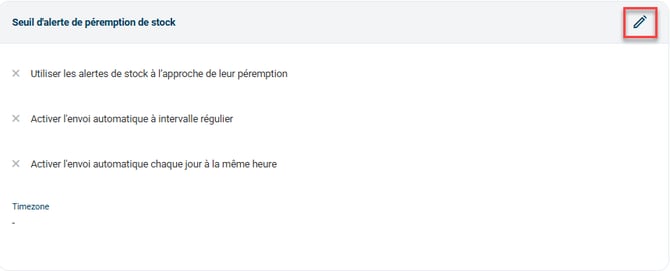
- Activate the option Use stock alerts as their expiry approaches, then fill in the requested information:
- the email of the alert recipient
- the desired default alert period (in days)
- the desired sending mode
- the time zone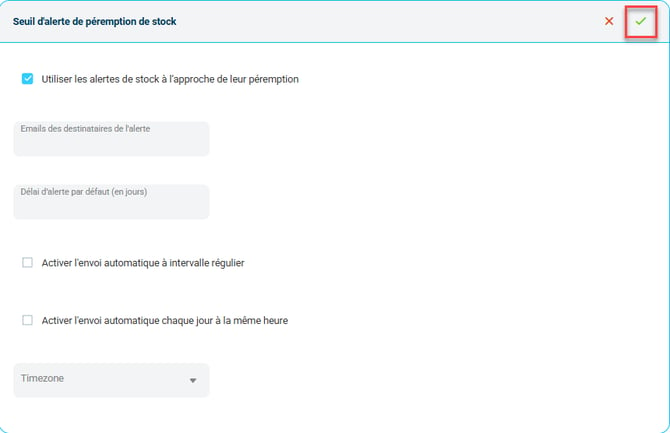
📢 Warning:
Make sure the recipient users have a valid email address.
4.2 Manually activate alerts on the relevant products
When threshold alerts AND/OR period alerts are activated globally, a Stock alert tab appears in the product sheets:
-
Alert settings (in quantity) → appears only if threshold alerts are activated.
-
Alert settings (in time before expiry) → appears if period alerts are activated.
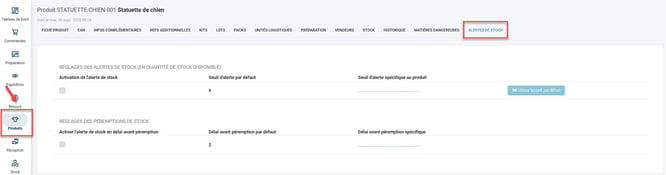
- In the stock expiry settings, you can:
- Activate / deactivate the expiry alert for this product
- View the global period
- Set a specific period
4.3 Activate alerts by import
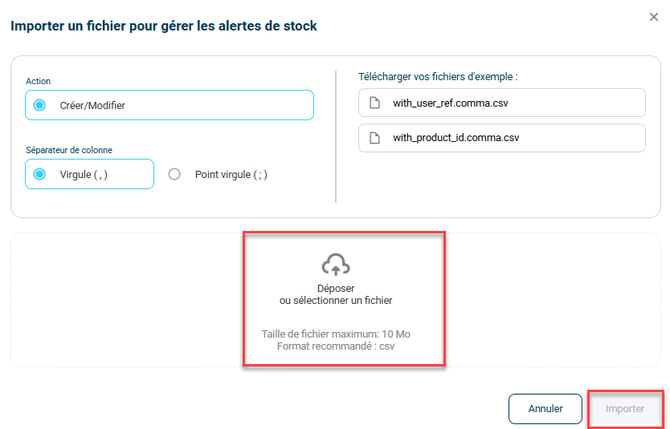
To activate several alerts at the same time, you can do so by import.
- To do so, go to the menu Configurations -> File management -> Import -> Stock alerts.
- Then, click on Import a file and download a sample file:
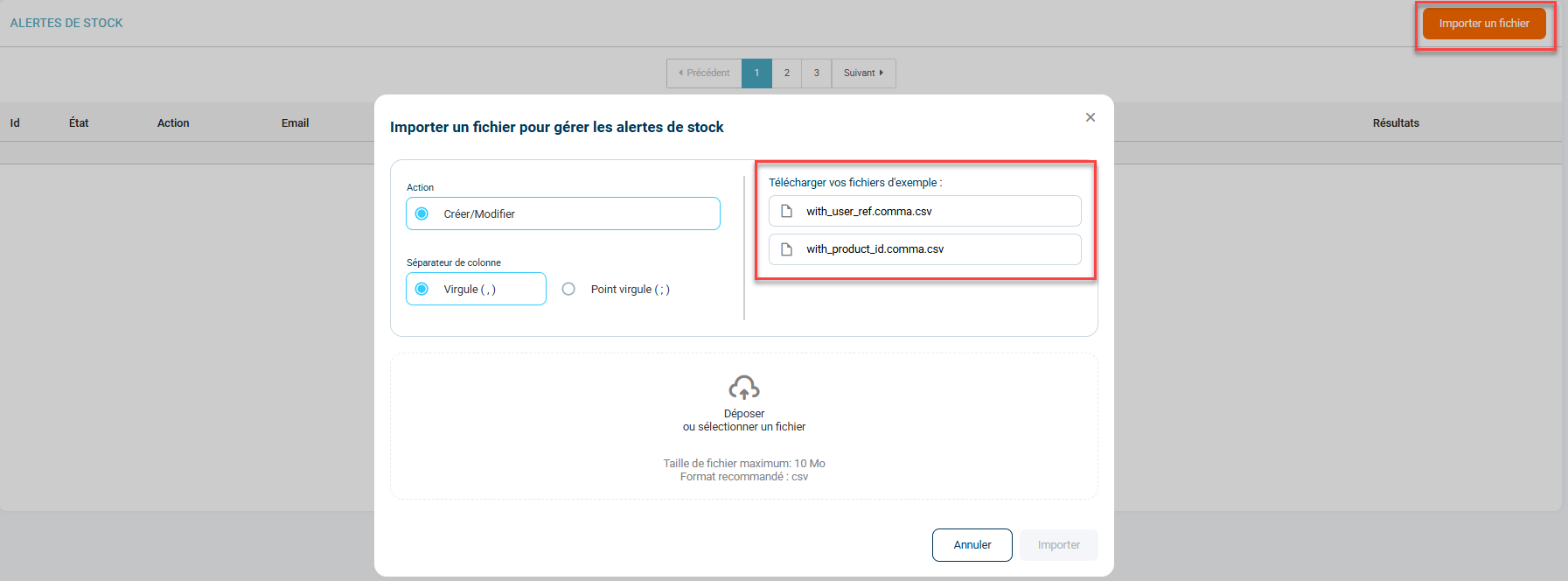
- productId: product ID.
- enabled: "true" to activate, "false" to deactivate the stock alert
- stockThreshold: specific alert threshold, leave empty if you want to use the default threshold.
- BestBeforeDateWarningEnabled: "true" to activate, "false" to deactivate the expiry date alert
- BestBeforeDateWarningDelay: number of days before the alert
Once the file is ready, import it by clicking on Drop or select a file, then on Import:
4.4 Export expiry alerts
- To export the data of the expiry alerts set up on your Shippingbo account, go to the menu Configurations -> File management -> Export -> Schedulable stock expiry alert (by quantity) -> Exports:

- Click on Generate a new export, then on Download:

4.5 View stock alerts before expiry
- From the menu Stock -> Expiring stock alerts, you will find the following information:
- Alert ID
- Date and time
- Product, SKU, title
- Zone & location
- Availability / pickable
- slotContents ID
- Stock (physical)
- Lot
- Best-Before Date/Use-By Date
- Defined alert period
- Time before expiry (calculated)
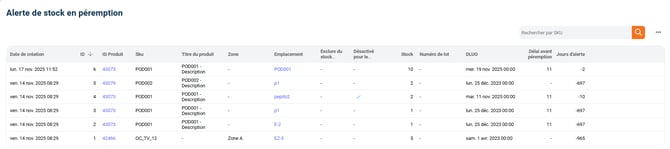
Stocks already expired always appear (empty period field).
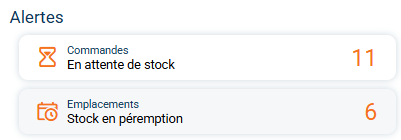
- On the Dashboard:
5. Practical example
Using the stock alert before expiry
A customer in the food industry uses this feature to automatically spot short-dated lots and generate an export every morning that is sent to the quality team. This allows them to carry out the necessary reallocations and promotions before the Best-Before Date is reached.
💠 Note:
By default, this feature includes the display of stocks already expired, even if the alert is not activated on the product.
📢 Warning:
The alert applies only to stocks with an expiry date filled in. Products without a Use-By/Best-Before Date are not taken into account.
⚒️ Recommendation:
Before fully using the feature described in this tutorial, we strongly recommend running a test phase with your own settings to check that the result matches your expectations. As the customer remains fully responsible for the actions carried out in the Shippingbo account, these tests are essential to use the tool with complete peace of mind.
To go further 🛫:
- Best-Before Date and lot number management in Shippingbo
FAQ ❔:
No related FAQ at the moment.
Contact us 📬:
Questions about this feature? Feel free to write to us here so that we can answer your questions.