.png?width=210&height=40&name=bleu%20et%20gris_Sigle+logo%20SBO%20(4).png)
Benefits of the feature ✨
-
Operational time savings: manual deletion via PDA, location by location, is avoided.
-
Stock security: only the products to keep remain linked to the locations.
-
Reliable, scalable method: suited to large volumes and exceptional situations (customer bankruptcy, cessation of activity).
-
Fewer field errors: no unnecessary physical handling or omissions during deletion.
1. Prerequisites
- Feature available starting from the Expert+ packs.
- Be logged in as a user with access to location data exports and imports.
2. Definition of terms
Location:
A location is a specific physical place in your warehouse where products are stored. It is the basic unit for organizing your storage and optimizing your order preparation operations.
Each location identifies a precise area of your warehouse (shelf, aisle, level, bin, etc.) via its unique name (e.g.: "A1-B3-N2" for Aisle A1, Bay B3, Level 2). A location can contain several different products, each with its own quantity.
Location content:
A location content represents the presence of a specific product in a location of your warehouse, with its associated quantity. It is the link between a product and a physical location. We therefore assume that:
- A Location Content can only contain one product
- A Location can contain several Location Contents (different products)
- A Product can have several Location Contents (stored in different places)
Difference between Emptying the stock and Unlinking the product from the location:
In Shippingbo, it is important to distinguish between these two different notions:
- Setting the stock quantity to 0: The physical stock is zero, but the product remains assigned to the location. The location is still reserved for this reference.
- Deleting the location content: You delete the association between the product and the location. This completely frees up the location so that other references can be assigned to it, or to avoid any unwanted movement on this association. This action requires the product stock to be 0 in the location.
⭐ Key point:
In this tutorial, the goal is to delete the location content, which requires the product stock in the location content to be set to 0.
3. Preparing and importing the import file
3.1 Preparing the product references for deletion
Before deleting your location contents by import, make sure you comply with the following points:
- Zero stock required: The stock quantity of the reference in the location must absolutely be equal to 0 (via an inventory at 0 or a prior stock-out movement).
- No ongoing flow or session: Make sure that no order preparation session, order reservation or replenishment mission is in progress on the locations and products concerned.
3.2 Exporting the locations
The first step is to carry out a location export in order to retrieve the location content identifiers and view all the products currently stored.
In Configurations > File management:
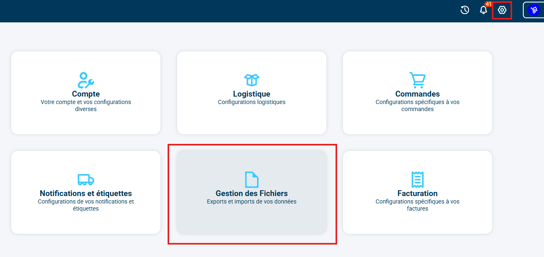
Select the tab Export:

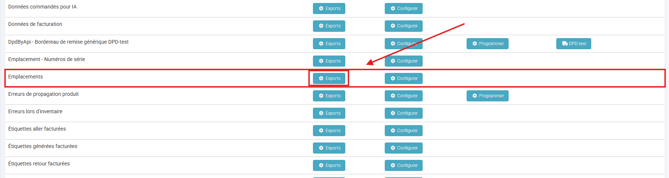
Click on Generate a new export then Download:

This export will serve as your working basis.
3.3 Cleaning up the exported file
Let's assume that, in this example, the product to delete is the product with SKU PATCP1, present in all the locations of the account: SLOT1, SLOT2, and SLOT3:

In the exported file, keep only the products you want to delete.
In our example, only the three corresponding lines are kept:

💡 Tip:
At this stage, you can already select and copy the content of the column slot_contents.id, which contains all the IDs of the location contents to delete.
3.4 Deletion import of the location contents
Once the file is cleaned up, you will need to run a deletion import of the location contents with this file.
In Configurations > File management:
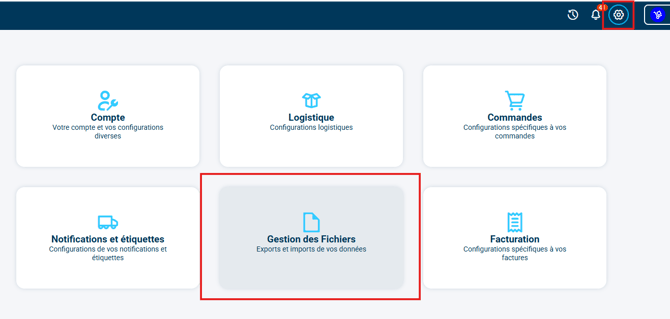
You will find the section Location Content:
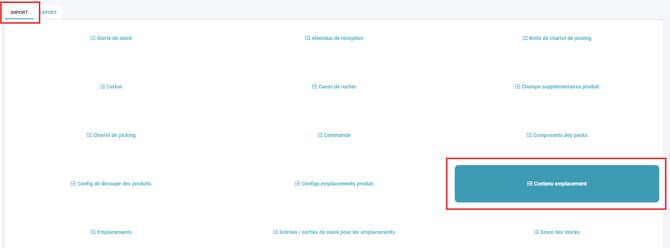
You can click on the button Import a file, select Delete, then download the template file:
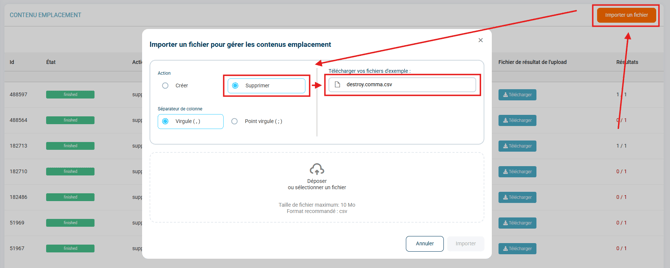
In this deletion template file, the only column id must be filled in with the information from the column slot_contents.id from the export. In our example, the Location Content deletion import file therefore looks like this:
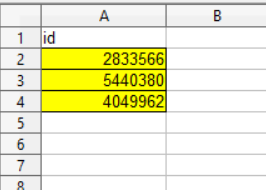
By importing this file for the Location Content deletion import, all the product references will be deleted from the Shippingbo space.
3.5 Resolving common errors related to the location content deletion import
Two common types of errors prevent the import from running:
- Stock greater than 0: The import will reject the line if the stock in the location is not strictly 0.
➡️ It is mandatory to adjust the stock to 0 before any deletion. - Relational constraint error: This failure occurs if order reservations are still linked to the product in this location or if a replenishment mission/preparation session is active.
➡️You must complete or cancel these operations before restarting the import.
⚒️ Framework and responsibilities:
Before fully using the feature described in this tutorial, we strongly recommend running a test phase with your own settings to check that the result matches your expectations. As the customer remains fully responsible for the actions carried out in the Shippingbo account, these tests are essential to use the tool with complete peace of mind.
Contact us 📬
Questions about this feature? Feel free to write to us here so that we can answer your questions.