.png?width=210&height=40&name=bleu%20et%20gris_Sigle+logo%20SBO%20(4).png)
Benefits of the feature ✨
- Time saving Anticipate restocking needs before preparation sessions.
- Productivity improvement : Reduce interruptions during order preparation.
- Inventory optimization : Make the products available in the picking areas at the right time.
1. Prerequisites
- This feature is only available for Shippingbo Expert Packs +.
2. How do manual resupply missions work per location?
Manual replenishment missions allow you to generate replenishments for products with reserve stock in order to transfer them to picking locations before starting an order preparation session.
💡 Trick :
This feature is particularly useful when your picking stock is insufficient but a replenishment is available in reserve.
3. How do I activate manual resupply missions per location?
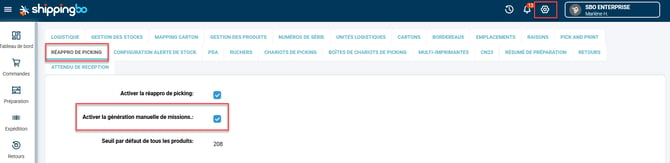
- Access the menu Configurations -> Logistics -> tab Picking replenishment And check the option Enable manual mission generation :
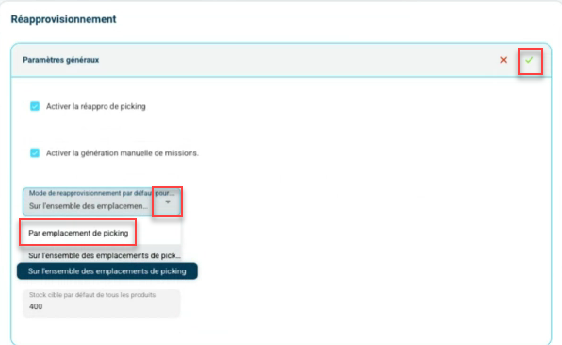
- Next, go to the menu Configurations -> Logistics -> tab Stock and Locations -> section RestockingThen, in the field Default replenishment methodselect the option By picking location :
-
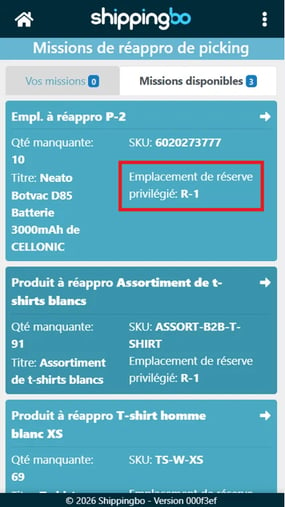
If you wish, you can also activate the option Display preferred reserve location In Configurations -> Logistics -> tabPicking replenishment.
This option optimizes the sampling path to the PDA by reserve location.
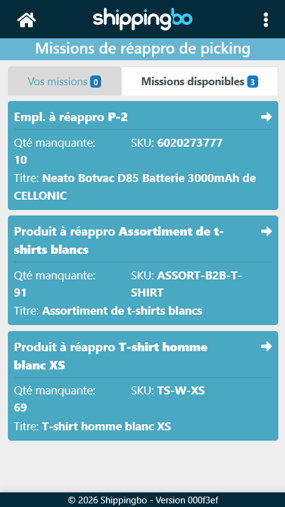
➡️ This option allows you to'show theprime reserve location to perform a PDA refill. LResupply missions are sorted by locationt of reserve, for an optimized sampling path.- ❌ Without the active option: Resupply missions are sorted by destination location (picking).
- ✅ With the option active: The preferred reserve location is displayed on the PDA and resupply missions are sorted by this reserve location.
- ❌ Without the active option: Resupply missions are sorted by destination location (picking).
4. Perform a manual resupply mission
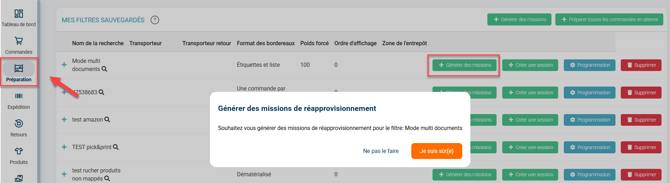
Once the feature is activated, go to the menu Preparation and click on the Generate missions to the right of the preparation session you wish to perform. A warning message appears, click on I am sure If you wish to carry out the mission:
5. Example of practical application
Context:
You are an e-commerce retailer specializing in fashion products, and you manage both reserve stock and picking stock in your warehouse. During sales periods, your most popular items, such as cotton t-shirts, sell out quickly, and the stock in the picking location is frequently depleted.
Using the feature:
Thanks to the manual replenishment mission feature, you can anticipate this situation. For example, before your morning order picking session begins, you can generate a replenishment mission to transfer available t-shirts from the back stock to the picking locations. This ensures that your order pickers won't have to interrupt their work to wait for a picking replenishment mid-session.
Result :
By using this feature, you avoid interruptions during preparations, optimize your logistics flow and ensure better productivity for your team, while minimizing the risk of errors and delays in your shipments.
To go further 🛫:
- Picking replenishment missions using PDAs
- Define replenishment thresholds for picking
Contact us 📬:
Questions about this feature? Feel free to write to us.hereso that we can answer your questions.