.png?width=210&height=40&name=bleu%20et%20gris_Sigle+logo%20SBO%20(4).png)
Summary
3. Activation and configuration
4. Example of practical application
7. FAQ
8. Contact us
1. Prerequisites ✔️:
- Feature available for all Shippingbo packs
- Activate the Shippingbo Print Server
2. How do I add an invoice or additional document?
This feature allows you to add invoices or any other PDF document in orders present on Shippingbo, before or after their shipment.
This will allow you to find all the documents related to the order in one place.
💡 Trick Adding a document or invoice before shipping will allow you to print this document at the same time as the shipping label. This can be useful if you are shipping internationally, for example.
3. How do I use the feature?
3.1 Add an invoice
To add an invoice to the details of an order:
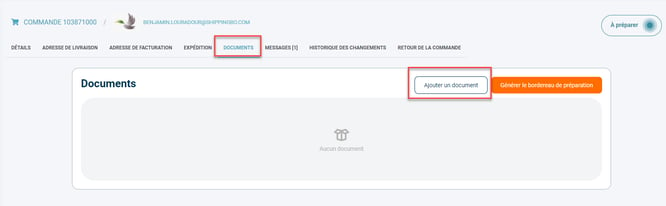
3.1.1. Access the order details and open the tab DocumentsThen, click on Add a document:
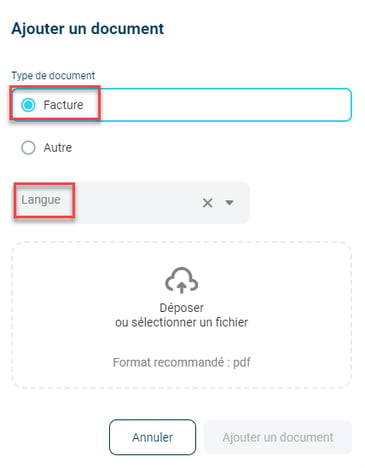
3.1.2. In the field Document type, select Bill and choose the invoice language:
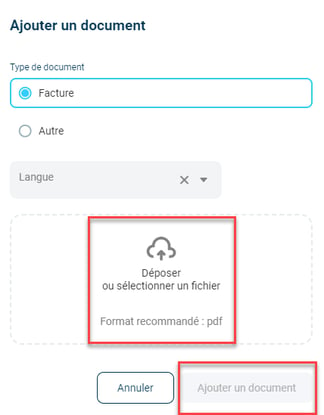
3.1.3. Download the corresponding PDF file by clicking on Upload or select a file, then on Add a document:
3.2 Add an additional document
To add other documents in PDF format to an order (delivery notes, contractual documents, etc.):
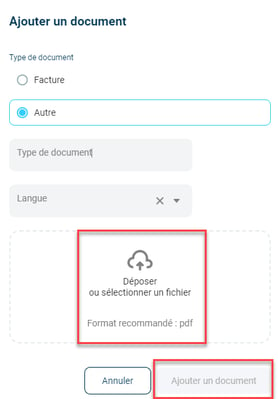
3.2.1. Access the order details and open the tab Documents. Then, click on Add a document:
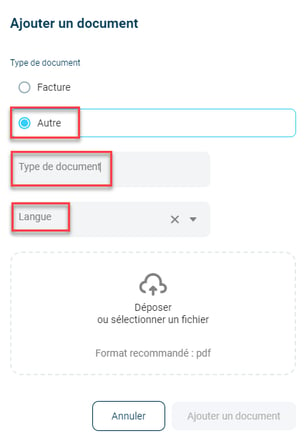
3.2.3. Download the corresponding PDF file by clicking on Upload or select a file, then on Add a document:
3.3 Enable automatic printing and document visibility
3.3.1To enable automatic invoice printing when generating shipping labels, go to Configurations → Logistics → Multi-Printers,then check the option Activate for invoices :
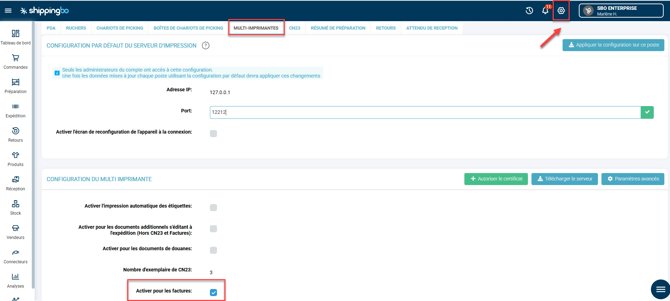
To enable automatic printing of additional documents when generating shipping labels, go to Configurations → Logistics → Multi-Printers,then check the option Enable for additional documents edited upon shipment :

3.3.2 Multi-Shipping Document Propagation.
📢 Attention If you are using Multi Shippingbo mode, meaning you are connected to a warehouse via Shippingbo and route your orders, you will need to enable certain options to allow the propagation of documents added to your OMS. This will ensure that these documents are generated during shipping, if desired.
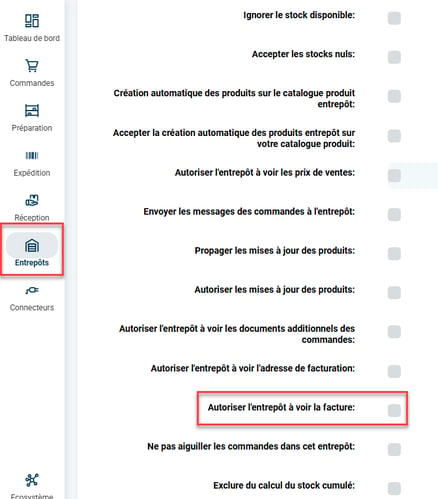
To extend invoice visibility to your warehouses (from the OMS). In the OMS: go to your warehouse menu settings, then check the option Allow the warehouse to view the invoice:
If you are in Multi-Shipping Box and wish to allow your warehouse to view additional documents:
To propagate the visibility of additional documents in your warehouses (from the OMS). In the OMS: go to the configurations of your warehouse menu, then check the option Allow the warehouse to view additional order documents: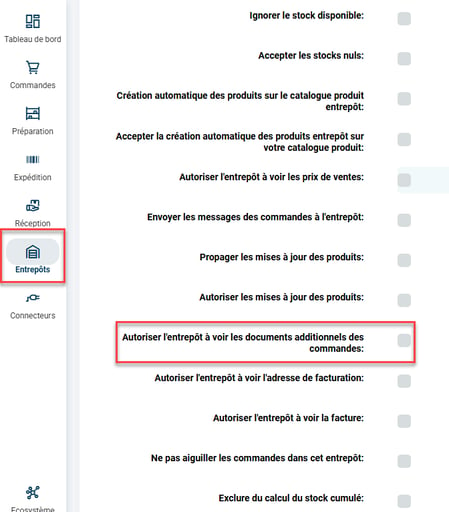
4. Example of practical application
Context :
You are an e-commerce business specializing in the sale of handcrafted products, and you regularly ship orders internationally. A customer in Germany has just placed a large order, including several items requiring a specific customs declaration.
Using the feature:
-
Added before shipping:
You add the commercial invoice and a certificate of origin in PDF format directly to the order via Shippingbo. These documents will be automatically generated along with the carrier label during shipment preparation. -
Advantage :
The necessary documents are included in the package and accessible with one click in Shippingbo, saving you time and ensuring customs compliance.
Result :
The package is shipped without delay thanks to well-prepared documents, and the customer receives their order quickly without any customs-related complications. As an added bonus, you can access all the documents associated with this order in Shippingbo in case of any future checks or questions.
This case illustrates how this feature simplifies your operations and improves the customer experience 😎👍
- Centralization of documents : Easily access and add all invoices and important documents from the order interface.
- Printing automation Save time by setting up automatic printing of necessary documents when preparing orders.
- Multi-site visibility : Quickly share important documents with your warehouse teams thanks to multi-site management.
⚒️ Recommendation:
Before fully using the functionality described in this tutorial, it is strongly recommended to performa testing phasefollowing your own parameters to verify that the result meets your expectations. The remaining customerfully responsibleThese tests, based on actions performed on the Shippingbo account, are essential to ensure the tool can be used with complete peace of mind.
To go further 🛫:
- Generate an invoice for orders via import
- Configure the multi-print server
FAQ ❔:
No related FAQs at the moment.
Contact us 📬:
Questions about this feature? Feel free to write to us. here so that we can answer your questions.