.png?width=210&height=40&name=bleu%20et%20gris_Sigle+logo%20SBO%20(4).png)
Summary

- Product traceability : Allows individual product tracking using serial numbers.
- Improved shipment tracking : Improves the management and tracking of shipments, ensuring better traceability.
2. Prerequisites✔️:
- Feature available from the Pack Pro +.
- The option Picking control must be activated on your Shippingbo account. If it is not already activated, please contact support. here.
3. How does serial number traceability work outside the advanced warehouse?
Serial number traceability allows for the precise identification of each product at the time of shipment. Serial numbers are scanned during the picking process, enabling accurate management and tracking within Shippingbo.
Example: When shipping an order, you scan the product's serial number, which is then associated with that order in Shippingbo. This allows you to retrieve the serial number at any time in the shipping details, which may be required by law or to optimize your customer service.
4. Enable serial number traceability
Manual activation via the product sheet
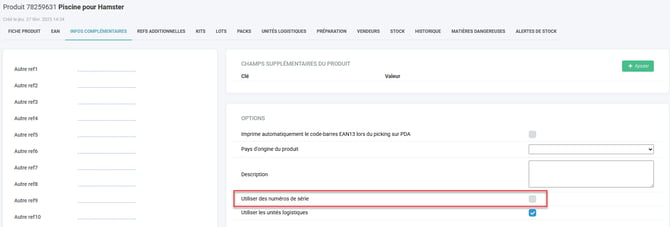
Appointment in the menu ProductsSelect the product in question, then go to the tab Additional information and check the option "Use serial numbers":
Activation via import
-
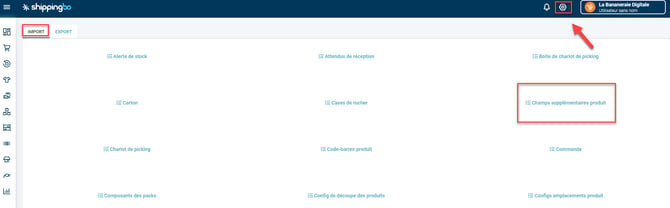
Appointment in the menu Configurations → File management → Import → Additional product fields:
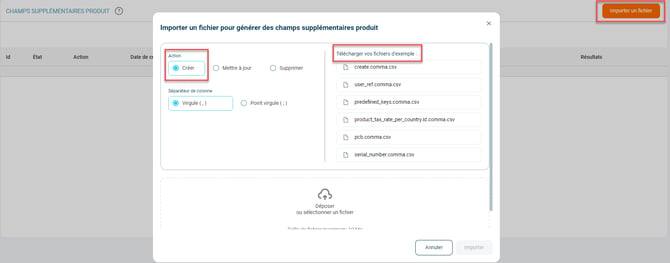
2. Click on Import a fileSelect the "Create" action, then download the example file to fill out:
3.Fill out the import file
Complete the following fields:
- product_id : Product ID on which to activate serial numbers.
- key : "serialNumbersEnabled".
- value : "yes" to activate, "no" to deactivate.
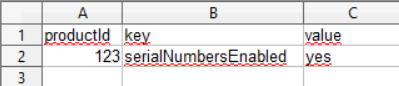
4. Once the file is ready, click on Drop or select a file, then on Import :
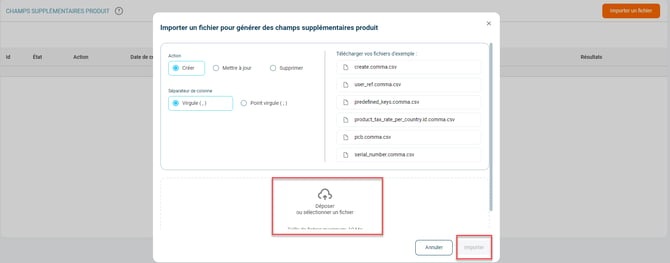
Example : You have several products for which you want to activate serial numbers. You fill out the import file and import it into Shippingbo, thus activating serial number tracking for these products.
💠 Noticed :
To be able to use serial number traceability in Pick&Print preparation, you need to disable the following options:
- "Enabling automatic label printing" located in the Settings -> Logistics menu
- "Consider pick & print as a form of picking control" located in the menu Configurations -> Logistics -> Pick & Print
5. Use the feature
Scan the serial numbers upon shipment
During the control pickingYou will be asked to scan the product serial number at the time of shipment. This number will then be associated with the order.
-
Serial number tracking during shipment
After the shipping label is generated, the serial number is visible in the order details, under the tab Shipping, section Package contents.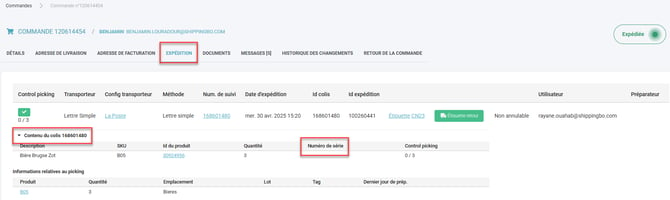
2. Export shipped products with serial numbers
You can export a report listing the shipped products with their serial numbers from the menu. Configurations → File management → Export → Products shipped - serial numbers → Exports:
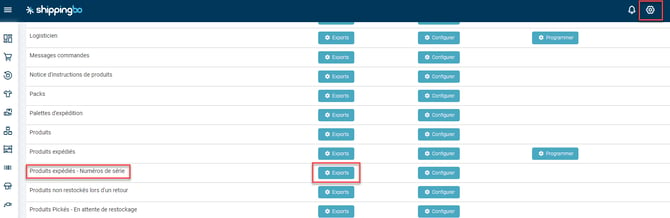
3. Click on AddThen choose the desired start and end dates to generate the export:

Example: You ship an order containing several products, each with a unique serial number. During the picking process, you scan each serial number, and Shippingbo records this information for future tracking.
⚒️ Recommendation:
Before fully using the functionality described in this tutorial, it is strongly recommended to performa testing phasefollowing your own parameters to verify that the result meets your expectations. The remaining customerfully responsibleThese tests, based on actions performed on the Shippingbo account, are essential to ensure the tool can be used with complete peace of mind.
To go further 🛫:
- Create or delete products in Shippingbo
- Serial number traceability in advanced warehouse
Contact us 📬:
Any questions about this feature?
Feel free to write to us here so that we can answer your questions.