.png?width=210&height=40&name=bleu%20et%20gris_Sigle+logo%20SBO%20(4).png)
Summary

- Optimized traceability in the warehouse : Ensures precise traceability of each product with a unique serial number.
- Tracking the product's journey through the warehouse : Facilitates product tracking for inventory management and preparation in locations.
- Offers the ability to control the format of serial numbers via custom regex.
2. Prerequisites✔️:
- Feature available only for accounts using the advanced warehouse.
- The option of control picking must be activated.
- To activate these features, please contact Shippingbo support.
3. How does serial number traceability work?
This feature allows you to track each product individually using its serial number. This ensures precise inventory management and optimal traceability.
Example: If you sell electronic devices, each unit can be tracked using a unique serial number, making it easier to track returns or warranty claims.
4. Enable serial number traceability
4.1 Enable the use of serial numbers via the product sheet
-
Access the product page:
Go to the details of the product in question, under the tab Additional informationand check the box Use serial numbers.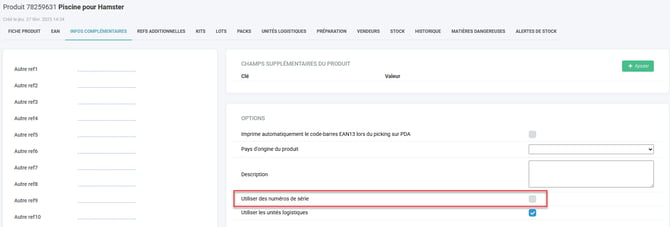
- Conduct a new inventory:
For all products with the option enabled, you will need to conduct a new inventory in order to assign a serial number to each unit.
Each quantity must be manually assigned with a unique serial number. -
Serial number consultation
You can view the serial numbers in the location details under the tab Serial numberswhere you will also find the date and time it was added.
4. Export of serial numbers:
You can export all your serial numbers via the menu Configurations → File management → Exports → Location - Serial Numbersthen click on Generate a new export:

Example: After enabling traceability, you can export a file listing all serial numbers present in each location.
4.2 Enable the use of serial numbers via CSV import
-
Go to Configurations → File management → Import → Additional product fields:
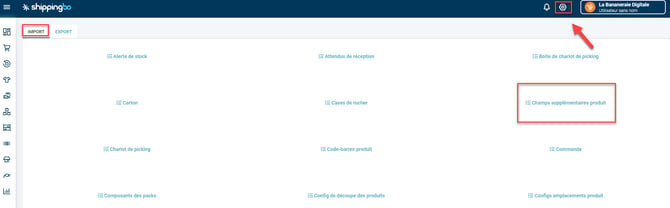
-
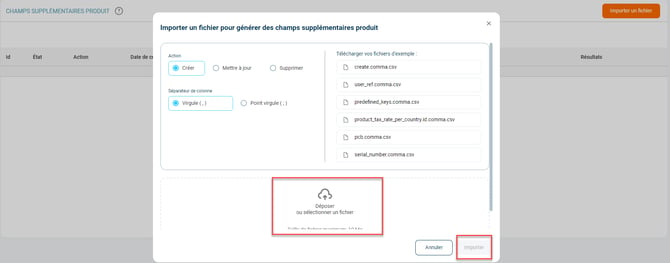
Click on Import a fileChoose the action you wish to perform with this file and then download the example file:
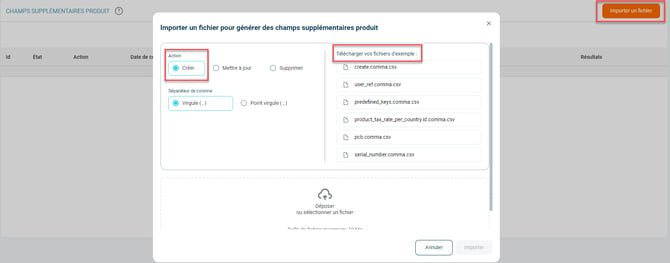
-
Fill in the file:
Complete the following fields:
product_idProduct identifierkey: serialNumbersEnabledvalue: yes (Or no to disable)
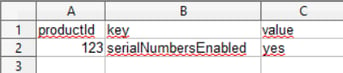
-
Import the CSV file:
Once the file is ready, click on Drop or select a file, then on Import :
💠Note:
To ensure flawless traceability, you will need to provide the serial numbers. in the expected deliveryYou will need to enter this information again when the product is put into stock in its location, and during the picking check.
These steps will allow the system to track the product with its serial number, from its entry into the warehouse until its exit.
5. Use serial number traceability
Perform stock movements using serial numbers
All movements must be performed quantity by quantity, each quantity being associated with a unique serial number.
Example: To add stock, you will need to scan or manually enter each serial number during the stock movement.
💠 Noticed :
All stock movements involving serial numbers must be carried out one by one. By default, the quantity to be handled will be set to 1, and the serial number will be mandatory.
📢Attention :
If the serial number traceability feature is disabled, all previously registered serial numbers will be automatically deleted.
6. Add a regular expression to validate serial numbers
-
Configure the regular expression:
Go to the menu Configurations → Logistics → Serial numbers and enter your regular expression (regex) in the field Serial number format.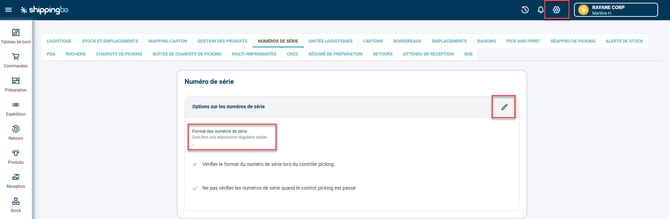
-
Testing the regex
Enter your regular expression in the fieldSerial number formatThen check or uncheck the following options according to your desired use of the regular expression:
The serial number format must be specified using a regular expression (regex). Possible regular expression rules can be found in the attached PDF document at the bottom of the page.
Any serial number format is possible:
- Character type control (numbers, letters, special characters)
- Serial number length
- Fixed number of characters, minimum, maximum, or between 2 values
- Combination: x numbers, then y letters, then z numbers, etc...
It is easy to test the generated regex by visiting the website
- Configure the options for using serial numbers
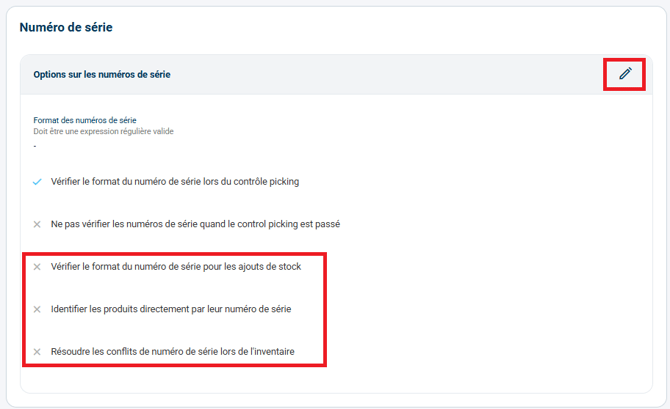
✅ Check the serial number format for stock additions
When activated, during stock addition, when the product serial number is scanned with the PDA, Shippingbo will verify that the scanned serial number matches the format specified in the Serial Number Format field. If it does not match, it will return an error.
✅ Identify products directly by their serial number
When activated, during a receipt via a receipt expectation, it allows you to directly scan the product's serial number, rather than having to scan its SKU and then its serial number.
📢 Attention :
This feature cannot be applied to adding stock, but only in the case of a receipt with an expected value, where the “serial_number_expected” field is filled in.
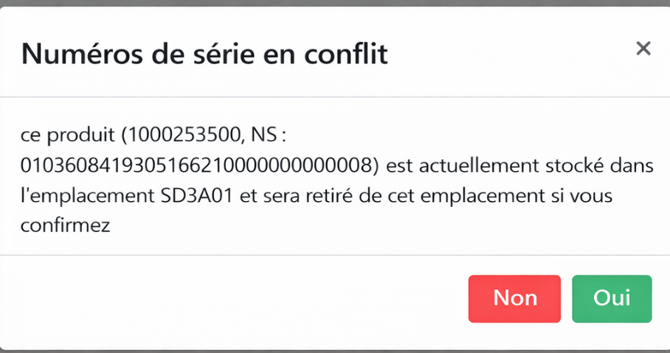
✅ Resolve serial number conflicts during inventory
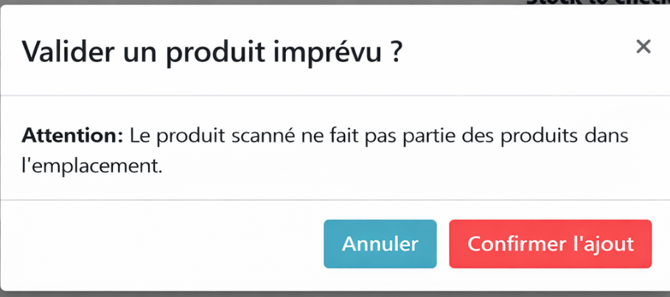
When activated, a pop-up appears on the PDA asking “Validate an unexpected product?” when the just-scanned serial number already exists in another location for the same product SKU. By default, it is not possible to confirm this addition.
⚒️ Recommendation:
Before fully using the functionality described in this tutorial, it is strongly recommended to performa testing phasefollowing your own parameters to verify that the result meets your expectations. The remaining customerfully responsibleThese tests, based on actions performed on the Shippingbo account, are essential to ensure the tool can be used with complete peace of mind.
- Advanced off-warehouse serial number traceability
- Create or delete products in Shippingbo
Contact us 📬:
Any questions about this feature?
Feel free to write to us here so that we can answer your questions.