.png?width=210&height=40&name=bleu%20et%20gris_Sigle+logo%20SBO%20(4).png)
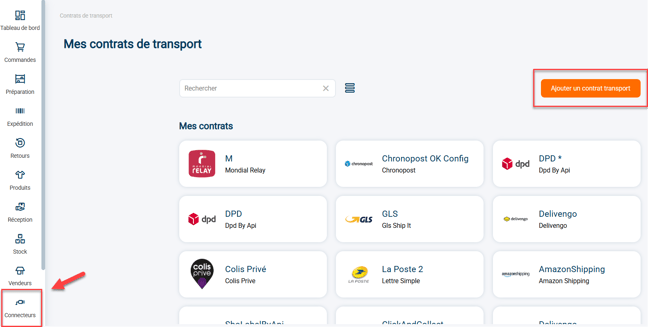
Step 1:Go to the menu Connectors -> Transport contracts -> Click on Add a transport contract:
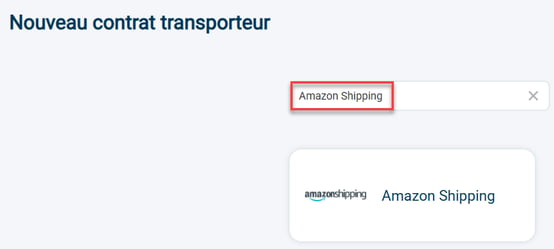
Step 2: SelectAmazon Shippingin the list of available contracts:
🚩 Special case:
If you only manage orders from outside Amazon; that is, only orders not originating from your own Amazon account; then please tick the optionOrders outside of Amazon only.

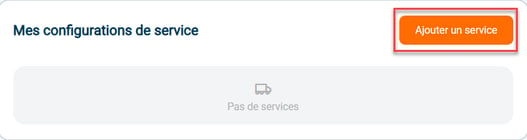
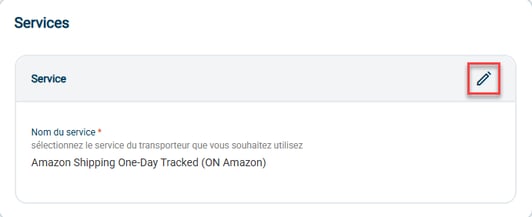
Step 4:Click on "Add a service", then select the ON Amazon and/or OFF Amazon service(s) you will use:
Step 5:Go back to your Amazon Shipping contract and click on Link / Reconnect your account :

⭐ Key point:
If clicking the "Link/Link your account" button redirects you to Amazon Seller, check if a Merchant ID is entered. If so, Delete it.
-
An Amazon login window will open; you will need to authenticate yourself by entering your username and password to access the Amazon Shipping Backoffice:
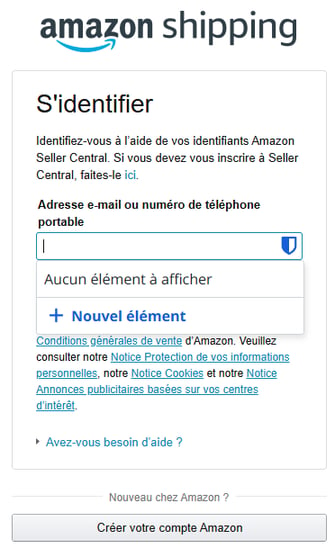
-
Then check the box and allow access:
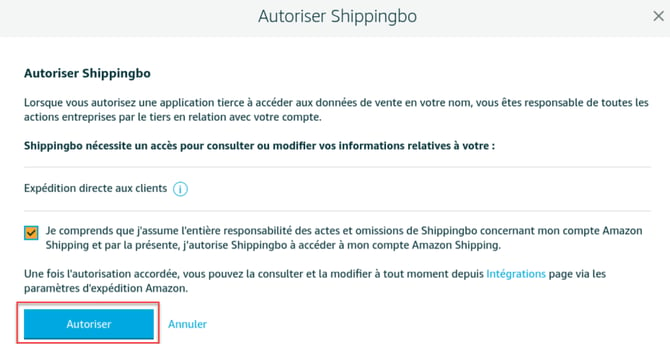
💬 Good to know:
In accordance with the GDPR and guidelines directly from Amazon, order data is not kept by Shippingbo for more than one month.
Step 6 (optional): By default, the Amazon Shipping connector is incompatible with shipping label formats Integrated label, Label and list And Label only (see part 3.2 of NEW INTERFACE FOR PREPARATION SESSIONS) :
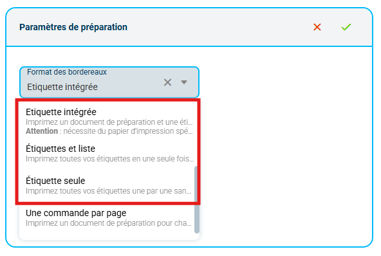
-
To make your Amazon Shipping carrier service compatible with the following shipping label formats: Integrated label, Label and list And Label only, he is imperative that a shipping delay be added to your configuration:
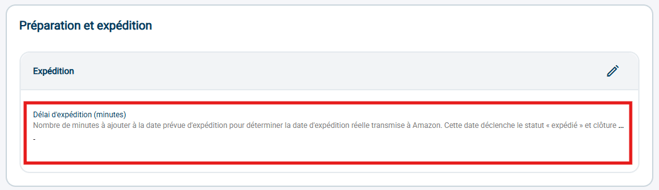
➡️ This option allows you to set a number of minutes to add to the scheduled shipping date to determine the actual shipping date transmitted to Amazon.
➡️ It is imperative that orders are closed by Shippingbo, therefore it is recommended to enter a value around 600 minutes, to ensure that orders put into preparation have enough time to be prepared.
Step 7 (optional): You can add a carrier mapping rule with Amazon Shipping to check if the delivery address's postal code is served by the carrier.
➡️ To do this, when creating your rule, you can select the condition "Postal code available for the offer is correct :
-png-2.png?width=462&height=249&name=image%20(2)-png-2.png)
➡️ For more information on creating transport mapping rules, you can consult our dedicated tutorial COMPLETE TRANSPORTER MAPPING.
Step 8 (optional): You can adjust your shipping address by clicking on Add an address in the relevant section:

-
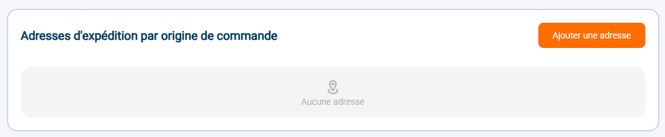
You can also create a different shipping address depending on the order's origin:
-
If needed, you can remove this carrier by clicking on Remove the connector :

⚒️ Framework and responsibilities:
Before fully using the functionality described in this tutorial, it is strongly recommended to performa testing phasefollowing your own parameters to verify that the result meets your expectations. The remaining customerfully responsibleThese tests, which are essential for ensuring the tool can be used with complete peace of mind, are crucial for the actions carried out on the Shippingbo account.
Contact us 📬
Any questions about this feature?
Feel free to write to ushereso that we can answer your questions.