.png?width=210&height=40&name=bleu%20et%20gris_Sigle+logo%20SBO%20(4).png)
1. Information to retrieve for configuration
In order to connect your Mondial Relay contract to Shippingbo, you will need to retrieve the following information:
- Name of your Mondial Relay store
- API Login
- API password
You can find this information on your Mondial Relay contract:
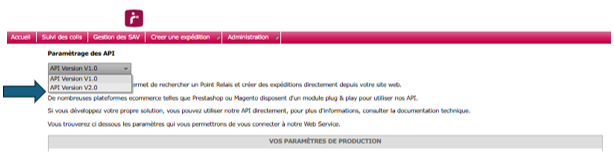
- To do this, go to your Mondial Relay extranet account and then click on Administration -> API configuration :

- Select the option API Version V2.0 :
🔷Note:
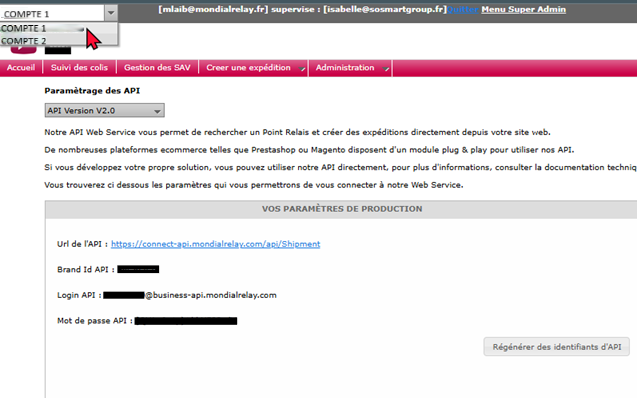
Please ensure you have selected the correct Mondial Relay account from the drop-down list:
- Then, click on Generate API credentials :
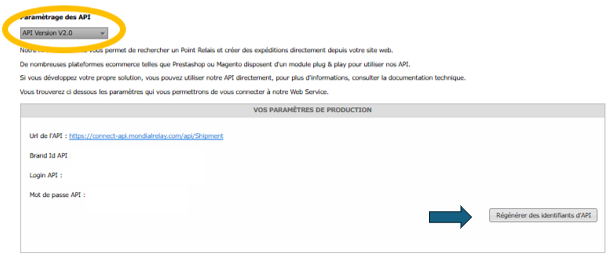
The credentials consist of the Brand ID, the API Login, and the Password.
2. Create a carrier service in Shippingbo
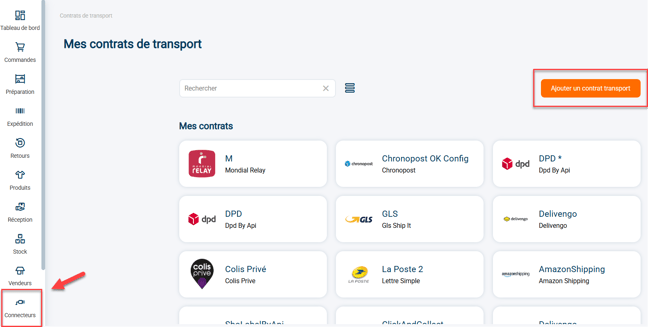
2.1 Go to your Shippingbo interface to create your carrier connection in the menu Connectors -> Carrier -> Click on Add a carrier :
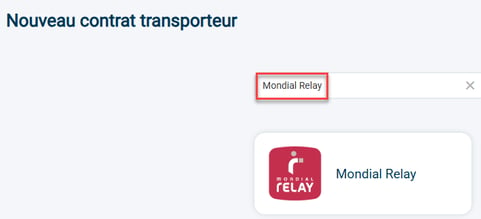
2.2: Search "Mondial Relay" in the search bar, then click on the Mondial Relay tab that appears:
2.3: Your connector opens and the first category appears:

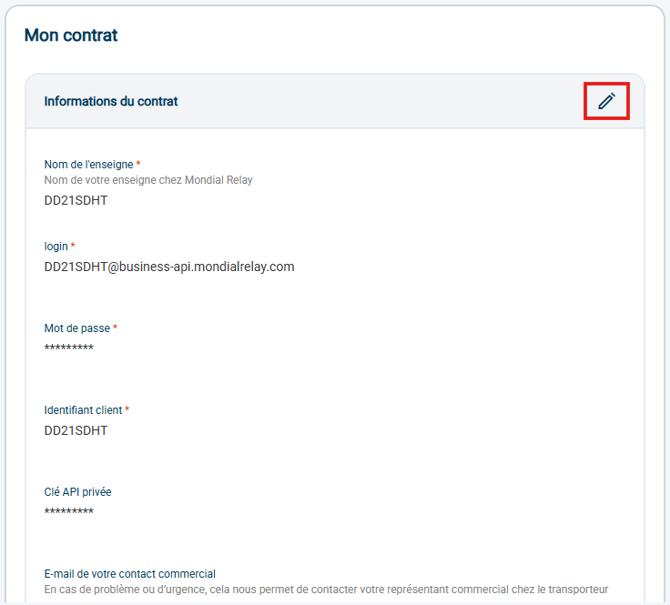
1) The stylus to the right of the service allows you to change the name of your connector.
2) The "Logs" button redirects you to the calls made to the carrier. For more information on this, you can consult our tutorial.here.
3) The "View help" button redirects you to this tutorial.
3. Configure the carrier account
3.1: Enter your carrier contract information:
- Name of your Mondial Relay store: the production store code indicated on your Mondial Relay contract
- The name of your store at Mondial Relay
- your login
- your password
- your customer ID
- Save the information. Your configuration should look like this:
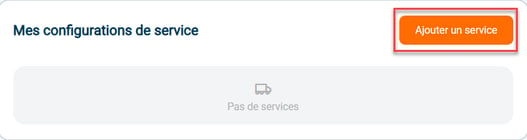
3.2:Go to "My services" to create a new configuration:
3.3:The configuration will be enabled by default:
Next, fill in the information required for the configuration:
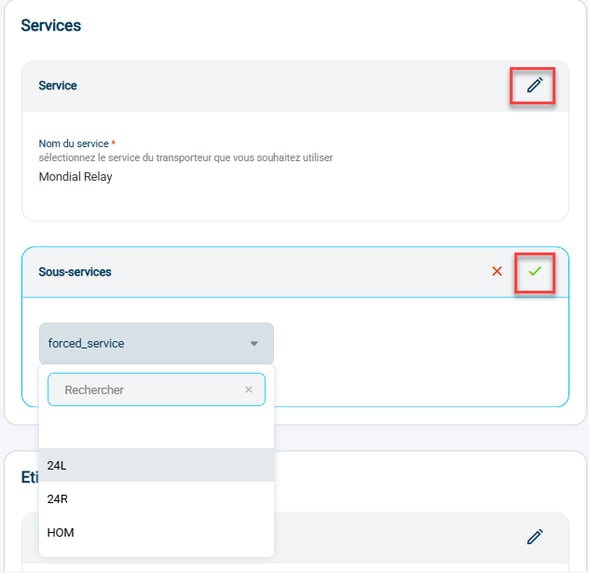
- the service The name of the service to connect to will always be "Mondial Relay"
- the sub-service : "24L", "24R", "HOM", to use only one of these three sub-services; or "forced_service", so that the sub-service is automatically assigned according to the relay point reference and the volume of the parcel:
- labels & slips : Select here the information you want to appear on the labels.
💡 Tip:
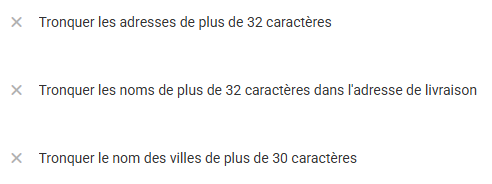
If an error occurs during label generation regarding the recipient's address or name, the problem can be corrected by checking the following options:
- parcel and insuranceConfigure your insurance if you have one.
⭐ Key point:
In order to retrieve the relay points in your orders, it is necessary to check that yourCMS is configured correctlyto transmit this information.
If you have any questions or need help with the setup, please don't hesitate to contact our support team. here.
3.4: You can adjust your shipping address by clicking on Add an address in the relevant section:

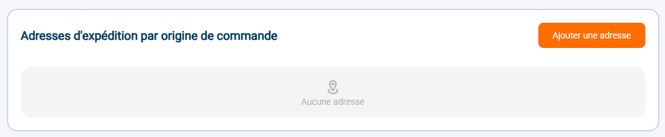
3.5: You can also create a different shipping address depending on the order's origin:
3.6: You can remove this carrier by clicking on Remove the connector :

3.7: To connect your Mondial Relay return contract, you can consult the dedicated tutorial: Return carriers - Mondial Relay.
⚒️ Framework and responsibilities:
Before fully using the functionality described in this tutorial, it is strongly recommended to performa testing phasefollowing your own parameters to verify that the result meets your expectations. The remaining customerfully responsibleThese tests, which are essential for ensuring the tool can be used with complete peace of mind, are crucial for the actions carried out on the Shippingbo account.
To go further 🛫:
- Return carrier - Mondial Relay
FAQ ❔:
- List of FAQs for Mondial Relay labels
Contact us 📬:
Any questions about this feature?
Feel free to write to ushereso that we can answer your questions.