.png?width=210&height=40&name=bleu%20et%20gris_Sigle+logo%20SBO%20(4).png)
Benefits of the feature ✨
- Optimization packaging management
- Automation and simplification preparation processes
- Inventory management real-time packaging
1. Prerequisites
- Have at least one Shippingbo pack Premium +.
2. Create your Cardboard Mapping
- Go to the menu Configurations → Logistics → Cardboard Mappingthen click on Add :

- Select the box targeted by this rule from the drop-down list before clicking on To validate.
HerenouLet's take our blue card as an example: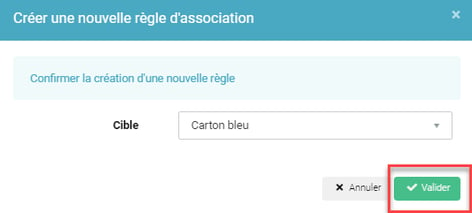
3. Add a condition to your rule
- Once the rule is created, add one or more conditions under which you want the rule to apply. To do this, click on "Add a condition":

- Select the rule type and the condition to apply from the drop-down lists, then click on To validate :
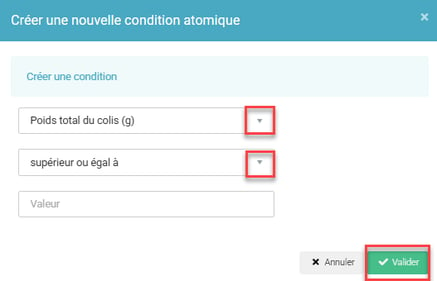
Example Our rule here states that all orders weighing 20g or less must be automatically shipped. din a blue box. - You pYou can repeat this step to add other conditions to this same rule.
⭐ Key point:
Each condition of the same rule is linked by a AND and not of a ORSo if you want to use multiple conditions for the same rule:
- Either you want that The command validates both conditions for the rule to apply.In this case, they need to be informed. on the same rule.
Example: "All orders with a total weight exceeding 1kg" AND Packages with a delivery address in France must be sent with the blue box.
➡️ I specify both conditions on the same rule, only the commands both with a total weight greater than 1kg AND Items with a delivery address in FRANCE will be sent with the blue box. - Either you want that the rule applies if the command fulfills one of OR the other of the two conditionsIn this case, they need to be informed. based on two separate rules with one condition each:
Example : "All orders with a total weight exceeding 1kg OR Items with a delivery address in France must be sent via Mondial Relay.
➡️ In this case, the two conditions cannot be on the same rule.
4. When your Mapping eOnce finished, don't forget to activate your rules, which are disabled by default, by checking the "Enabled" box for the rules ready to be used:

If you have multiple rules, you can sort them by priority by moving them up or down using the arrows to the left of "Activated":

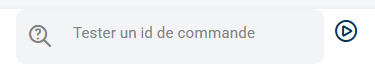
5. To test vIn your carrier mapping, you can enter the Shippingbo order ID of your choice and identify which rule highlighted in green is activated, to verify that your mapping works as expected.
💬 Good to know:
In your Carton Mapping, you can select a default carton. This means that this carton will be used by default for all orders that don't meet any of the criteria in your carton mapping rules. You can select it here: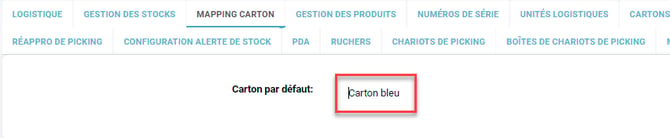
4. Use Cardboard Mapping
When generating your order label, if it meets the criteria of your mapping rule, the choice of carton will be automatically pre-filled.
💬 Good to know:
- You can always modify it using the drop-down menu if needed.
- The weight of the carton will be automatically added to the total weight of the products included in the order.
Once the order has been shipped, and if the stock of the carton used for this has been correctly entered beforehand, then the latter is decremented at the same time.
5. Display the carton on the preparation slip
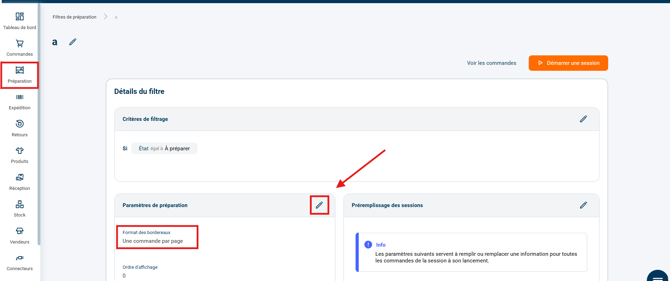
Once the carton mapping is activated on your database, the carton calculated from the mapping is automatically displayed on the preparation slip: you must choose the " formatOne order per page" for that.
⚒️ Framework and responsibilities:
Before fully using the functionality described in this tutorial, it is strongly recommended to performa testing phasefollowing your own parameters to verify that the result meets your expectations. The remaining customerfully responsibleThese tests, based on actions performed on the Shippingbo account, are essential to ensure the tool can be used with complete peace of mind.
To go further 🛫
- Create boxes manually and via import
Contact us 📬
Any questions about this feature?
Feel free to write to ushereso that we can answer your questions.