.png?width=210&height=40&name=bleu%20et%20gris_Sigle+logo%20SBO%20(4).png)
Benefits of the feature ✨
- Automated logistics: Automatic assignment of the most suitable carrier according to defined criteria to increase efficiency and limit errors.
- Customizing shipping rules: Creation of customized rules based on various criteria in order to optimize costs and deadlines.
- Carrier preparation sessions: Orders are organized in batches according to the carrier to simplify preparation and save time.
1. Prerequisites
This full functionality is available from the packagePremium +.
SIf you own a Shippingbo pack lower (Starter+ Or Pro+), you can create a mapping carrier light : pmore information here.
2. Create a rule in your Carriers Mapping
Step 1:Go to the menu Configurations >Notifications and labels >Transporter Mapping.

Step 2 (optional) : Specify a default carrier. This allows a carrier to be automatically populated if the order does not fall within any of the rules you have created in your mapping; select the carrier from the dropdown list.

Step 2:To add a rule, click "Add" and select the carrier to which you want your rule to apply from the dropdown list. Then click "Validate".

3. Add a condition to your rule
Step 1:Once the rule is created, add one or more conditions under which you want the rule to apply. To do this, click on Add a condition :

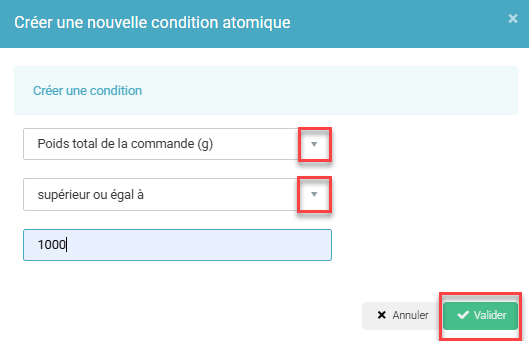
Step 2: Select the rule type and the condition to apply from the drop-down lists, then To validate.
Example : you want your first rule to be
"All orders with a total weight exceeding 1kg must be sent via Colissimo."
➡️ You need to fill in the information opposite:
⭐ Key point:
Each condition of the same rule is linked by a AND and not of a ORSo if you want to use multiple conditions for the same rule:
- Either you want the order to meet both conditions for the rule to apply. In this case, you must specify them in the same rule.
Example : "All orders with a total weight exceeding 1kg" AND Orders with a delivery address in France must be sent via Mondial Relay.
➡️ I specify both conditions on the same rule, only the commands both with a total weight greater than 1kg AND Orders with a delivery address in FRANCE will be sent via Mondial Relay.
- Either you want both conditions to apply if the order meets one of them OR the other of the two conditions. In this case, they must be informed about two separate rules, each with a condition:
Example : "All orders with a total weight exceeding 1kg OR Items with a delivery address in France must be sent via Mondial Relay.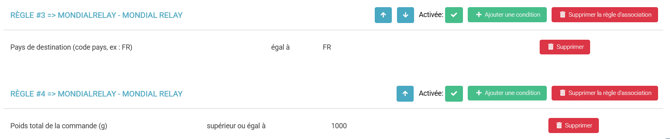
➡️ In this case, the two conditions cannot be on the same rule.
➡️ I therefore specify the two conditions on two separate rules, an order with a total weight of 30 grams but with its delivery address in FRANCE will be sent with Mondial Relay (Rule #3 of the example).
Step 3: When your mapping is complete, remember to activate your rules as they are disabled by default by checking the "Enabled" box for the rules ready to be used.

Step 4:After completing the configuration of your carrier mapping, you will be able to create preparation sessions per carrier calculated by the carrier mapping.
➡️ More information on the preparation sessions here.
➡️ This allows you to optimize your logistics so that you can automatically process orders according to the carrier.
💬 Good to know:
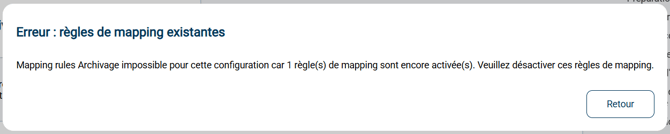
If you delete a carrier service specified by at least one active rule in your carrier mapping, the deletion will be prevented and an informational message will appear asking you to modify your carrier mapping:
4. Recalculate the carrier mapping
- Only users with aFull Accesshave access to the Carrier Mapping Recalculation functionality.
➡️ If you do not have access to the buttons belowand that you wish to use the carrier mapping recalculation,Please contact your Shippingbo account manager..
-
If you add/modify carrier mapping rules, the effect will not be retroactive for orders already present in Shippingbo.
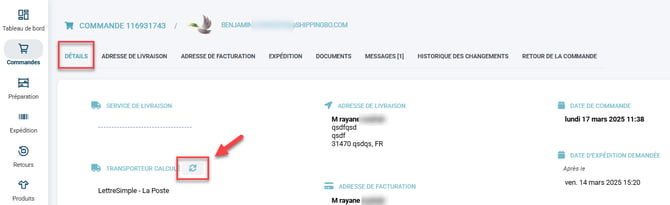
➡️ Once the rule has been applied, as a precaution, we recommend that you first recalculate your shipping costs based on one order. - To recalculate the carrier mapping for an order, please go to the details of the order in question and click on the dedicated icon:
- If the test is successful, return to the menu. Configurations > Notifications and labels > Carrier mapping and click the button Recalculate carrier mapping to calculate the mapping across all commands:

➡️ This action is regulated; you cannot launch a recalculation every 10 minutes.
➡️ We therefore advise you to test your rules on the commands concerned, and then recalculate the mapping for all commands once you are certain that your mapping meets your expectations. - To test your carrier mapping, you can enter the Shippingbo order ID of your choice and identify which rule highlighted in green is activated, to verify that your mapping works as expected.

⚒️ Framework and responsibilities:
Before fully using the functionality described in this tutorial, it is strongly recommended to performa testing phasefollowing your own parameters to verify that the result meets your expectations. The remaining customerfully responsibleThese tests, based on actions performed on the Shippingbo account, are essential to ensure the tool can be used with complete peace of mind.
To go further 🛫:
- Create a preparation session from the carrier mapping
Contact us 📬:
Any questions about this feature?
Feel free to write to ushere so that we can answer your questions.