.png?width=210&height=40&name=bleu%20et%20gris_Sigle+logo%20SBO%20(4).png)
1. Retrieve the API keys
Go to your Metro Back Office:https://www.metro-selleroffice.com/fr/workplace/profile/api-keys
Then generate the API keys:
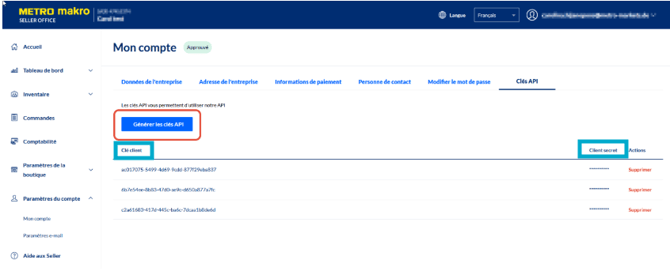
2. Create an external service in Shippingbo and complete the requested information.
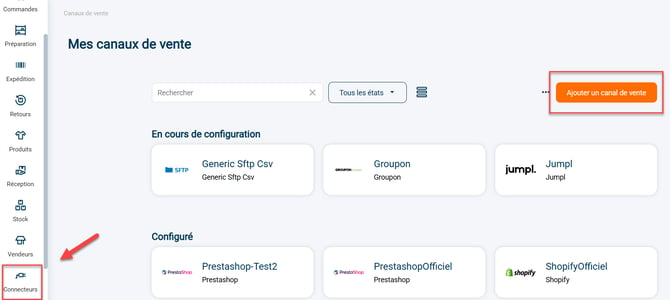
2.1 Go to your Shippingbo interface to create your external service in the menu Configurations -> External services -> Click on Add a sales channel :
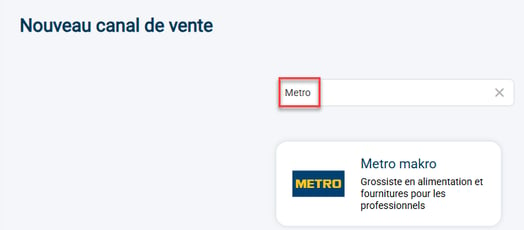
2.2: Search for "Metro" in the search bar, then click on the Metro tab that appears:
2.3: Your connector opens and the first category appears:

1) The stylus to the right of the service allows you to change the name of your connector.
2) The "View help" button redirects you to this tutorial.
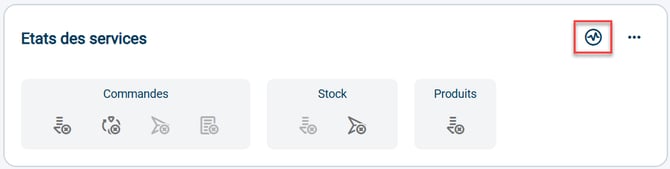
3) The graphic icon allows you to check the validity of the connection between Shippingbo and your Metro store.
4) The blockOrdersinforms you about the features that are enabled, disabled or unavailable between your Shippingbo account and your Metro store at the order level: order retrieval, order closing, order sending, order acceptor.
5) The blockStockinforms you about the features that are enabled, disabled or unavailable between your Shippingbo account and your Metro store at the stock level: stock retrieval, stock sending.
The color code for the icons is as follows:
- Active features are shown in blue
- Dark grey indicates features that are disabled but available
- Features shown in light grey are unavailable
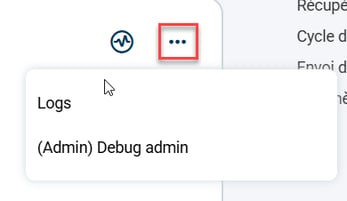
2.4: By clicking on the 3 small dots to the right of the graphic icon, you will be able to access calls made with this service:
3. Connect Metro to Shippingbo
3.1: A minimum of 2 pieces of information are required to connect your Metro store to your Shippingbo account:
- The customer key
- The password associated with this key
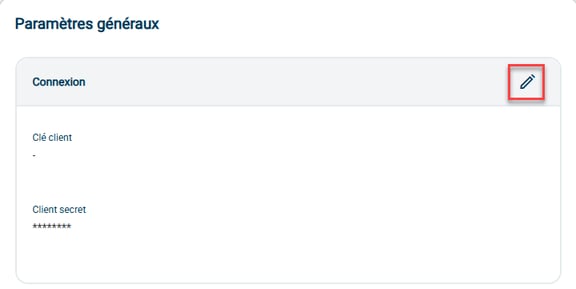
3.2: Next, enter the rest of the information you need in the following sections: Order retrieval; Order closing; Stock sending; and even in Advanced settings.
📢Attention :
To enable command retrieval, click the arrow to the right of the category:

💠 Noticed :
You can remove this connector by going to the advanced settings and clicking on "Remove connector" in the blockDeletion :

⚒️ Recommendation:
Before fully using the functionality described in this tutorial, it is strongly recommended to performa testing phasefollowing your own parameters to verify that the result meets your expectations. The remaining customerfully responsibleThese tests, based on actions performed on the Shippingbo account, are essential to ensure the tool can be used with complete peace of mind.
📢 Warning:
Only direct connections Sales channels allow Shippingbo toguarantee control of flowsWhen orders are not retrieved via an official Shippingbo connector, but are routed through a third-party tool (intermediate CMS, external connector, FTP, manual or automated import), Shippingbo cannot guarantee the integrity, reliability or completeness of the transmitted data.
This data may be modified, truncated, reformatted or duplicated before being received in Shippingbo, leading to processing errors, duplicate orders, status inconsistencies, label blocks, carrier or customs anomalies, and a degradation of the final customer experience.
In this context, Shippingbo is unable to investigate or correct anomalies issues originating from the third-party system. Any anomaly related to upstream data is outside the scope of Shippingbo's responsibility (more information on the scope of support). hereThese investigations can only be carried out as part of a specific service and will be subject to a charge.
For all these reasons, it is strongly recommended to connect your sales channels directly to Shippingbo via the official connectors.
Contact us 📬: