.png?width=210&height=40&name=bleu%20et%20gris_Sigle+logo%20SBO%20(4).png)
1. Retrieving the information necessary for the connection
In order to connect your Shopify store to Shippingbo, you first need to retrieve your store name and location ID from your Shopify account.
To retrieve them, please follow these steps:
1.1 Go to the menu WelcomeYour Shopify account, then retrieve your store name which will be displayed at the end of the URL in the search bar:
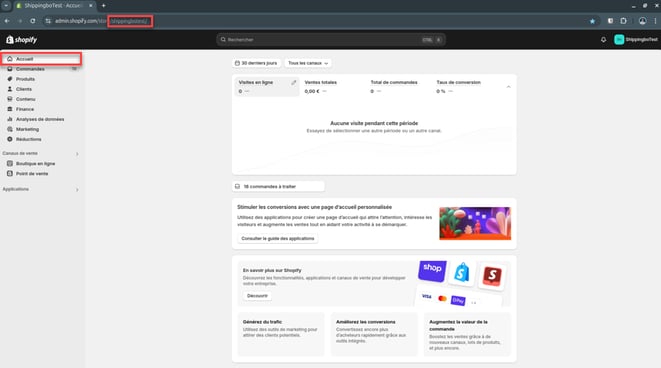
1.2 Next, go to the menu SettingsFrom your Shopify back office, then in the Locations section.
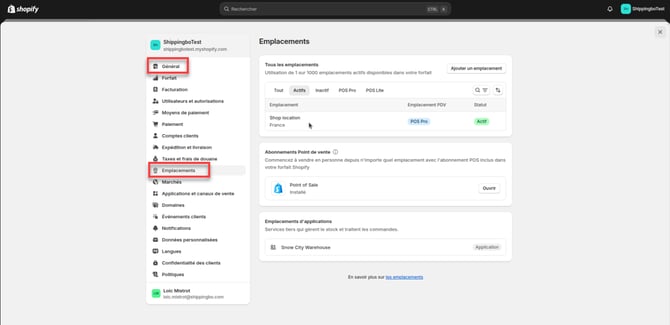
1.3 Click on your location By defaultTo open it, you will then find the location ID at the end of the URL in your search bar:
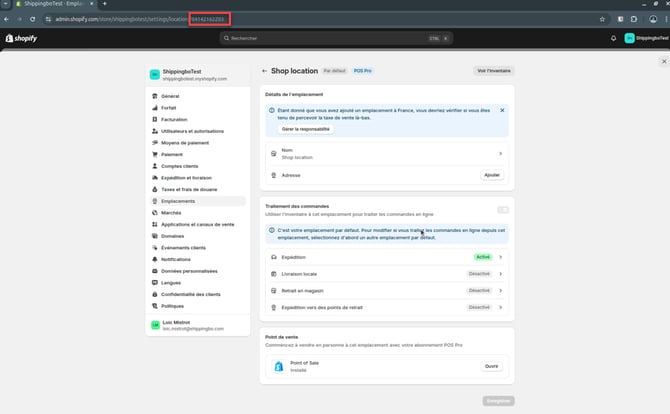
2. Create an external service in Shippingbo and complete the requested information.
Discover our connection process to follow in our tutorialhere.
🚩 Special case:
If you are moving from a pre-production account to a production account, you will need to create a new Shopify Connector in Shippingbo.
2.1: Go to your Shippingbo interface to create your external service in the menu Connectors-> Sales channels -> Click on Add a sales channel :
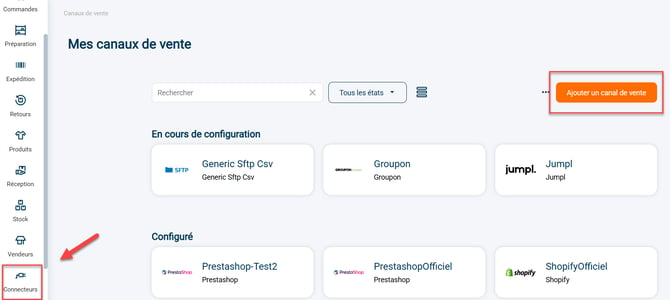
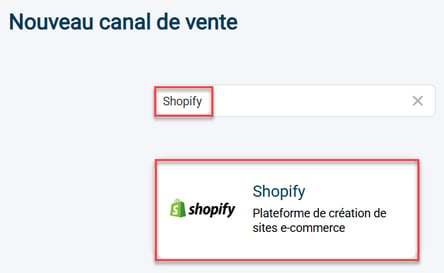
2.2: Search ShopifyIn the search bar, then click on the Shopify tab that appears:
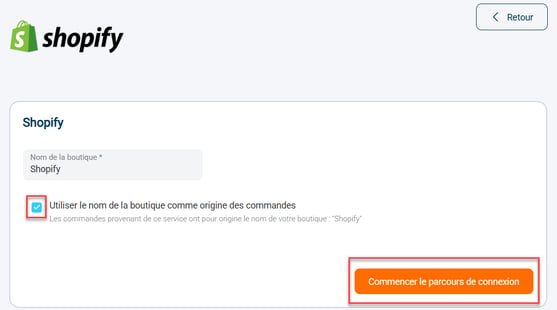
2.3: Check or uncheck the option Use the store name as the order origin depending on what you want, then click on Start the login process :
2.4: Your connector opens and the first category appears:
-
The stylus to the right of the service allows you to change the name of your connector.
-
The "View" button"r l'aide" redirects you to cthe tutorial.

-
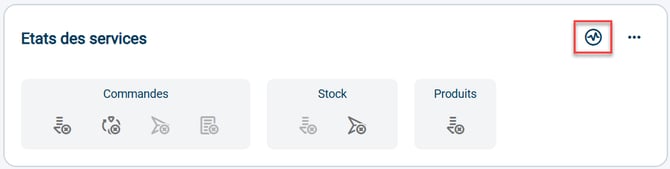
The graphic icon allows you to verify the validity of the connection between Shippingbo and your Shopify store.
-
The block Ordersinforms you about the features that are enabled, disabled or unavailable between your Shippingbo account and your Shopify store at the order level: order retrieval, order closing, order sending, order acceptor.
-
The block Stockinforms you about the features that are enabled, disabled or unavailable between your Shippingbo account and your Shopify store at the stock level: stock retrieval, stock sending.
💬Good to know:
The color code for the icons is as follows:
 - Active features are shown in blue
 - Dark grey indicates features that are disabled but available
 - Features shown in light grey are unavailable
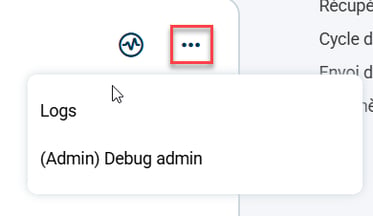
2.5: By clicking on the 3 small dots to the right of the graphic icon, you will be able to access calls made with this service:
3. Connect Shopify to Shippingbo
A minimum of 2 actions (steps) 3.1 And 3.2These steps need to be completed to connect Shopify to your Shippingbo account:
3.1 First, it is necessary to absolutely fill in the your Shopify store name by clicking on the stylus to the right of the block General settings :
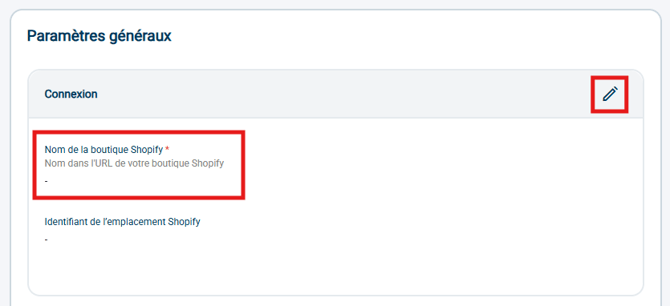
3.2 Once the shop name has been enteredclick on the button Link / Reconnect your accountin the Authentication block:

-
A pop-up window will open so you can authenticate your Shopify store.
-
Uonce authenticatedYour service SHopify is correctlyt coconnected to your Shippingbo account. You will be able to check the connection date of the account in this block.
3.3 (Optional) If you are using Shopify locations, you will be able to select the location ID to use for this Shopify connector; you will recognize the ID retrieved in the step 1.3
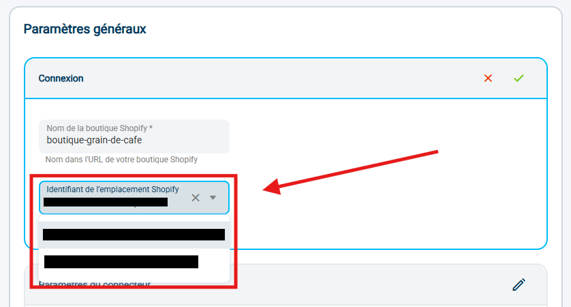
➡️ Only one location ID can be entered per Shopify connector.
➡️ The orders Shopify retrieved by this connector on Shippingbox will only contain the products listed in the specified Shopify location in this field.
3.4 (optional) Activate the Order retrieval :
-
To activate the Order retrievalClick on the arrow to the right of the corresponding category:

⭐ Key point:
There order cutting on Shopify is not supportedAn order split on Shopify will not be reflected on Shippingbo.
➡️ If you want to split an order from your Shopify connector, cut it out directly on Shippingbo.
- If the delivery service does not show up with Shopify by default, in the field Metadata key used as a delivery serviceYou can specify the name of the field in which this information is passed in the calls from your Shopify store to Shippingbo:

- If you wish to customize the original reference of your orders, you can use the field Key to the metafield of the original reference.
 ➡️ It allows you to specify a field from the Shopify order's metadata (metafields), the value of which will be used as the order's origin reference on Shippingbo.
-
If you ship with the carrier Mondial Relay : by default, the delivery address retrieved is that of the customer, to facilitate customer identification by the collection point.
-
The relay point reference is sufficient for the carrier to know the delivery point.
-
However, if you prefer, you can use the relay point address as the delivery address by activating the following option in the block Relay point option :

-
- If you retrieve products that do not exist in your Shippingbo product catalog, the option Retrieve the total weight of the order will allow you to retrieve product weights from Shopify:

💡 Tip:
If you identify that the retrieved commands have a relay point reference non-compliant: in the field Custom field to retrieve the name of the chosen carrier, fill inshipping_lines;0;title

🚩 Special case:
You will find all the order retrieval options related to Shopify POS in a dedicated section:
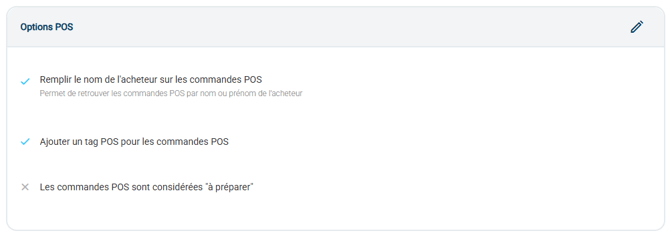
If you have Shopify POS orders, we recommend that you tick the option Fill in the buyer's name on POS orders to more easily identify these commands.

If you have Shopify POS orders, tick the option Add a POS tag for POS orders is also recommended:

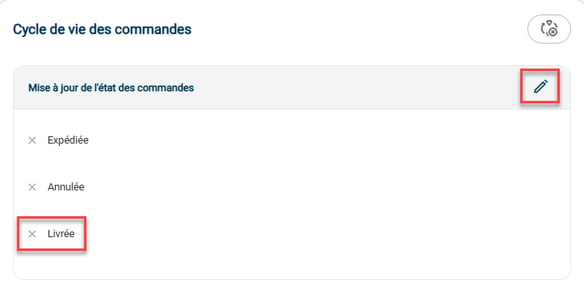
3.5 (optional) Activate the Order lifecycle :
In order for Shippingbo to automatically send order statuses to your Shopify store when they change to "Shipped", "Cancelled", or "Delivered", you must enable the feature of Order lifecycle.
To do this, select the desired command state(s), thenconfirm :
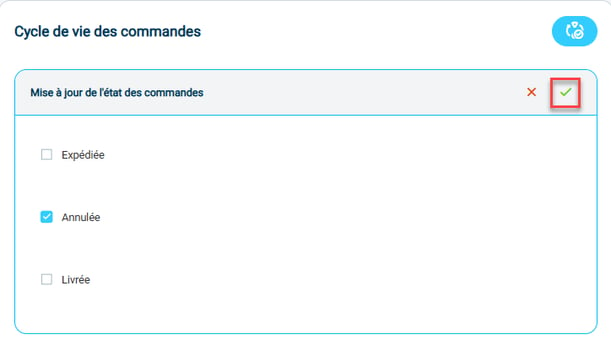
💬 Good to know:
For Shopify orders shipped in multiple packages: a tracking link is provided per package.
3.6 (optional) Configure theShipment of stocks
L'Shipment of stocks It is activated by clicking on the dedicated button:

The call ofShipment of stocks The transfer from Shippingbo to Shopify occurs immediately as soon as a stock variation is made on a product, provided that this product shares the same SKU on Shippingbo and Shopify.
You can adjust the stock value sent according to the specifics of your business.
If you use the Types of stockYou can configure the exclusive distribution of a single type of stock to Shopify in the field Stock type to publish on the service.

By default this field is empty, so all types of stock are sent to Shopify.
🚩 Special case: if you are in Multi-Shipping Box
L'Shipment of stocks must be operated from the WMS directly. So, the WMS must have the Shopify connector with theShipment of stocks activated.
L'WHO must not to haveShipment of stocks activated on its Shopify connector.
3.7 (optional) RThen provide the rest of the information you need in the Advanced Settings.
-
With theShipment of stocks When enabled, you can automatically update product weights on Shopify by modifying them on Shippingbo, if you check the option. Update product weightsThis option allows you to immediately send the updated weight of a product from Shippingbo to Shopify.

-
If you wish to remove this connector, you will find the dedicated button here:

4. Activate the pickup point modules for your Shopify orders
There are two modules available to retrieve your pickup point numbers from your Shopify orders on Shippingbo: Atlas Pickup Point And Octolize.
4.1 Atlas Pickup Point
If you use the ATLAS PICKUP POINT module to manage pickup points on Shopify, it is compatible with Shippingbo, provided you activate the option. Find the pickup point numbers using the Atlas Pickup Point module :
 For more information, you can consult our FAQ on this topic. here.
4.2 Octolize
If you are using the Octolize module to retrieve information about carriers, you need to fill in the PickupPointId in the option Field where the relay point of other carriers is located:

⭐ Key point:
If you are using the Octolize module, please note that its compatibility is not guaranteed with all carriers, particularly Mondial Relay and InPost..
If in doubt, do not hesitate to contact support to check the compatibility of your carriers.
5. Enable post-shipping for your Shopify orders
To activate the post-shipment feature for your Shopify orders, follow these steps:
- The post-shipment functionality must be activated on your Shippingbo account. To do this, please contact our support team.
- Once activated, go to the details of your Shopify connector on Shippingbo, scroll down to the category Order lifecyclethen check the status Book :
⚒️ Framework and responsibilities:
Shopify does not currently offer no integrated means to automatically label orders as POS or WEB without using Shopify Flow or similar automation apps. Shopify Flow is the primary tool designed to automate labeling based on the order's origin (such as POS or Online Store).
Without Shopify Flow, you will need to manually label orders or use third-party applications that offer automation featuresIf you'd like to explore automated labeling, Shopify Flow offers templates for labeling orders created at the Point of Sale (POS) or via the Online Store, which can save time and reduce manual work.
⚒️ Framework and responsibilities:
Only the connections direct Sales channels allow Shippingbo to to ensure control of data flows and data integrity.
When orders are not retrieved via a Official Shippingbo connector connected directly to the original source, but transit through a third-party tool (CMS used as a gateway, external connector, ERP, FTP feed, manual or automated import), Shippingbo no longer controls the entire data transformation chain.
In this context, Shippingbo cannot guarantee integrity, reliability, or completeness transmitted data. This data may include, in particular: modified, truncated, reformatted, aggregated or duplicated before their receipt in Shippingbo, resulting in anomalies such as:
-
processing errors,
-
duplicate orders,
-
inconsistencies in status,
-
label blockages,
-
carrier or customs anomalies,
-
and, more broadly, a deterioration of the end customer experience.
In accordance with best practices for e-commerce platforms and the principle of responsibility related to the use and transformation of data, Shippingbo is unable to investigate or correct anomalies originating from third-party systems over which she has no control.
Any anomaly related to the upstream data is therefore outside the scope of Shippingbo's standard responsibility and supportAny specific investigations requested by the client can only be carried out within the framework of a dedicated service, after prior validation, and will be subject to a billing.
For all these reasons, it is highly recommended to connect your sales channels directly to Shippingbo via official connectors, in order to guarantee the reliability of flows, the quality of support and the stability of your operations.
⚒️ Framework and responsibilities:
Before fully using the functionality described in this tutorial, it is strongly recommended to performa testing phasefollowing your own parameters to verify that the result meets your expectations. The remaining customerfully responsibleThese tests, which are essential for ensuring the tool can be used with complete peace of mind, are crucial for the actions carried out on the Shippingbo account.
FAQ ❔:
- List of FAQs on sales channels
Contact us 📬: