.png?width=210&height=40&name=bleu%20et%20gris_Sigle+logo%20SBO%20(4).png)
1. Find the Consumer Key and the consumer secret in the WordPress back office
1.1: Go to your WordPress back office.
1.2: Find your store name in the top left corner of your WooCommerce interface.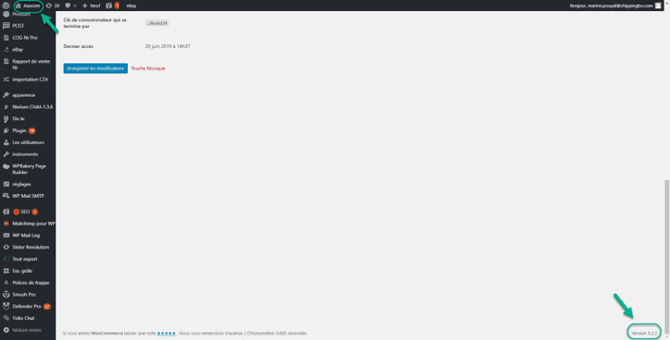
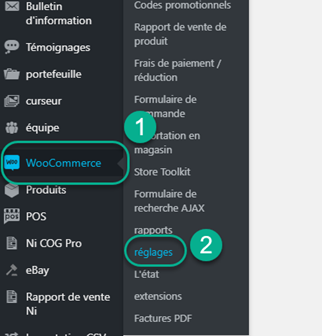
1.3: Select the "WooCommerce" section in the left-hand menu, then click on "Settings":
1.4: In the tabs at the top of the page, select "Advanced":

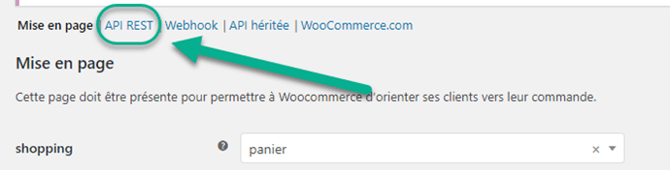
1.5: Next, go to "REST API" and then click on "Add a key":
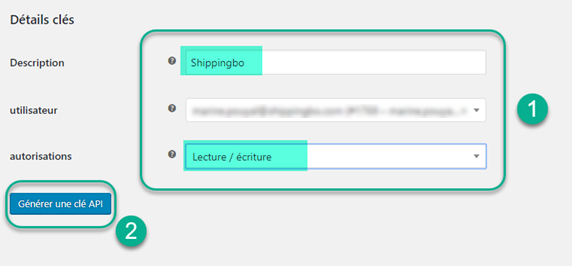
1.6: Complete the required fields and then click on "Generate an API key".
⭐ Key point:
Make sure you select the "Read/Write" permissions.
-
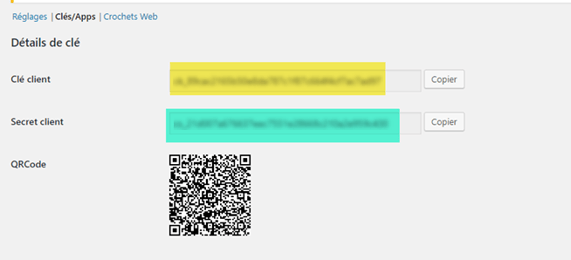
Retrieve the Customer key and the Client confidentiality :
2. Create an external service in Shippingbo
💡 Tip:
Discover our connection process to follow in our tutorialhere.
🚩 Special case:
If you are moving from a pre-production account to a production account, you will need to create a new Woocommerce Connector in Shippingbo.
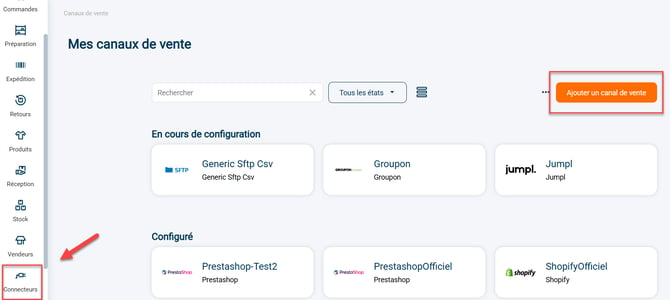
2.1: Go to your Shippingbo interface to create your external service in the menu Configurations -> External Services -> Click on "Add a sales channel":
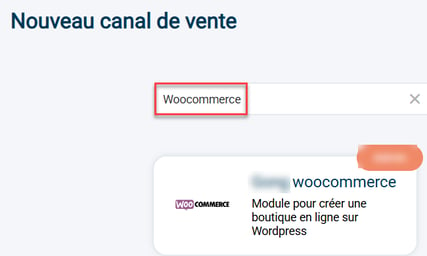
2.2: Search for "Woocommerce" in the search bar, then click on the Woocommerce tab that appears:
2.3: Your connector opens and the first category appears:

1) The stylus to the right of the service allows you to change the name of your connector.
2) The "View help" button redirects you to this tutorial.
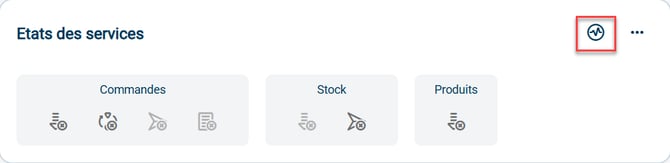
3) The graphic icon allows you to verify the validity of the connection between Shippingbo and your Woocommerce store.
4) The blockOrdersinforms you about the features that are enabled, disabled or unavailable between your Shippingbo account and your Woocommerce store at the order level: order retrieval, order closing, order sending, order acceptor.
5) The blockStockinforms you about the features that are enabled, disabled or unavailable between your Shippingbo account and your Woocommerce store at the stock level: stock retrieval, stock sending.
💬 Good to know:
The color code for the icons is as follows:
 - Active features are shown in blue
 - Dark grey indicates features that are disabled but available
 - Features shown in light grey are unavailable
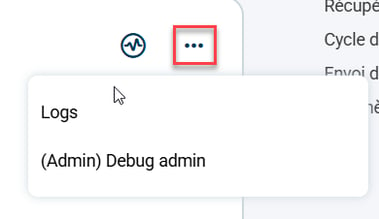
2.4: By clicking on the 3 small dots to the right of the graphic icon, you will be able to access calls made with this service:
3. Connect WooCommerce to Shippingbo
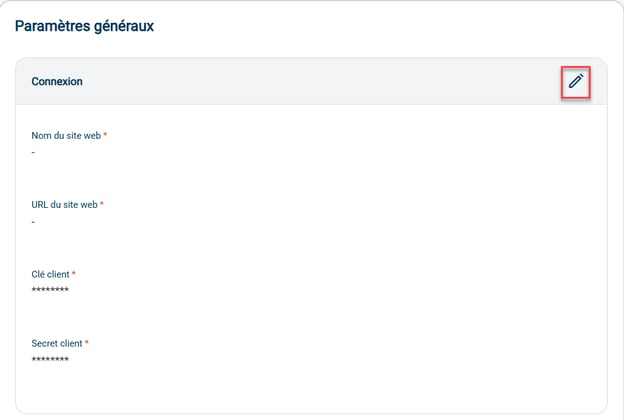
3.1:First, enter the following information about your WooCommerce store in the general settings:
- Website name (shop) = name of the site retrieved in step 1.2
- Website URL (store_url) = URL of your WooCommerce store
- Customer key (consumer_key) = “Customer key” retrieved at the step 1.6
- Client confidentiality (consumer_secret) = “Customer secret” retrieved at the step 1.6
3.2: Next, fill in the remaining information you need in the block. Order retrieval
To activate the Order retrievalClick on the arrow to the right of the category:

-
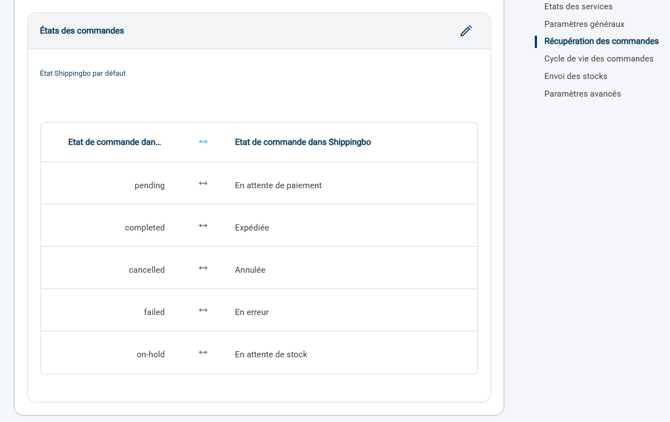
The mapping oforder status allows you to define in which state Shippingbo should retrieve the order, whether it is in the context of retrieving the Woocommerce order on Shippingbo, or updating the order status on Woocommerce to Shippingbo.
- If you do not wish to have VAT added to the delivery charges for your orders, please select the option. WooCommerce order line prices are pre-tax prices in the category Order retrieval :

- If you do not wish to process certain product references via Shippingbo, you can enter the SKUs of the products not to be retrieved on Shippingbo in the field Exclude WooCommerce order lines containing the following SKUs
 ➡️ This option allows, in particular, the management of gift cards (products which it is not recommended to retrieve from Shippingbo, since it is not necessary to do in-depth stock management for them)
3.3 : Retrieving relay point numbers
To retrieve pickup point numbers on WooCommerce, there is 2 solutions:
- Install the official module recovery Carrier relay points. You will find them on the Back Office of each carrier concerned.
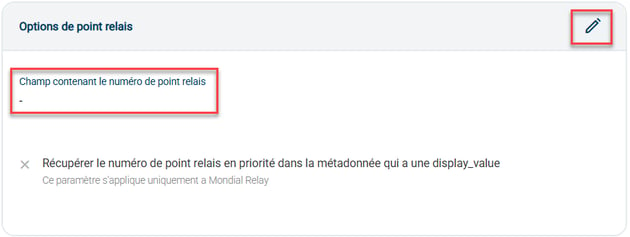
- Create a field specific to storage relay point numbers, the name of which must be entered in your connector configuration.
-
In the section Relay point options, in the field Field containing the relay point numberEnter the field name as given in the WooCommerce API:
-
💡 Tip:
From this point, you can follow these steps to retrieve orders under all existing statuses in WooCommerce:
1. Tick the option Retrieve orders via webhook as soon as they are created in WooCommerce

2. Disableorder retrieval
3. Reactivate order retrieval.
3.4Activate the Order lifecycle (optional)
In order for Shippingbo to automatically send order statuses to your Woocommerce store when they change to "Shipped", "Cancelled" or "Delivered", you must enable the order lifecycle feature.
To do this, select the desired command state(s), thenconfirm :
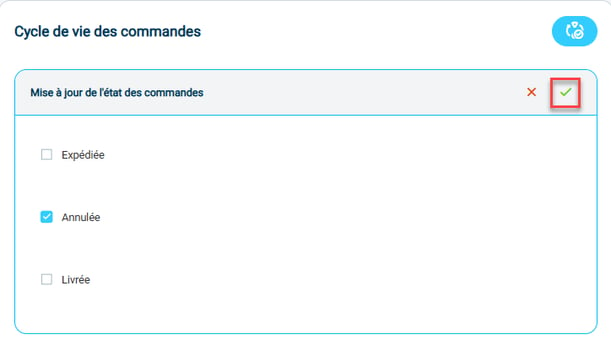
3.5 Send tracking information with WooCommerce
If you want to send tracking information automatically to your Woocommerce store, you will also need to fill in the necessary fields in Shippingbo.
For this, go to the category Command update settings and Please provide at least the requested information. in the first three fields you will find on your Woocommerce account:
- WooCommerce field of carrier name
- WooCommerce field the tracking URL
- WooCommerce field tracking number
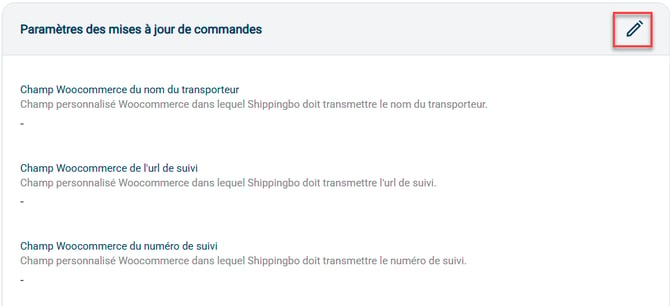
These are custom fields that you also need to create in your WooCommerce account. We recommend that you request this information from your [company/department/etc.]. webmaster.
💡 Trick :
You can also use the WooCommerce module by following the dedicated link. hereIf you use this module you will also need to check the optionuse_shipment_tracking_module in your external WooCommerce service so that tracking information can be sent.
On the other hand, this module Shipment tracking is not compatible with WooCommerce 9.
💡Tip:
Shippingbo also supports connection with another module: the Aftership module (link) here). If you use this module you must enter the following values:
- WooCommerce field for the carrier's name
- WooCommerce tracking number field
3.5Configure theShipment of stocks (optional)
L'Shipment of stocksActivated by clicking the dedicated button:

The call ofShipment of stocks The transfer from Shippingbo to Woocommerce occurs immediately as soon as a stock variation is made on a product, provided that this product shares the same SKU on Shippingbo and Woocommerce.
You can adjust the stock value sent according to the specifics of your business.
If you use the Types of stockYou can configure the exclusive distribution of a single type of stock to WooCommerce in the field Stock type to publish on the service.

By default this field is empty, so all stock types are sent to Woocommerce.
3.6 Next, fill in the remaining information you need in the Advanced settings.
- Here you will find the time zone settings for your WooCommerce store.
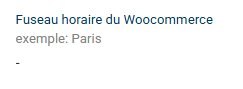
- And if you wish to remove this connector, you will find the dedicated button here:

⚒️ Framework and responsibilities:
Before fully using the functionality described in this tutorial, it is strongly recommended to performa testing phasefollowing your own parameters to verify that the result meets your expectations. The remaining customerfully responsible These tests, which are essential for ensuring the tool can be used with complete peace of mind, are crucial for the actions carried out on the Shippingbo account.
⚒️ Framework and responsibilities:
Only direct connections from sales channels allow Shippingbo toguarantee control of flowsWhen orders are not retrieved via an official Shippingbo connector, but are routed through a third-party tool (intermediate CMS, external connector, FTP, manual or automated import), Shippingbo cannot guarantee the integrity, reliability or completeness of the transmitted data.
This data may be modified, truncated, reformatted or duplicated before being received in Shippingbo, leading to processing errors, duplicate orders, status inconsistencies, label blocks, carrier or customs anomalies, and a degradation of the final customer experience.
In this context, Shippingbois unable to investigate or correct anomalies issues originating from the third-party system. Any anomaly related to upstream data is outside the scope of Shippingbo's responsibility (more information on the scope of support). hereThese investigations can only be carried out as part of a specific service and will be subject to a charge.
For all these reasons, it is strongly recommended to connect your sales channels directly to Shippingbo via the official connectors.
Contact us 📬:
Any questions about this feature?
Feel free to write to ushereso that we can answer your questions.