.png?width=210&height=40&name=bleu%20et%20gris_Sigle+logo%20SBO%20(4).png)
Benefits of the feature ✨
-
Easy synchronization : Export centralizes all shared references to better track the consistency of product catalogs.
-
Full visibility : You have a clear view of the products linked to each reseller, which simplifies logistical exchanges.
-
Security of flows : Thanks to this precise tracking, you reduce synchronization errors and ensure better stock reliability between OMS and WMS.
1. Prerequisites
- Export available uniquely for the packs WMS Shippingbo working in Multi-Shipping Box.
2. How does the export of reseller products work?
Exporting allows you to group data all the products in your shared catalog with a salesperson.
Each product is identified by:
-
A SKU (your internal product reference)
-
A shared reference, used in the reseller's Shippingbo account (usually an OMS account).
➡️ This link allows you to synchronize stock and product flows between your WMS and your reseller's OMS.
3. Export reseller products
- Go to the menu Configurations > File management > Export> Reseller products :
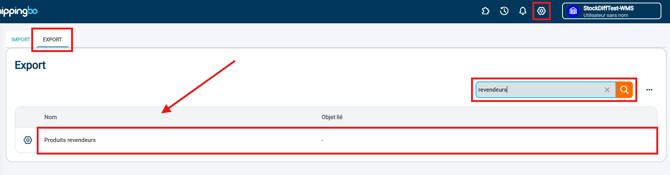
- In this menu, click onGenerate a new export, Download then the generated export:

- In the export, you will find the following information:
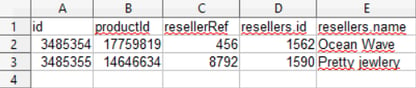
- id : reseller product identifier
- productId : product ID of the account from which you are performing the export
- resellerRef : seller product reference
- resellers.id : seller identifier
- resellers.name seller's name
💬 Good to know:
Depending on the number of command lines to be exported, the generation may take a few minutes.
4. Configure your export
You can select certain criteria and field configurations for your export.
To do this, go to the menuConfigurations >File management>Export>Reseller products >Configure :
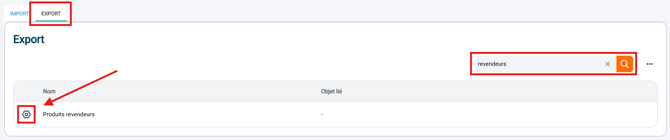
Here you can configure the export format you want by checking/unchecking the listed options.
🚩 Special case:
If your file contains commasin the exported data, select the separator ";"during the configuration of your export.
💡 Tip:
-
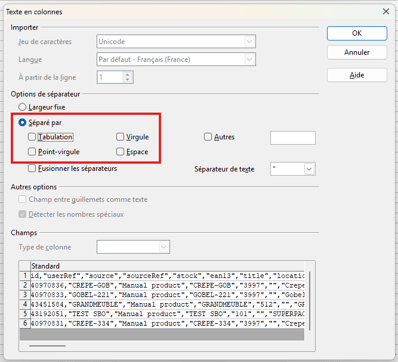
If the data format is not displayed correctly, go to the menuDataand select the desired format.
In OpenOffice Calc, select the column to reformat, then the menuText in columns... :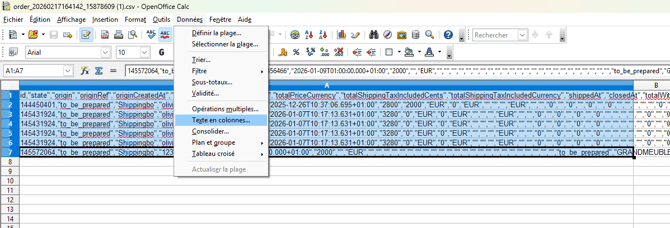
And check the separator that will format your data correctly (in this example,Comma) :
5. View the shared product catalog
To view the catalog shared with your vendor, go to the menu Salespeople -> Details of seller in question -> Reseller products :
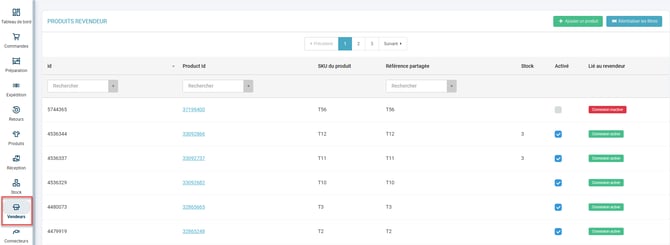
You will find the following information here:
- id : reseller product identifier
- ProductId : product ID of the account on which you are viewing the catalog
- Product SKU
- Shared referenceShared product reference between the OMS account and the WMS account
- Stock Product stock
- Activated :
✅ If the box is checkedThe product binding in the WMS -> OMS direction is activated.
❌ If the casee is unseatedThe product binding in the WMS -> OMS direction is cut off.
- Linked to the reseller :
-
- If "active connection" = the product is well linked between OMS and WMS accounts.
- If "connection inactive" = the product is not related between OMS and WMS accounts.
⚒️ Framework and responsibilities:
Before fully using the functionality described in this tutorial, it is strongly recommended to performa testing phasefollowing your own parameters to verify that the result meets your expectations. The remaining customerfully responsibleThese tests, based on actions performed on the Shippingbo account, are essential to ensure the tool can be used with complete peace of mind.
To go further 🛫:
- Add a seller product catalog
- Export warehouse products to an OMS account
FAQ ❔:
- How do I modify a shared reference?
Contact us 📬:
Any questions about this feature?
Feel free to write to ushere so that we can answer your questions.