.png?width=210&height=40&name=bleu%20et%20gris_Sigle+logo%20SBO%20(4).png)
Summary
- Time saving : Enable advanced location for multiple products in a single CSV import, simplifying bulk management.
- Inventory optimization : Enable advanced options such as stock alerts and automatic replenishment.
- Flexibility : Easily customize the management of locations and product behaviors via imported files.
2. Prerequisites✔️:
- Feature available on all Shippingbo Packs working in Advanced Warehouse.
- The file to be imported must be in the formatCSVand encoded inUTF-8.
3. What is the purpose of importing product location configurations?
The Product Location Configs import feature allows you to download a CSV file template, enter the IDs of the products for which you want to activate the advanced location, and import them directly via the Shippingbo interface.
💡 Trick :
If you wish to activate this feature for all products listed on your Shippingbo account, you can export your products to easily retrieve all their IDs. For instructions, please consult our tutorial. here.
4. How to use the product location configurations import?
4.1 Create a file to activate only the advanced location on the products
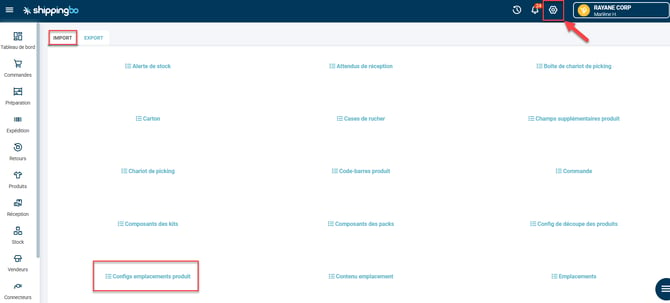
- Access the menuConfigurations->File management->Import-> Product location configurations:
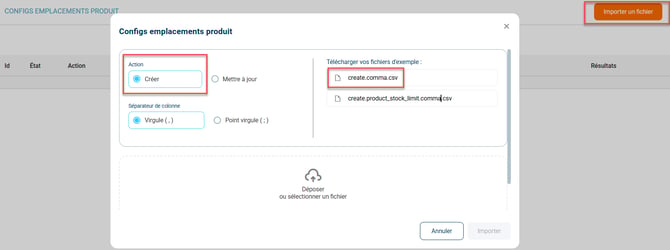
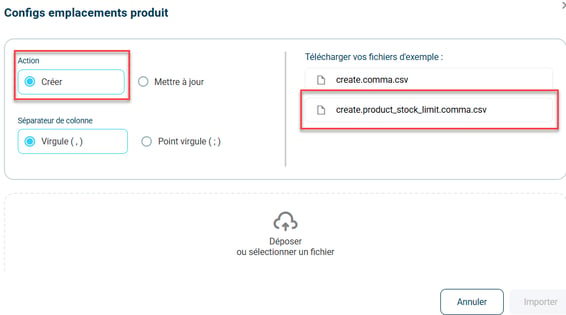
- Click onImport a fileselect the action CreateThen download the first example file:
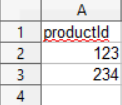
- Enter the IDs of the products for which you want to activate the feature in the first column:
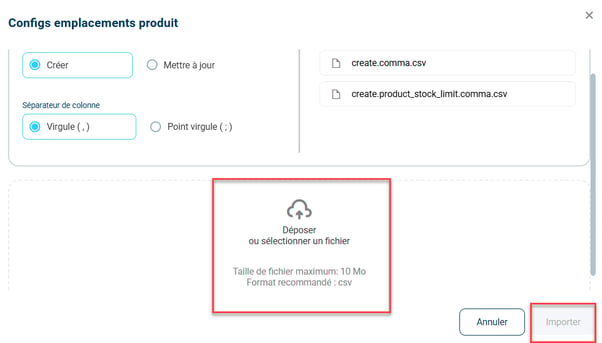
- Once the file is complete, click onDrop or select a file, then onImport:
4.2 Create a file to activate the advanced location on the products and define their behavior
If, at the same time as activating the advanced location feature on your products, you wish to enter their stock behavior information, select the second example file:
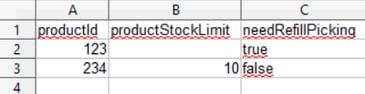
- Enter the following information in the file:
4.3 Create a file to update behavior information
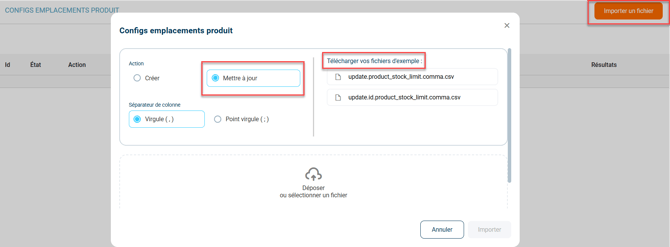
If you wish to update the information mentioned above, select the action To update when downloading the example file:
5. Example of a scenario
Context :
You are an e-commerce merchant managing a warehouse with several hundred products. You have just upgraded to more advanced storage location management to optimize your logistics operations. You need to quickly activate the "advanced location" feature for all your products to better track stock levels and prevent stockouts.
Using the feature:
By importing product location configurations, you download a pre-formatted CSV file from your Shippingbo interface. You then enter your product IDs and desired settings (such as stock alerts or enabling automatic replenishment). Finally, you import this file in just a few clicks to activate advanced location settings for all your items.
Result :
With a single import, all your products are configured with advanced locations. You now receive alerts when stock levels are low, and replenishment missions are automatically triggered, reducing the risk of stockouts and improving the efficiency of your operations.
⚒️ Recommendation:
Before fully using the functionality described in this tutorial, it is strongly recommended to performa testing phasefollowing your own parameters to verify that the result meets your expectations. The remaining customerfully responsibleThese tests, based on actions performed on the Shippingbo account, are essential to ensure the tool can be used with complete peace of mind.
To go further 🛫:
- Create products in Shippingbo
- Create locations manually and via import
FAQ ❔:
No related FAQs at the moment.
Contact us 📬:
Questions about this feature? Feel free to write to us.hereso that we can answer your questions.