.png?width=210&height=40&name=bleu%20et%20gris_Sigle+logo%20SBO%20(4).png)
- Time saving : Update shipping dates in bulk via an import file.
- Flexibility Adjust the dates according to your constraints and those of your clients.
- Simplified tracking You can easily find this information in the order details.
2. Prerequisites✔️:
- This feature is only available for accountsWHO et LMS, starting from Starter Pack +.
- The file to be imported must be in the formatCSVand encoded inUTF-8.
3. How does the "Shipping After" import work?
This feature allows you to define or modify the desired shipping dates for your orders in bulk, using a structured import file. This is useful if you need to reschedule shipments due to new deadlines or other logistical constraints.
💡 Trick : If you need to view the sources and source references of your orders before proceeding with the import, perform an export of the orders in Shippingbo to obtain this information.
4. How do I import a new shipping date?
- Go to the menu Configurations -> File Management -> Import -> Ship after:
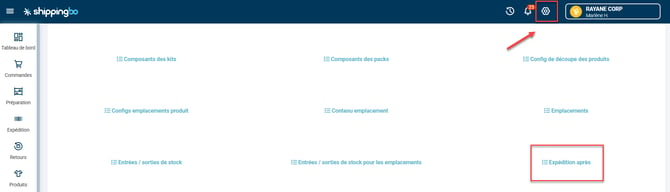
- Click on Import a fileThen download the example file which will serve as a template for the import:
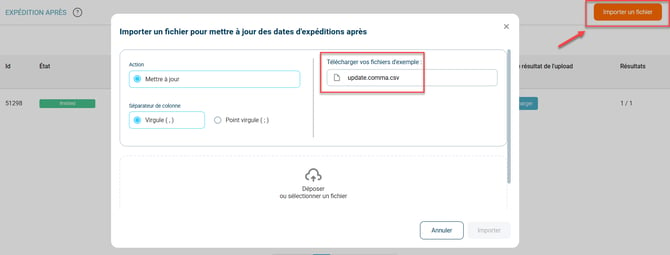
-
Fill out the import file by following these instructions:
- source : Corresponds to the source of the command (1).
- sourceRef : Source reference of the command (2).
- earliestShippedAt Enter your desired new shipping date here using the following format:
YYYY-MM-DDTHH:mm:ss.
Example: If you wish to enter the date and time of February 22, 2024 at 8:00 AM, enter:2024-02-22T08:00:00.
You can find source and source reference information in your orders by exporting them. See our tutorial on exporting orders for more information.
- Once the file is ready, click on Drop or select a fileThen select the file and confirm to import it into Shippingbo:
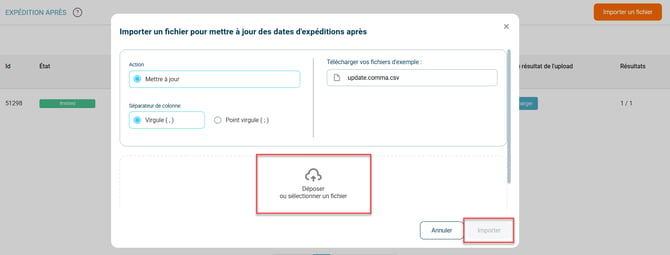
5. Example of a scenario
Context :
You are an online retailer with a special restocking operation that is shifting your shipping dates.
Using the feature :
To manage this effectively, you can import a file containing the new shipping dates for all affected orders.
You download the example file from Shippingbo, fill in the new shipping dates in the earliestShippedAt column, and proceed with the import.
Result :
All your orders will be updated with the new dates, guaranteeing you optimal control over your shipments.
💠 Noticed :
You can change these dates at any time via import or directly in the order details.
⚒️ Recommendation:
Before fully using the functionality described in this tutorial, it is strongly recommended to performa testing phasefollowing your own parameters to verify that the result meets your expectations. The remaining customerfully responsibleThese tests, based on actions performed on the Shippingbo account, are essential to ensure the tool can be used with complete peace of mind.
To go further 🛫:
FAQ ❔:
No FAQs related to this feature are currently available.
Contact us 📬:
Questions about this feature? Feel free to write to us.hereso that we can answer your questions.