.png?width=210&height=40&name=bleu%20et%20gris_Sigle+logo%20SBO%20(4).png)
- Optimizing storage space : Allow multiple products per location to maximize the use of available space.
- Increased logistical flexibility Store different items in the same location while maintaining accurate traceability.
- Clear and controlled interface : View the distribution of products by location at a glance from the PDA or PC interface.
📢Attention :
To benefit from this feature you must have subscribed to the optionadvanced warehouse.
💠 Noticed :
This feature only allows you to place different products in the same location. For example, if you manage batch numbers or best before dates, you cannot enter the same product reference with different information in the same location; otherwise, the order picker will not be able to easily differentiate them during picking.
1. Configure your account to manage multiple products per location
Please first contact support by creating a ticket so we can activate the "Multi-product usage per location" option for you. Once this is done, you can continue with this tutorial.
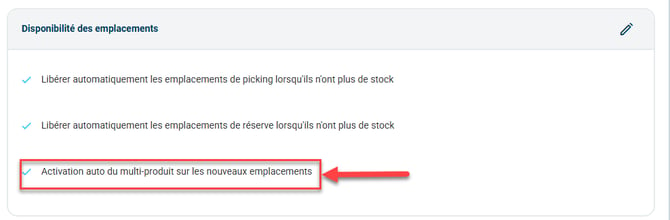
If you want all your new locations to be pre-configured to handle multi-product management per location, then go to Configuration > Logistics > and also check the box: "Automatic activation of multi-product management on new locations":
2. Use multi-product per location
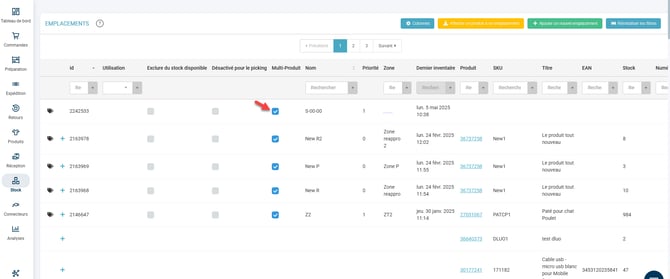
In the Locations menu, a new column appears: "Multi-product". This column indicates whether the location is configured to receive multiple products or only one product.
- If the box is unchecked, then the location cannot hold multiple different products.
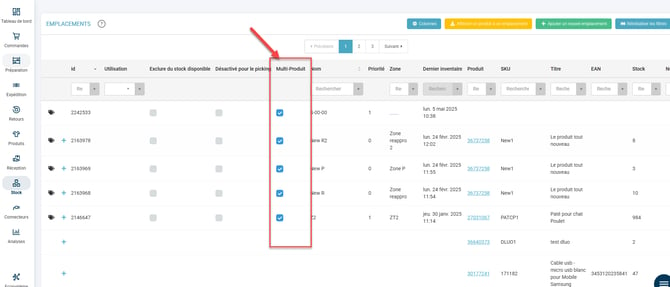
- If the box is checked in blue, this indicates that the location can hold several different products, but currently there is only one product in the location.
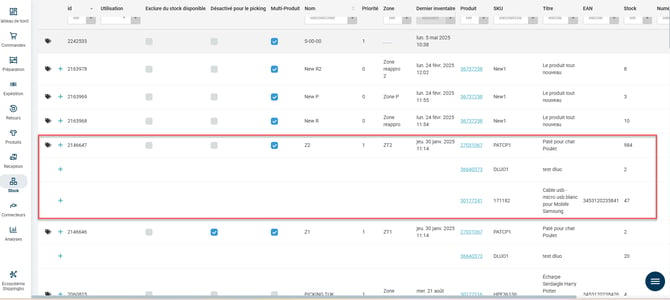
- If you have multiple lines, it means there are currently several different products in the location.
💠 Noticed :
If the slot contains multiple products, then the box cannot be unchecked. You must first remove the products from the slot so that only one or zero remain. The box will then appear in blue and you will be able to uncheck it.
💠 Noticed :
If the location contains multiple products, to obtain product-related information you must click on the "+"in front of the product.
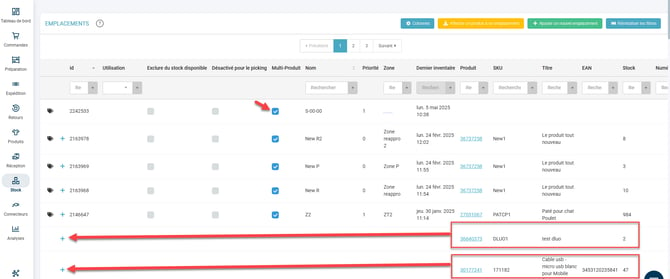
If you are using multi-product slots, you will be able to view the details of a product or a slot via the PDA to check the products contained in the slot.
⚒️ Recommendation:
Before fully using the functionality described in this tutorial, it is strongly recommended to performa testing phasefollowing your own parameters to verify that the result meets your expectations. The remaining customerfully responsibleThese tests, based on actions performed on the Shippingbo account, are essential to ensure the tool can be used with complete peace of mind.
To go further 🛫:
- Create locations manually and by importing
Contact us 📬:
Any questions about this feature?
Feel free to write to ushereso that we can answer your questions.