.png?width=210&height=40&name=bleu%20et%20gris_Sigle+logo%20SBO%20(4).png)
Prerequisites✔️:
- Feature available from the package Pro +.
- This feature can only be activated by Shippingbo support. You can contact them to have it activated on your account.
- Before activating the feature, make sure you do not have no duplicates in the EANs of your products.
1. How does multi-barcode management work?
This feature allows you to associate multiple barcodes with the same product, enabling you to scan any of them during processes such as receiving, shipping, inventory, etc. This option is particularly useful when different suppliers use distinct barcodes for the same product.
Example: You have a product distributed by two different suppliers. Each supplier assigns a distinct barcode to the same item. With this feature, you can save both barcodes for a single product in Shippingbo.
2. Enable multi-barcode handling
- Check your EANs
Before activating the feature, It is imperative to ensure that there are no duplicates. of EANs among your products and that the EAN field is not used by another system (ERP, export, etc.). - Back up your EANs
Before activating the feature, It is imperative to export your products on Shippingbo, because activating the feature will clear all EAN fields for all products, to create the multi-EAN field (More information about exporting this product is available here.). -
Request activation from Shippingbo support
This feature cannot be activated directly via the user interface due to its impact on EAN management.
You must therefore contact support for its activation.
Example: You have confirmed that your products do not have any duplicate EANs, and that activating this feature will not affect your ERP import/export processes. You therefore export your products.
3. Use multi-barcodes
3.1 Adding a new barcode to a product from the interface
-
Go to the menu Productsand enter the details of the desired product:
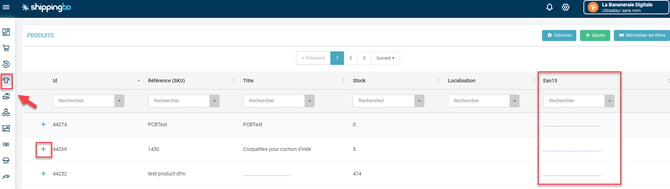
2. Go to the tab EAN then click on Add :

3. Enter the new barcode, and click on To validate :
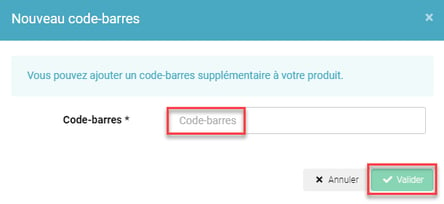
You can see the list of EANs associated with the product. To remove one, click on DELETE to the right of the relevant barcode:

3.2 Adding barcodes via import
-
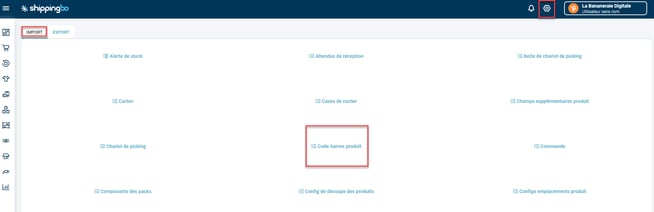
Go to the menu Configurations → File management → Import → Product barcode:
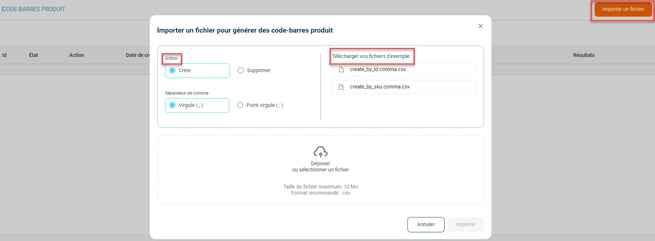
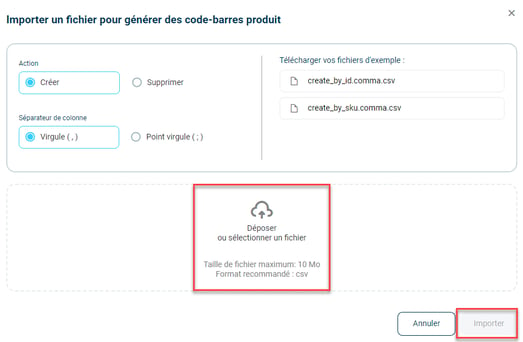
2. Click on Import a fileSelect the desired action (add, update or delete), then download the corresponding example file:
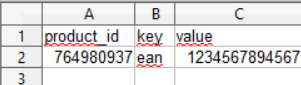
3.Fill in the CSV file
Complete the following columns:
- product_id Product ID: Shippingbo.
- key : barcode type (EAN).
- value : barcode value.
Example of an import file :
4. Once the file is ready, click on Drop or select a file, then on Import :
📢 Attention :
In a multi-Shippingbo environment, the functionality must be enabled on both OMS and WMS, as well as on all accounts of potential resellers.
- Simplifies the management of products with multiple barcodes.
- Helps prevent errors when scanning products.
- Compatibility with several logistics processes such as inventory, picking, etc.
⚒️ Recommendation:
Before fully using the functionality described in this tutorial, it is strongly recommended to performa testing phasefollowing your own parameters to verify that the result meets your expectations. The remaining customerfully responsibleThese tests, based on actions performed on the Shippingbo account, are essential to ensure the tool can be used with complete peace of mind.
To go further 🛫:
- Create or delete products in Shippingbo
Contact us 📬:
Any questions about this feature?
Feel free to write to us here so that we can answer your questions.