.png?width=210&height=40&name=bleu%20et%20gris_Sigle+logo%20SBO%20(4).png)
Benefits of the feature ✨
-
Automating returns Generate return labels automatically during shipping.
-
Flexibility of rules Define specific rules to assign return carriers according to your needs.
- Optimizing preparation sessions : Apply a return carrier to all orders in a session.
1. Prerequisites
- This feature is available from the Pack Premium +.
2. How does the return carrier mapping work?
Return carrier mapping allows you to automatically generate a return label when generating the outbound label, based on predefined rules. These rules can be configured to select a return carrier according to custom criteria.
Example : You can configure the system so that orders shipped with carrier X automatically have carrier Y for the return.
3. Activate the return carrier mapping
To activate this feature, follow these steps:
- Go to the menu Configurations → Notifications and labels → Carrier mapping Return:
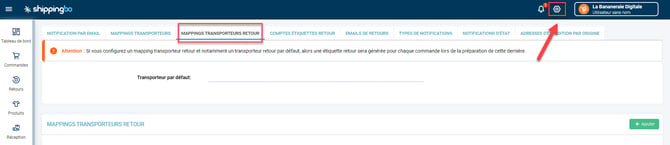
- Create your rules by following the same process as for the Mapping carriers goingIf you are not familiar with this method, please consult our Transporter Mapping Tutorial.
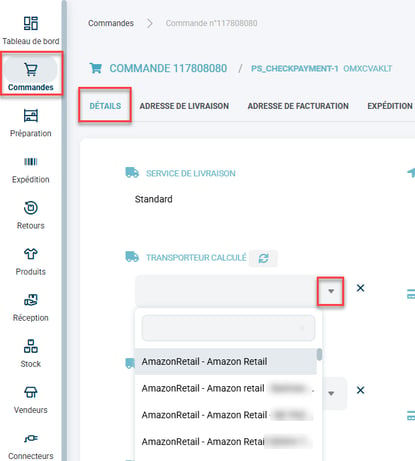
- A Once the rules are created and activated, the return carrier will be automatically calculated and displayed in the details of each order. You can also modify it manually if necessary:
4. Use the return carrier mapping
-
Preparation session filters with a return carrier
From the preparation session filters, you can choose a return carrier for all orders within the same session. Simply select the return carrier in the dedicated field when creating your filters: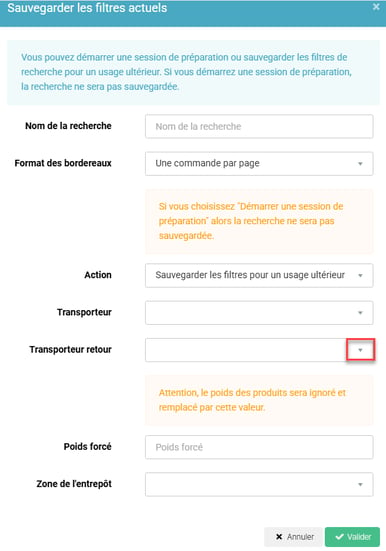
- Create a preparation session filter with the calculated return carrier
He isIt is also possible to create a session filter directly based on the return shipping calculatedTo do this, follow the creation steps.filter number by selecting "Return Carrier Calculated" in the field Relationship Then, specify the desired condition and value. For more information, see our tutorial. Create a preparation session from the carrier mapping.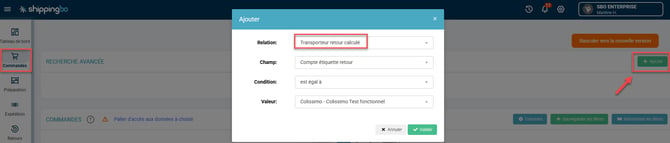
- Manual selection of a return carrier
During When generating a label, you can also manually select the return carrier by choosing from the "Return Carrier" drop-down menu: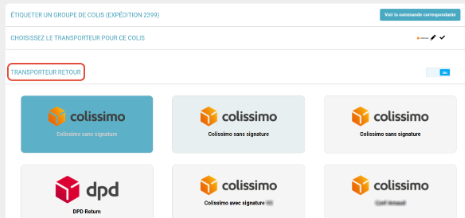
- Enable automatic printing of return labels for Multi-print
For qTo ensure that return labels are automatically printed with outgoing labels, you must enable this feature in the Multi-print server settings.
Go to the menu Configurations → Logistics → Multi-printersCheck the "Enable automatic printing of return labels" box and select the printer needed to print these labels. For more information, see our tutorial. Configure the multi-print server.
💡 Tip:
- LaPoste return labels can only be printed in the format A4.
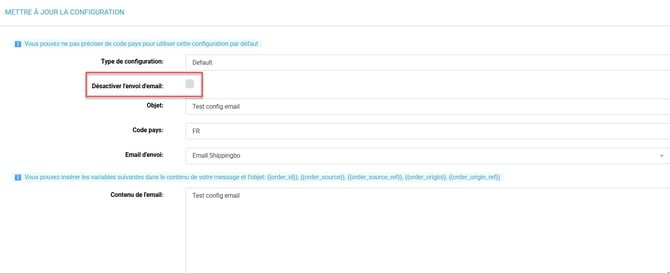
- It is possible to disable the automatic email sent when the return label is generated. To do this, go to the menu. Configurations -> Notifications and labels -> Return emails -> Create a new configuration or access the details of an existing configuration. Then, check the option Disable email sending :
⭐ Key point:
- This feature will incur an additional charge of 10 cents per return label generated.
- THE The following slip formats are not compatible with this feature: labels only, integrated labels, labels and list.
- Generating a return label at the same time as the outbound label is mandatory for the Zalando Marketplace.
⚒️ Framework and responsibilities:
Before fully using the functionality described in this tutorial, it is strongly recommended to performa testing phasefollowing your own parameters to verify that the result meets your expectations. The remaining customerfully responsibleThese tests, based on actions performed on the Shippingbo account, are essential to ensure the tool can be used with complete peace of mind.
To go further 🛫
- Configure the multi-print server
Contact us 📬
Any questions about this feature?
Feel free to write to us here so that we can answer your questions.