.png?width=210&height=40&name=bleu%20et%20gris_Sigle+logo%20SBO%20(4).png)
- Time saving : Automation of product creation and updates between accounts.
- Fewer errors : Smooth synchronization of selected product fields.
- Best collaboration Simplified coordination between sellers and warehouses.
- Management flexibility : Choice of fields to synchronize according to your business needs.
2. Prerequisites ✔️
-
Working in Multi-Shippingbo and having two separate Shippingbo accounts connected: one in mode seller (WHO) and the other in warehouse (WMS).
-
The following tutorials must have been completed:
3. How does the configuration of vendor and warehouse catalogs work?
This feature allows you toautomate THE product exchanges between two linked Shippingbo accounts (seller ↔ warehouse) to ensure consistency of product catalogs. You can:
-
Choose the direction of propagation (from WHO to WMS or vice versa)
-
Define the product fields to synchronize
-
Allow the automatic creation product sheets
-
Activate the automatic update existing products
For example :
"If you enable automatic creation of products from the OMS to the WMS, any product record added to the vendor catalog will be automatically duplicated in the warehouse catalog, with the selected fields."
4. How do I activate the catalog configuration?
4.1 Enable configuration in the direction of OMS to WMS
4.1.1 Access the configuration on your OMS (vendor) account
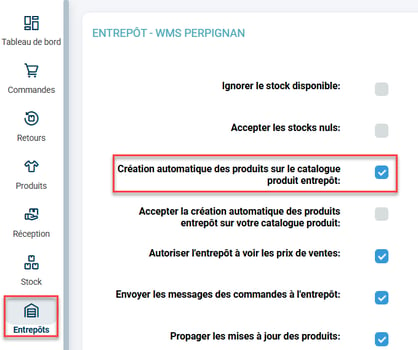
- Go to the menu Warehouses-> Go to your warehouse details, then check the option Automatic creation of products in the warehouse product catalogue:
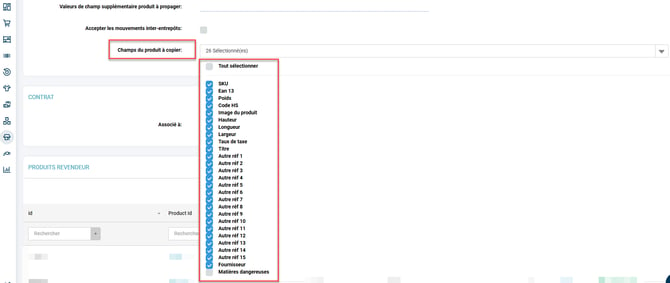
- Go down to the Product fields to copy and select the ones you want to copy to the WMS during automatic creation:
4.2.2 Access the configuration on your WMS (warehouse) account
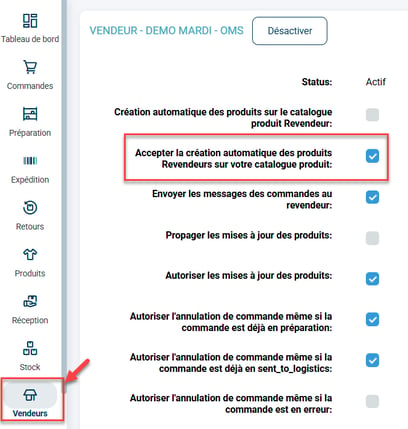
- Go to the menu Seller -> Enter your seller's details, then check the option Accept the automatic creation of Reseller products in your product catalog :
4.2 Enable configuration in the direction of WMS to OMS
4.2.1 Access the configuration on your WMS (warehouse) account
- On the account WMS, in the details of your Selleractivate the option Automatic creation of products in the Reseller product catalogue:
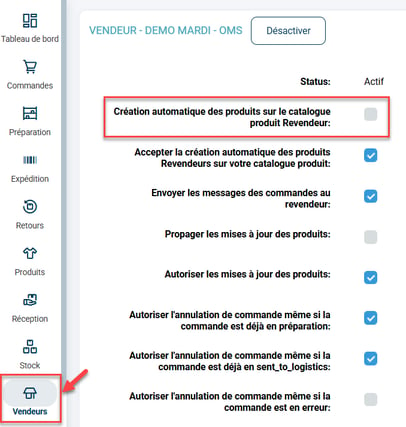
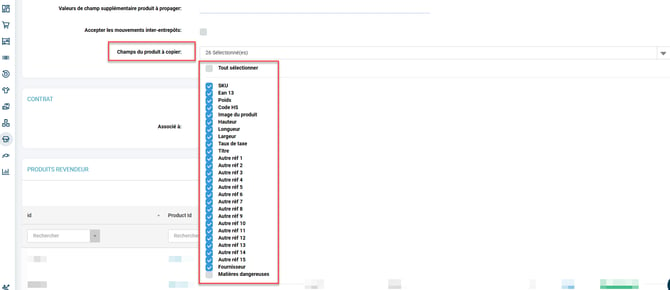
- Go downup to Product fields to copy and select the ones you want to copy to the WHO during automatic creation:
4.2.2 Access the configuration on your OMS (vendor) account
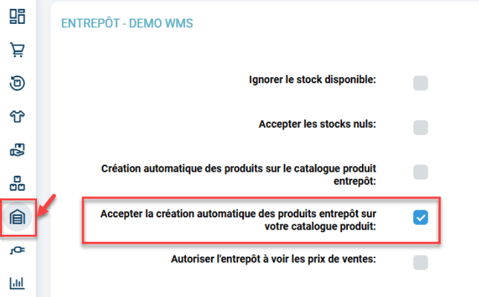
- On the account WHO, in the details of your Warehouseactivate the option Accept the automatic creation of warehouse products in your product catalog:
4.3 Configure the propagation of product updates
4.3.1 Enable propagation from OMS to WMS
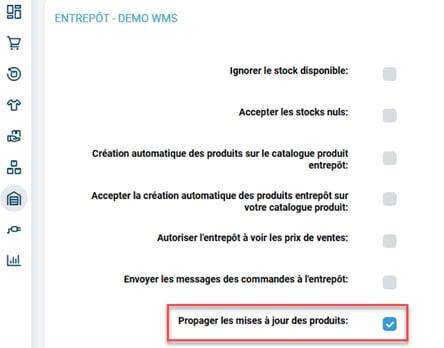
- On the account WHO, in the details of your Warehouseactivate the option Distribute product updates :
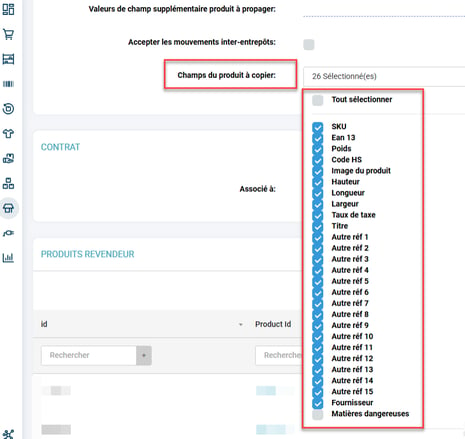
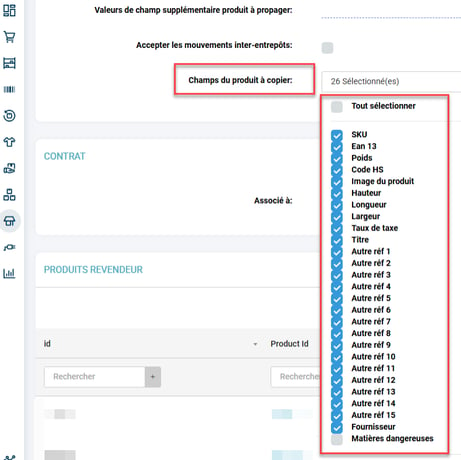
- Then, select the product information you want to copy from the WHO to the WMS in the option Product fields to copy:
- On the account WMS, in the details of your Selleractivate the option Allow product updates :
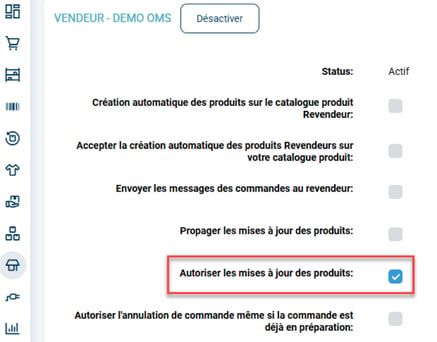
4.3.2 Enable propagation from WMS to OMS
- On the account WMS, in the details of your SellerEnable the "Propagate product updates" option:
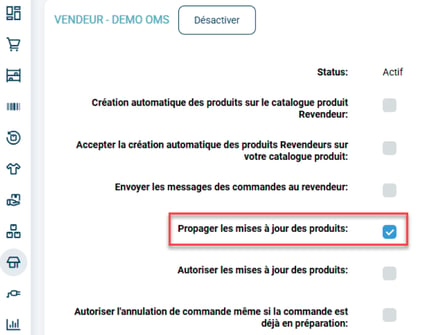
- Then, select the product information you want to copy from the WMS to the OMS in the option Product fields to copy:
- On the account WHO, in the details of your Warehouseactivate the option Allow product updates :
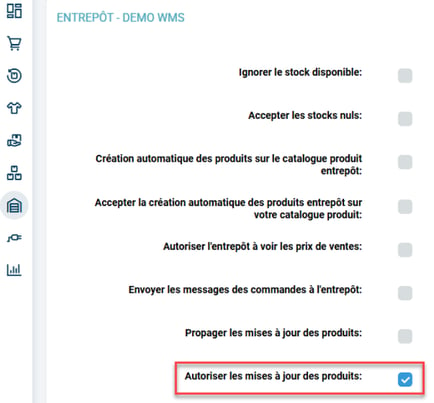
5. Example of practical application
You are an e-commerce cosmetics retailer and you collaborate with a logistics provider via Multi-Shippingbo. By activating the automatic creation of products from your seller account (OMS) to the WMS, each new product you list is automatically added to your partner warehouse's catalog.
You choose to synchronize only the logistics fields (dimensions, weight, EAN code). This way, your logistics partner always has the correct information to store and ship your products.
Result :
-
No need to create products manually in the warehouse.
-
Input errors are eliminated
-
Your logistics operations are faster and more reliable
💠 Noticed :
You can modify the list of synchronized fields at any time without disabling the feature.
📢 Attention :
Updating a field will not overwrite the recipient's data if that field is not selected in the copy options. Double-check that the configurations of both accounts are consistent.
🔷 Note:
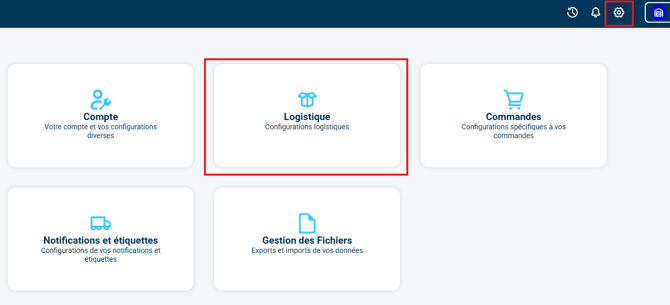
The "Create an order" feature is disabled by default for all Pack Shippingbo accountsWMS PremiumorWMS Expertcreated after December 22, 2025.
For these Packs, this option can be found in Configurations > Logistics:
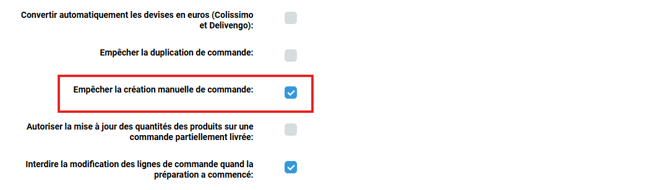
You will find the optionPrevent manual order creationpre-selected:
⚒️ Recommendation:
Before fully using the functionality described in this tutorial, it is strongly recommended to performa testing phasefollowing your own parameters to verify that the result meets your expectations. The remaining customerfully responsibleThese tests, based on actions performed on the Shippingbo account, are essential to ensure the tool can be used with complete peace of mind.
To go further 🛫:
- Add a seller product catalog (to a Shippingbo warehouse account)
- Add a product catalog to the warehouse (to a Shippingbo seller account).
FAQ ❔:
- How do I modify a shared reference?
Contact us 📬:
Any questions about this feature?
Feel free to write to ushereso that we can answer your questions.