.png?width=210&height=40&name=bleu%20et%20gris_Sigle+logo%20SBO%20(4).png)
Benefits of the feature ✨
- Extra protection : Guarantee coverage for your shipments against damage or loss.
- Application flexibility : Choose to define an insurance amount on a case-by-case basis or configure an automatic minimum threshold.
- Peace of mind Minimize financial risks in case of problems during transport.
1. Prerequisites
-
Available only to customers using a carrier that provides parcel insurance and has subscribed to this service.
Compatible carriers that cover insurance:-
Standard carriers: Amazon Shipping, Chronopost, Colis Privé, Correos Express, Dachser, DB Schenker, DHL, DHL Parcel Connect, DPD By API, Sending from Nand, Cheaper Shipping, FedEx, Geodis, Geodis By API, Heppner, Kuehne, La Poste, MRW, SBO Generic Dispor, Teliae, TNT.
- Transportation contracts via Label Providers. (Conditional insurance if allow_insurance is enabled)
-
⭐ Key point:
Make sure Check with your carrier that your contract allows for parcel insurance coverage. before configuring this option.
➡️ Also, if you are shipping in multiple packages, check How does your contract cover multi-package insurance?.
3. How does Parcel Insurance Management work?
Insurance management allows you to insure packages when creating the label or via a default setting in your Shippingbo account. This can be activated depending on the carrier and a minimum amount for the packages to be insured.
Example : If you have a parcel worth €150, you can add insurance for that parcel when creating the label or set a minimum amount from which all your parcels will be automatically insured.
💬 Good to know:
Discover how to connect our partner Secursus to your Shippingbo account to easily insure your shipments!
4. Activate Package Insurance Management
To activate insurance on your packages, you must activate it in your carrier's settings:
- Access the menu Connectors > Transport contracts > Your carrier configurations.
- Enter the relevant carrier service, then uncheck the option Disable insurancein the category Packages and insuranceThis will activate insurance on your shipments:
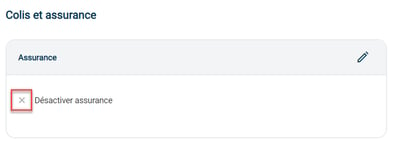
Example If you wish to activate insurance for your Colissimo shipments, go to Your carrier configurations Colissimo and uncheck the box Disable insurance.
- ✅ Box checked: Shippingbo does not send no insurance information to the carrier when editing the label for this service, even if a minimum insurance value is set in your account.
- ❌ Box unchecked: The insurance is active and the insured value data is transmitted to the carrier for this service as soon as the value conditions are met or entered manually.
5. Use the Package insurance management
5.1 Enter the insured amount
There are two ways to provide insurance information for your packages (for services where insurance is not disabled):
- At the time of generating the order label
When creating the label, you will be able to enter the insurance value in the field Edit the insurance information if you wish to insure the shipment. :
➡️ For this solution, the control picking is always recommended to do check the value of the insured package.
💬 Good to know:
To ensure the security of a multi-package order, each package must have its own field Insured value (cents) And Currency of the insured value filled in:
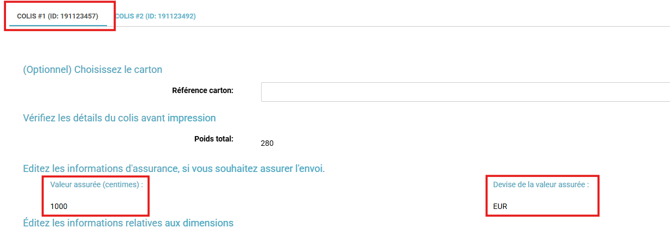
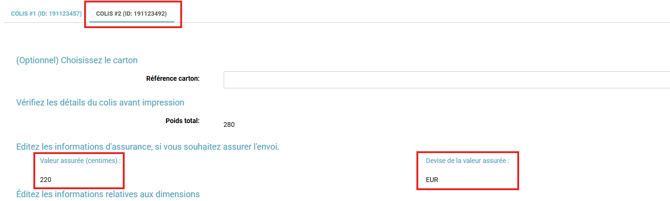
⚠️Make sure your insurance policy covers multiple packages.⚠️
- Specify a minimum value for all packages by default

Example If you set a minimum value of 10,000 (i.e., €100), all your packages valued over €100 will be automatically insured (unless the service offers an option). Deactivate insurance checked).
⭐ Key point:
This option is enabled by default for all your carrier accounts.
If you do not wish to activate insurance for all your carrier contracts, you must deactivate it manually in the settings of the carriers concerned.
5.2 Verify the insurance amount in the generated invoice
If you manage the insurance, you will need to check on the next bill that the amount matches your expectations.
If you have the Billing module, you can find this information in the order details, under the Documents tab:
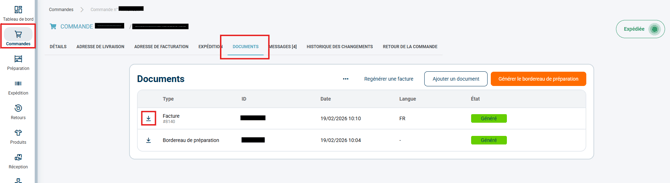
For more information about the Shippinbo Billing module, click here.
⚒️ Framework and responsibilities:
Before fully using the functionality described in this tutorial, it is strongly recommended to performa testing phasefollowing your own parameters to verify that the result meets your expectations. The remaining customerfully responsibleThese tests, which are essential for ensuring the tool can be used with complete peace of mind, are crucial for the actions carried out on the Shippingbo account.
To go further 🛫
Contact us 📬
Any questions about this feature?
Feel free to write to us here so that we can answer your questions.