.png?width=210&height=40&name=bleu%20et%20gris_Sigle+logo%20SBO%20(4).png)
Benefits of the feature ✨
-
Time saving : Fast management of stock transfers directly from the PDA.
-
Error reduction Precise tracking of stock movements through barcode scanning.
-
Inventory optimization Continuous and automated supply of picking locations.
1. Prerequisites
- This feature is only available in a bundle LMS Expert+ And WMS Expert.
- Working with a PDA : replenishment picking missions can only be done with the PDA.
- Replenishment thresholds must be configured beforehand in Shippingbo.
2. How do picking replenishment missions work?
Once replenishment thresholds are configured, picking replenishment missions allow products to be moved from a reserve location to a picking location when the quantities in that location fall below a certain threshold.
Example: If you configure a minimum threshold of 5 items for a product, as soon as the picking location contains fewer than 5 units, a replenishment mission will be automatically created and will appear in your PDA for processing.
3. Activate the picking replenishment missions
- In the PDA app, go to the menu Inventory management -> Picking replenishment missions:
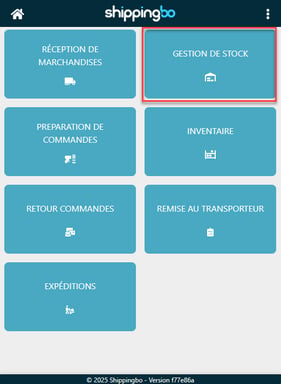
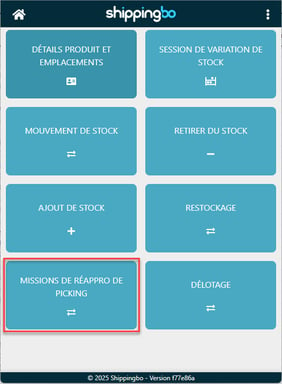
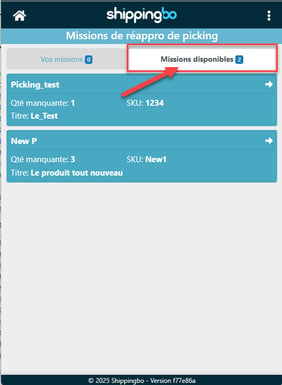
- The available missions will be displayed automatically. If no mission is assignedClick on one of the missions and confirm to assign it to yourself:
💬 Good to know:
By default, resupply missions are sorted bydestination location (the picking location). The operator is guided according to the picking area to be replenished, without taking into account the organization of the stockroom.
In checking the option Display preferred reserve location In Configurations -> Logistics -> tab Picking replenishment:
-
The application displays the preferred reserve location directly on the PDA to perform replenishment.
-
The missions are then sorted by reserve location (source) instead of the destination location.
➡️ This sorting by picking location allows the operator to pick the products according to an optimized picking path in each reserve aisle, thus avoiding unnecessary back and forth trips in the warehouse.
-
To assign yourself a picking replenishment mission, click on the mission, then on Yes.
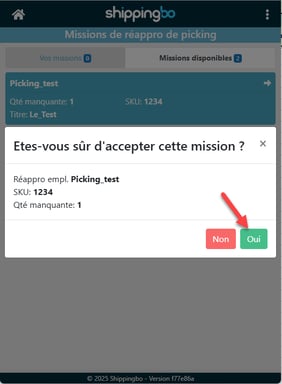
-
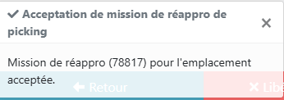
A pop-up will open indicating that the picking replenishment mission has been successfully assigned to you.
- If you are assigned a missionThe menu will open to your missions:
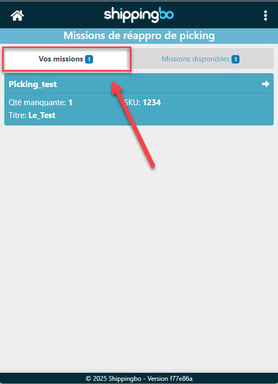
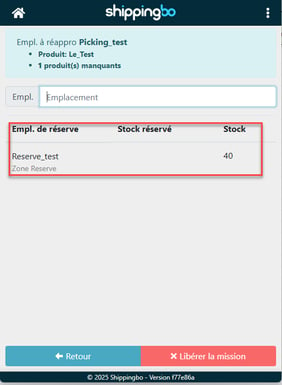
Shippingbo shows you in the blue box the location where products are missing and the quantity needed to reach the minimum threshold again.
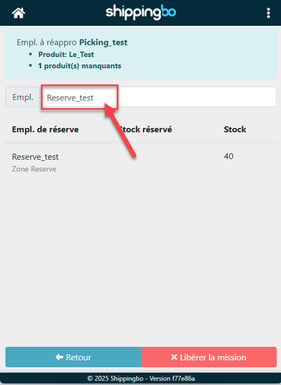
You will also find the spare locations where your product is located in the lower part of the screen.
Scan the reserve location from which you wish to withdraw products to replenish your picking location.
💠 Noticed :
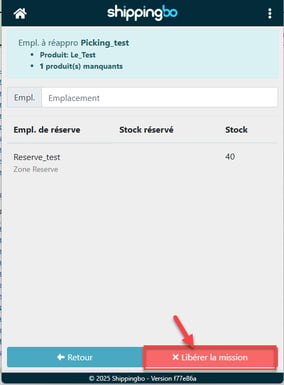
You can release a mission by clicking on Release the mission as long as no stock movement has been carried out.
-
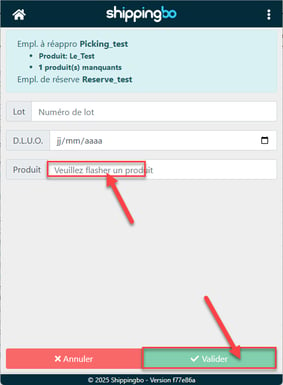
Once the reserve location has been scanned, scan the product you wish to remove from the location and the quantity you wish to decrement. Then click on To validate :
💠 Noticed :
You can decrement a quantity greater than the number of products needed to reach the threshold again. For example, if you need two products to reach the threshold, you can still scan 100 if you want to increment your picking location by 100 products.
When the product is removed from the storage location, Shippingbo displays a message on the PDA indicating that the information has been received:
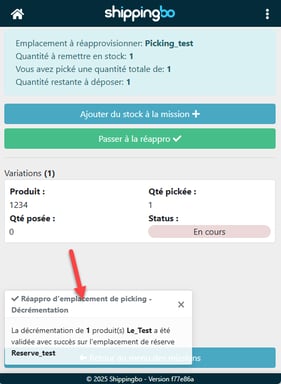
On the Shippingbo interface, in your product sheet, a stock being restocked also appears.

- Once all quantities have been removed from the reserve location, click on Move on to restocking to increase the stock in your picking location. You can also click on Add stock to the mission if you have emptied one first reserve location and wish to take stock from another location containing the same product.
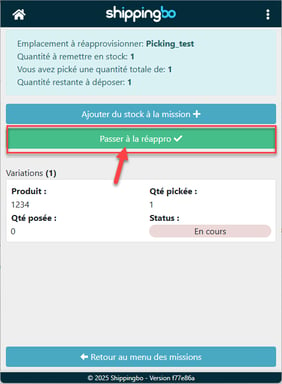
- Scan the picking location for which you wish to replenish stock:
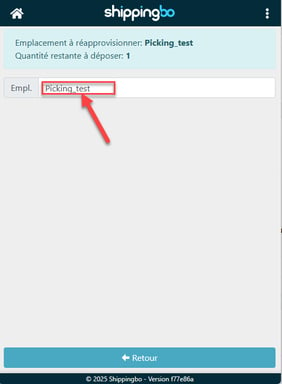
- Scan the product to be assigned to the location as many times as there are products to be stocked:
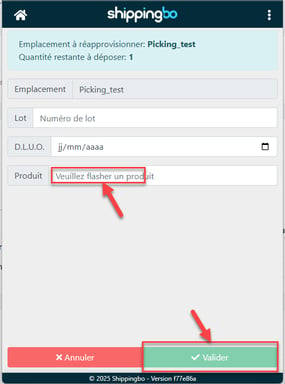
💠 Noticed :
You can also use the button Place the entire remaining quantity if you have a lot of products to scan.
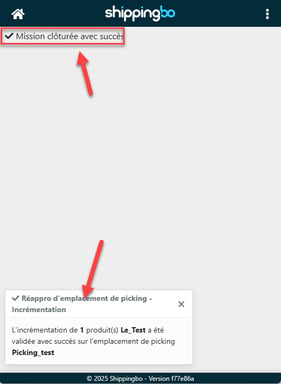
Once the last product has been scanned, a confirmation message appears on the PDA (1). If it is the last product of the mission, a closing message also appears (2).
To go further 🛫:
- Define replenishment thresholds for picking
- Enable manual resupply missions
Contact us 📬:
Any questions about this feature?
Feel free to write to us here so that we can answer your questions.