.png?width=210&height=40&name=bleu%20et%20gris_Sigle+logo%20SBO%20(4).png)
- Clear organization : Each order has its own slip, facilitating order management and tracking.
- Ideal for large orders : Allows for the efficient processing of orders containing many products or bulky products.
- Structured process : Step-by-step monitoring, limiting errors and optimizing preparation.
- Optimized picking:The packing slips can list the products on the slip while respecting the picking route (locations or places must be entered on Shippingbo)
1. Recommendations
The format of the slips 1 per page allows each order in the session to have its own individual slip.
In this tutorial we will show you how the process of preparing a session with the format of 1 slip per page unfolds, from its creation to the sending of orders.
2. Step by step
2.1 Preparation on the PC
Step 1:Once your preparation session has been generated, you need to download the preparation slips:
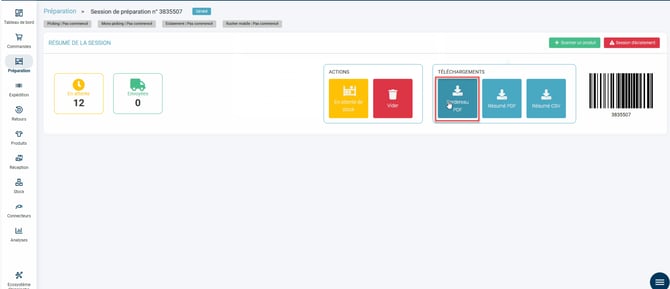
Step 2: Retrieve the tracking number: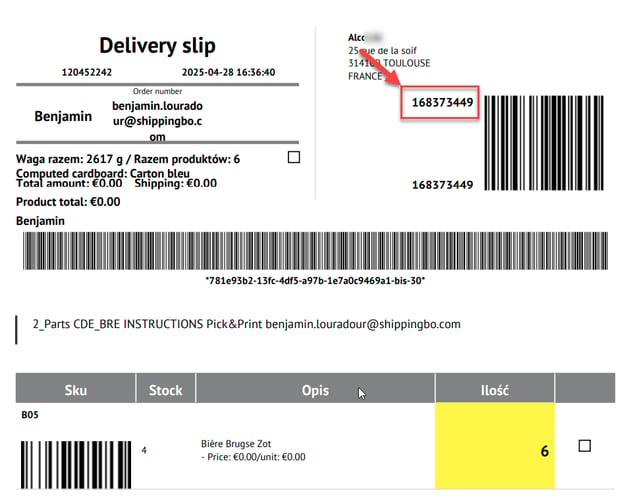
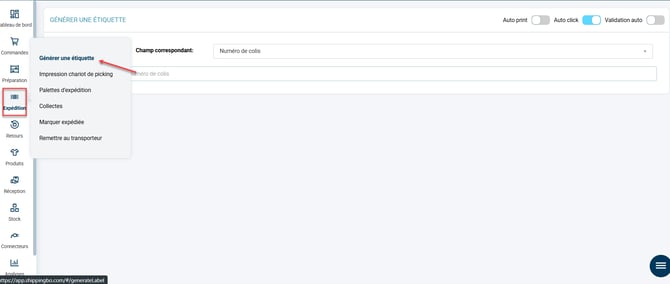
Step 3: Next, go to the menu Shipping -> Generate a label :
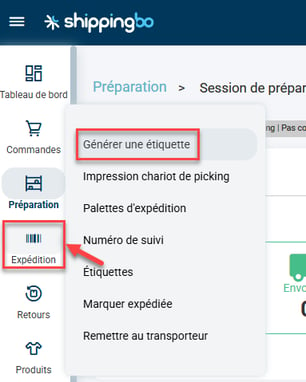
Step 4: Select Package number In the corresponding field, then paste your parcel number:
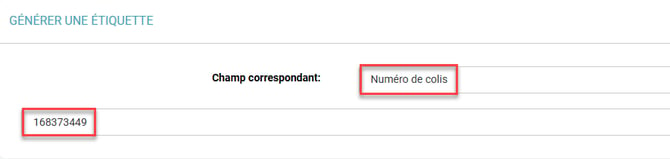
Click on the touch Enter to validate.
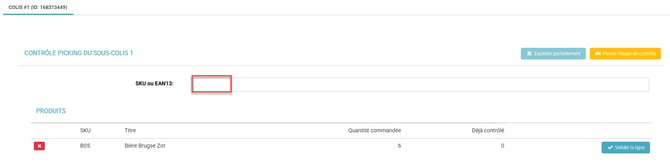
Step 5: Scan the items included in your order and follow the final instructions to generate the shipping label:
2.2 Preparation via PDA
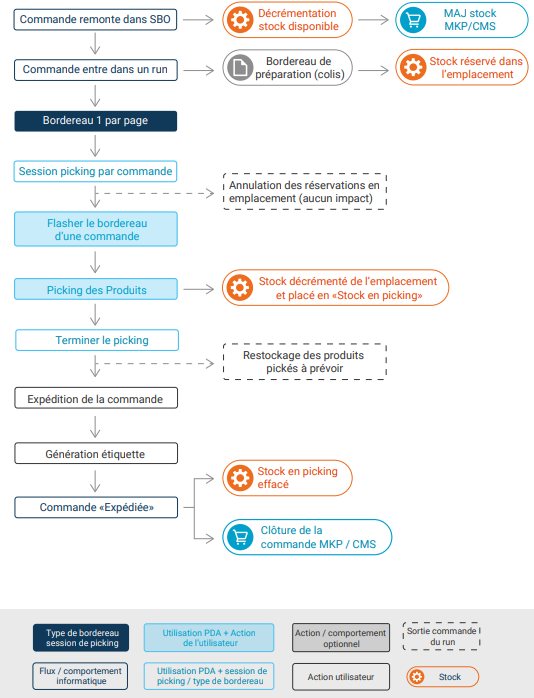
Process diagram (recommended by Shippingbo)
Here is an illustrated diagram of the process for preparing the format of the slips, 1 per page:
Step 1:Once your preparation session has been generated, you need to download the preparation slips:
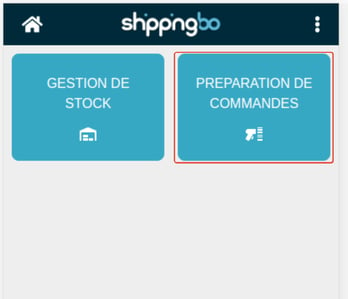
Step 2:Go to the PDA and enter the Order Preparation menu:
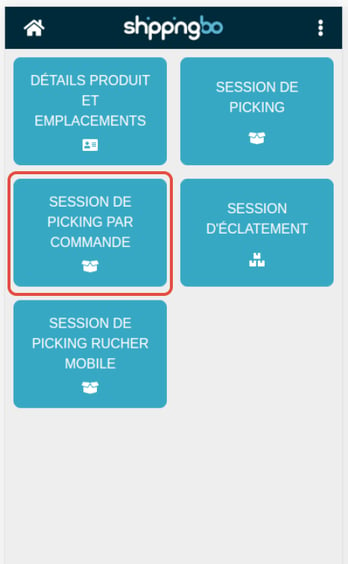
Step 3:Then in the Order Picking Session menu:
Step 3:Next, scan the barcode corresponding to the package ID, located in the top right corner of the slip:
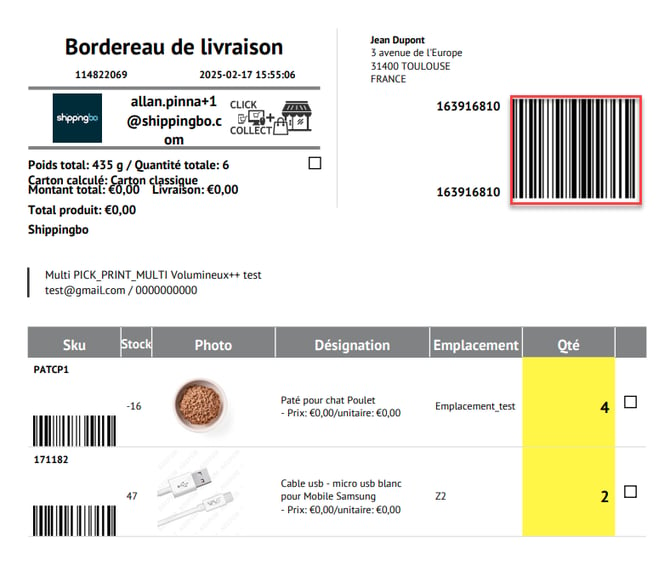
Step 4 Start your picking by scanning the first products in the order:
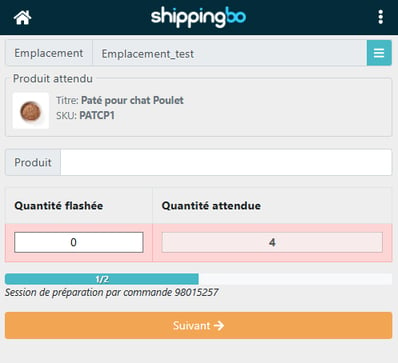
Step 5:Click on the Finish Picking button:
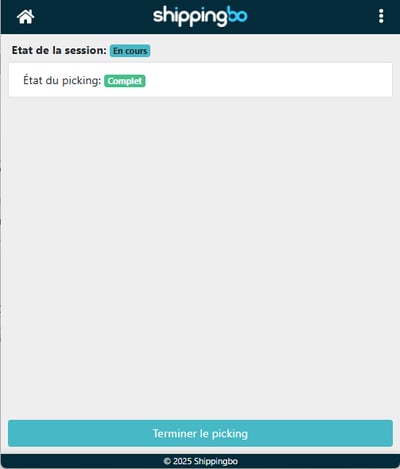
📢 Attention:
If you use the optionPrint the labels via the PDA, then the shipping label will be generated automatically at that time.
Step 6:Return to your PC, then go to the Generate a label menu and scan your slip again with a barcode scanner to generate the shipping label (you can also type the number manually if you don't have the equipment)
Discover our video presentation of the one-order-per-page preparation process here:
⚒️ Recommendation:
Before fully using the functionality described in this tutorial, it is strongly recommended to performa testing phasefollowing your own parameters to verify that the result meets your expectations. The remaining customerfully responsibleThese tests, based on actions performed on the Shippingbo account, are essential to ensure the tool can be used with complete peace of mind.
Contact us 📬:
Questions about this feature? Feel free to write to us.here so that we can answer your questions.