.png?width=210&height=40&name=bleu%20et%20gris_Sigle+logo%20SBO%20(4).png)
Although exchanges between Shippingbo and marketplaces are automated, certain operations, particularly when putting your account into production, require knowing how to transmit information via this type of file.
Why CSV? Because this format is easy to use, lightweight, and free. But let's start from the beginning:
1. What is a CSV file?
CSV stands for "Comma-Separated Values." It's a file format made up of text that forms values, separated from each other by commas, as the name suggests.
This format therefore has the advantage of being very simple (text) and of allowing the communication of structured information.
Despite its name, it is possible to use separators other than the comma for CSV formats.
By default, Excel will save your CSV files with a semicolon (;) as the separator instead of a comma (,), but it is of course possible to change this.
For your imports in Shippingbo, you can use either the comma or the semicolon, but you will absolutely need to know which one has been used.
2. Which software should I use?
This format has the advantage of being very simple (text) and allowing for the communication of structured information. The CSV format is a text format that is readable by all text editors. However, for practical reasons, they will be generated and modified using a spreadsheet program.
Most spreadsheet programs will allow you to edit a CSV file.
For example, we will use LibreOffice Calc here, which has the advantage of being free and easily handling this format. The best-known paid option is Excel, which will also allow you to read and edit your CSV files but is a little less intuitive.
3. What happens when my CSV file is opened by a spreadsheet program?
When you open a CSV file with a spreadsheet program, it will read the text file and place the information into a table following these rules:
- He starts with the first line and writes it in the first box in the top left corner.
- Example: Row 1, Column A
- When it encounters a comma (,), it moves to the next column.
- Example: Row 1, Column B
- When it encounters a "carriage return" (the "enter" key on the keyboard), it moves to the next line and returns to the first column.
- Example: Row 2, Column A
- When it encounters a text separator, such as quotation marks (“ ), it interprets all characters as text up to the next quotation mark, which notably allows commas to be written without moving to the next column.
- Example: line 123, “one, two, three” will be displayed in two columns, Column A -> 123 and Column B -> one, two, three
4. How do I create a new file?
For your Shippingbo imports, you will find downloadable templates directly on the page of the import concerned:
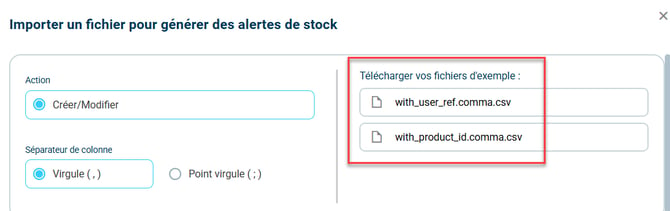
Alternatively, you can simply open your spreadsheet and save it in CSV format by clicking on File -> Save as -> CSV.
💠Noticed :
Edit filter settings: This option allows you to choose the column separator, as well as the text encoding.
More importantly, this option also allows you to automatically add quotation marks around your values so that a comma in the middle of an address does not break the file.
5. Complete your file
For imports into Shippingbo, the first line is reserved for headers, which allow the software to know in which field the information should be entered.
The headers must exactly match what Shippingbo expects (case-sensitive), otherwise the import cannot work. For example, to import new products, you must fill in the "userRef"
On the other hand, there can be no information in a column that does not have a header.
Check your file: Before making your import, you can quickly check your file by opening it with a text editor (Windows Notepad for example).
Check that your data is properly enclosed in quotation marks and that the column separator is the one you want to use for the import.
⚒️ Recommendation:
Before fully using the functionality described in this tutorial, it is strongly recommended to performa testing phasefollowing your own parameters to verify that the result meets your expectations. The remaining customerfully responsibleThese tests, based on actions performed on the Shippingbo account, are essential to ensure the tool can be used with complete peace of mind.
To go further 🛫:
FAQ ❔:
- Error importing a CSV file: the uploaded file is not a valid CSV file
Contact us 📬:
Questions about this feature? Feel free to write to us.hereso that we can answer your questions.