.png?width=210&height=40&name=bleu%20et%20gris_Sigle+logo%20SBO%20(4).png)
- Operational time savings : Free up multiple slots in a single action, without tedious unit processing.
- Rapid reorganization : Prepare areas for new receptions or logistical reconfigurations in just a few clicks.
Prerequisites✔️:
- Feature available from the Pack LMS Expert+ And WMS Expert.
1. Retrieve the information necessary for the import
📢 Attention :
Only locations with a quantity of 0 and no remaining product can be deleted. To learn how to bulk delete stocks with a quantity of 0, you can consult our tutorial.Configure a CSV file for imports related to the advanced warehouse.
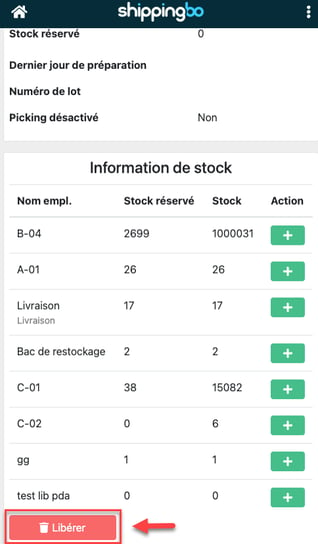
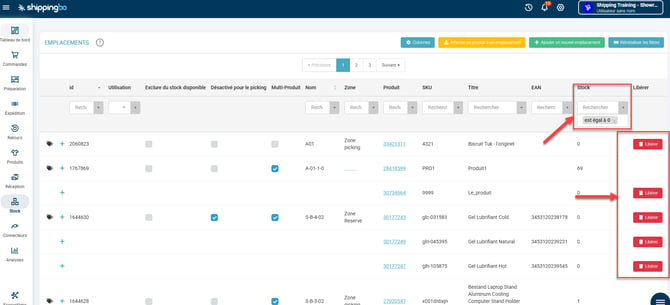
1.1: In the Locations menu, please click on the "+"to enter a location with a product at 0 stock:"
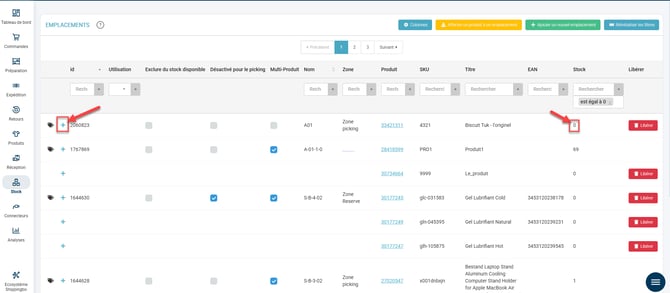
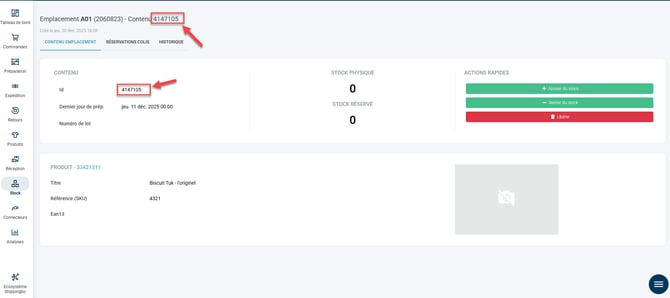
1.2: Then, retrieve the SlotContent id :
- You can retrieve itmanuallyin the URL that is displayed. This is the ID that you will need to enter in the import to release your slots in bulk.
- Or you can also retrieve multiple SlotContent ids at once by performing aexportFrom the Locations file (Configuration menu -> File Management -> Export -> Locations). Click on "Generate a new export" to obtain an up-to-date export:
- Start by filtering the file and keeping only the locations with products that have a stock of 0 by filtering the columnslot_contents.stock
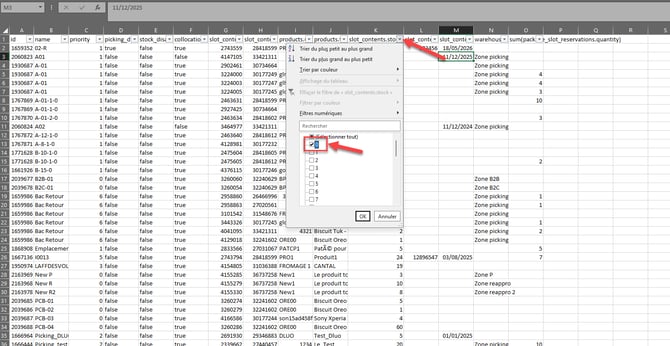
- Once your filter is in place, you will be able to copy the values from the column. slot_contents.id

2. Perform the import to free up space in bulk
Go to: Settings → File Management → Import → Content Location
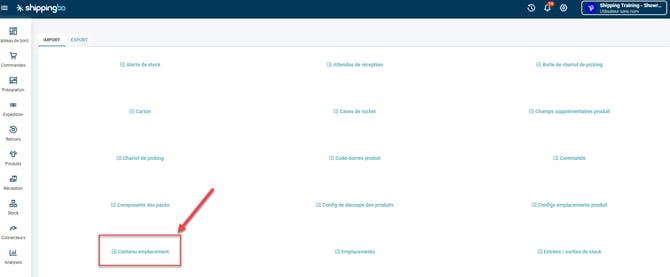
📢 Attention :
Please check the "Delete" box to switch to the page for releasing your products. The example file will also change to show the example for releasing the slots.
Check that the column separator is the correct "," or ";" according to the settings of your csv file.
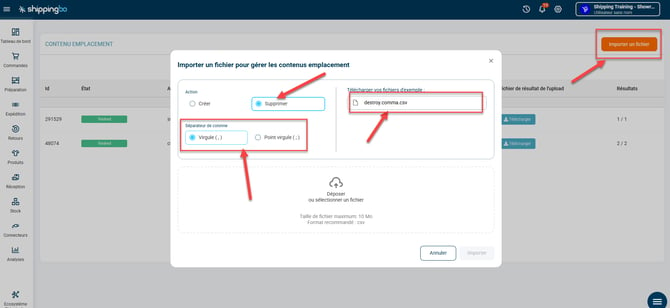
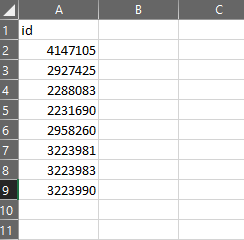
Download the example file and fill in the column. id with the slotContent id retrieved previously.
Example of an imported file:
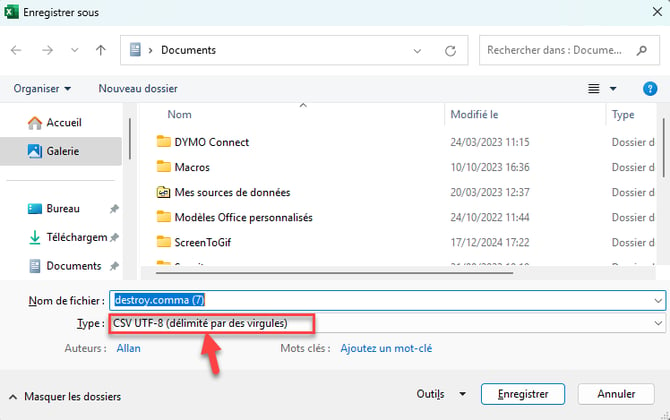
- Save the document in CSV format UTF-8
⚒️ Recommendation:
Before fully using the functionality described in this tutorial, it is strongly recommended to performa testing phasefollowing your own parameters to verify that the result meets your expectations. The remaining customerfully responsibleThese tests, based on actions performed on the Shippingbo account, are essential to ensure the tool can be used with complete peace of mind.
To go further 🛫:
- Create locations manually and by importing
Contact us 📬:
Any questions about this feature?
Feel free to write to ushereso that we can answer your questions.