.png?width=210&height=40&name=bleu%20et%20gris_Sigle+logo%20SBO%20(4).png)
✔️ Prerequisites:
-
Feature available only for bundles Advanced Warehouse.
-
Use of PDA for order preparation.
1. How does the Restocking Bin work?
The Restocking Bin allows for the efficient management of unpickable products (broken, defective, etc.) during a picking session, without interrupting the process. These products are isolated and processed later for restocking.
Example: During a picking session, for the SKU GIANT-CHALK-15-PCS, only 4 of the 5 expected units are available. The unpicked product is then placed in the Restocking Bin.
Management during the picking session
-
Unpicked products
-
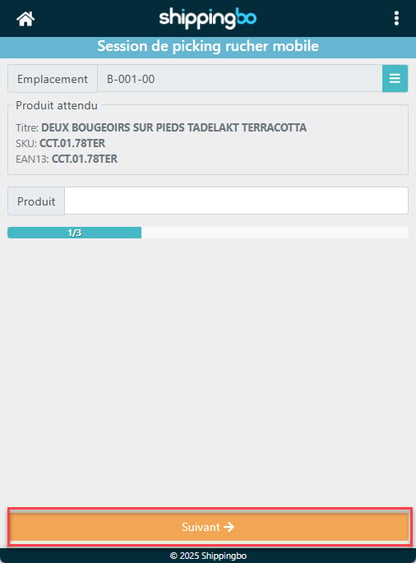
If a product is defective or unavailable, click on Go to the next product to continue picking:
-
- End of session
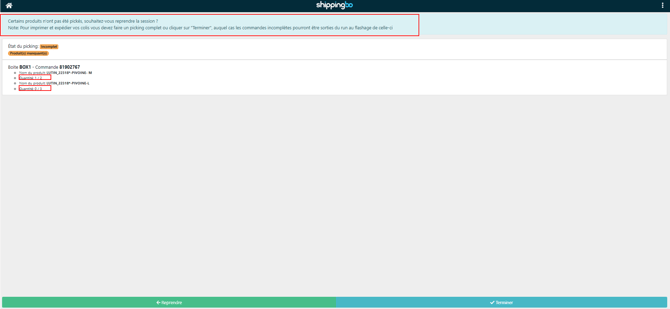
- Once the session is over, the PDA indicates the unpicked products.
- Cclick on Finish picking To close the session:
Noticed :
The picking will be considered incomplete, but you can continue the process:
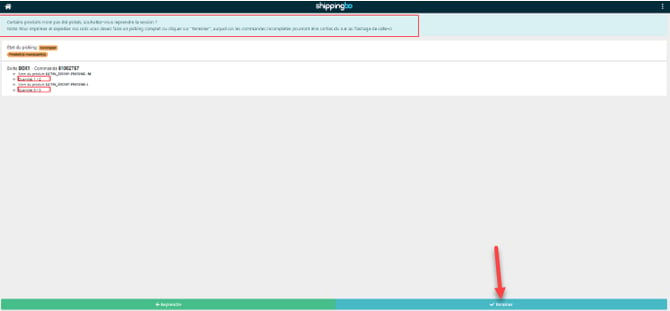
Pop-up session and use of the Restocking Bin
- Sprouting at the apiary
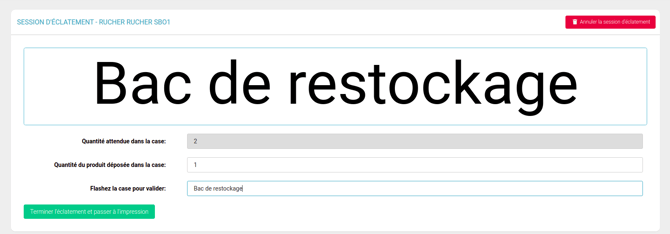
- During the break-through process, if a product belongs to an incomplete order, Shippingbo offers to place it in the Restocking Bin.
- In the field Scan the box to validate, fill in Restocking binthen place the product in the designated container:
Noticed :
Prepare a container or trolley with a barcode labeled "Restocking Bin" near your apiary.
End of bursting session
- Once all the products have been opened, clickFinish the bursting and proceed to printing
- Incomplete commands will be visible, and you will have a button to exit the run with incomplete commands.

2. Activate the Restocking Bin
-
Activate the necessary settings
- Activate mode Advanced Warehouse and configure the beehive breakout in your Shippingbo settings.
- Use a PDA to manage your picking and bursting sessions.
- Create a Restocking Bin
- Prepare a dedicated container (crate, trolley) with a barcode having the value Restocking bin.
- Place this container near your apiary.
Example: A mobile cart with a scannable barcode to simplify the process.
3. Use the Restocking Bin
- Restock the products
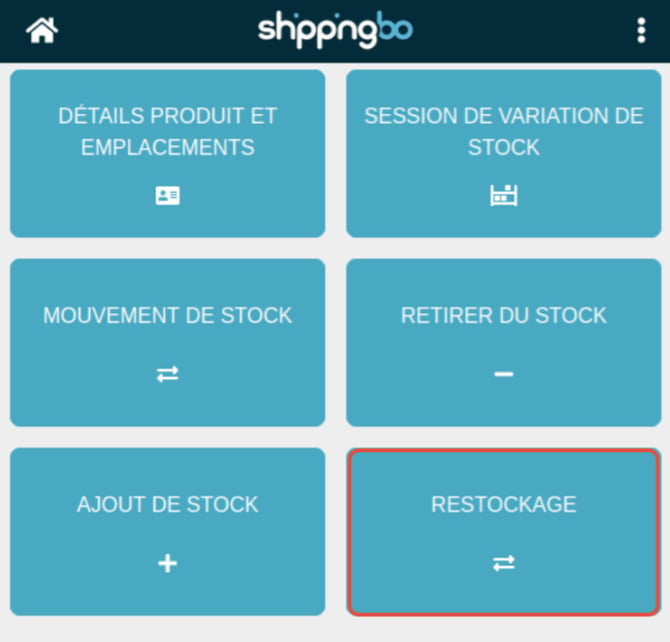
- Access the menu Inventory management → Restocking via the PDA:
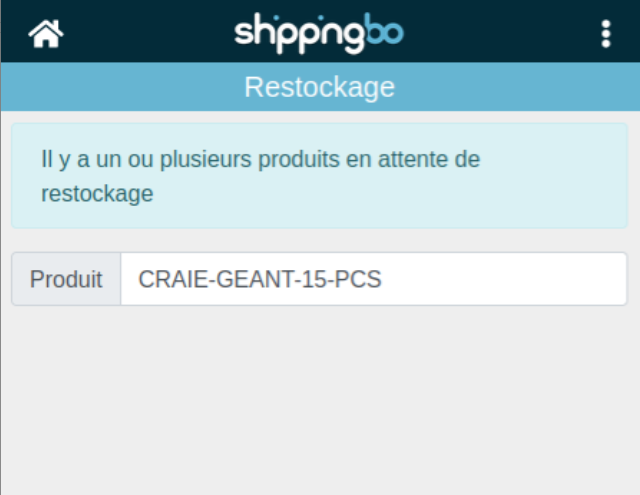
- Scan a product from the Restock Bin to select it:
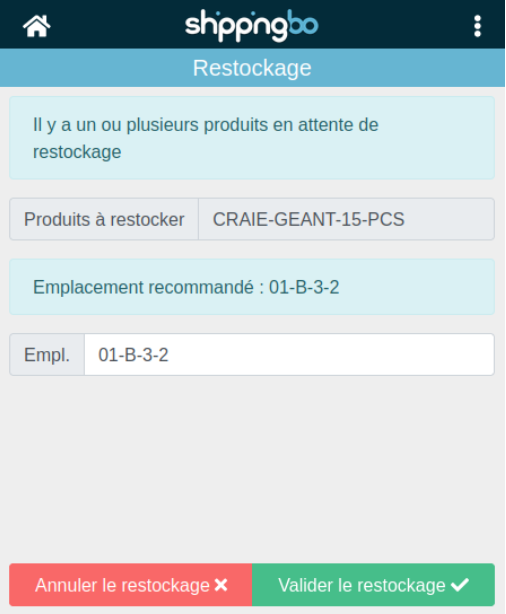
- Scan the suggested location or choose another to restock it:
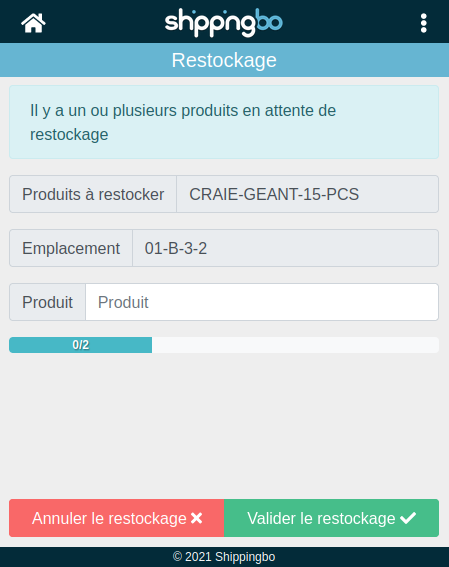
- Scan the quantities to be restocked:
- Access the menu Inventory management → Restocking via the PDA:
💬 Good to know:
You can perform this operation after each session or when the bin is full.
2. Export data for products awaiting restocking
-
- Go to Configurations → File Management → Export → Picked Products - Awaiting Restocking:
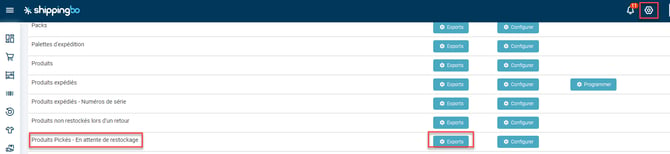
- Download the list of products requiring restocking by clicking on Generate a new export :
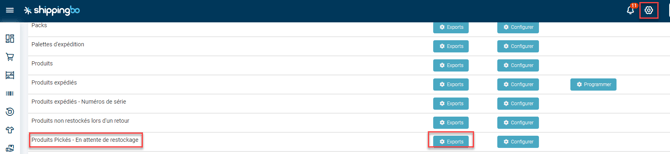
- Go to Configurations → File Management → Export → Picked Products - Awaiting Restocking:
3. Track stock to be restocked from the product page
-
- From the tab Stock From the product page, you can precisely track the status of your stock awaiting restocking:
-
-
A counter To be restockedhas been added between the indicators Stock being restocked And Reserved stock (it displays the sum of the quantities to be restocked).
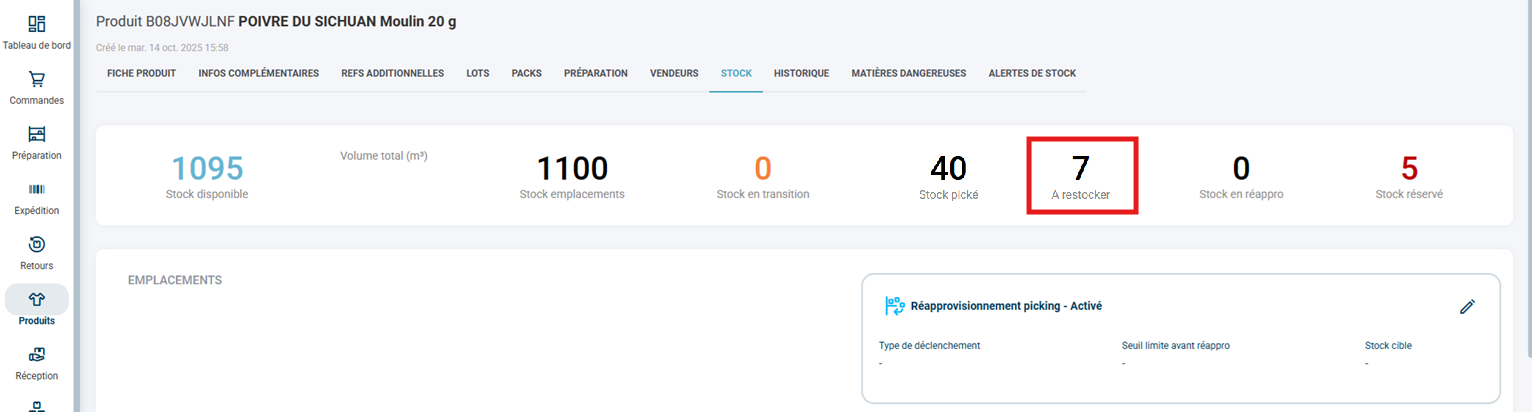
➡️ The stock counter To be restocked displays the sum of the quantities of products awaiting restocking.➡️ The counter of Picked Stock refers only to the picked quantities that are not to be restocked.
-
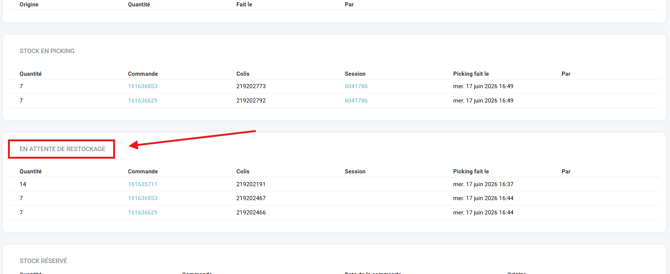
In this tab, a new dedicated area entitled Awaiting restocking has been created. It groups together all the stock lines containing the products to be restocked:
-
💬 Good to know:
Unpicked products are automatically added to the menu RestockingYou can group restocks after several sessions to optimize the process.
⭐ Key point:
If you do not use the Restocking Bin As expected, unmanaged products may remain pending in the system. Consult the appropriate tutorial to resolve these cases.

- Process optimization : Effectively manage unpicked products without interrupting the picking process.
- Centralized management Facilitates the processing of products to be restocked.
- Error reduction : Ensures traceability and accurate updating of stock.
To go further 🛫:
- Perform your picking using your PDA
Contact us 📬:
Any questions about this feature?
Feel free to write to us here so that we can answer your questions.