.png?width=210&height=40&name=bleu%20et%20gris_Sigle+logo%20SBO%20(4).png)

- Optimizing time and travel : Overall collection limiting back-and-forth trips and improving the fluidity of the process.
- Simplifies order sorting after a picking session.
- Increased productivity Separation of tasks (picking and sorting) allowing for greater efficiency and a reduction in errors.
- Improved quality and speed of service Fewer preparation errors, faster shipping and better management of peak activity.
2. Prerequisites✔️:
- Having completed a picking session via PDA
- You have set up a beehive in your Shippingbo account
- Feature available from the package Premium +.
3. How does the burst session work?
The sorting session allows you to organize the products picked during your order picking session. These are then distributed into a sorting bin with multiple compartments, each compartment corresponding to an order. Once the sorting is complete, you can ship the orders more easily.
Example You retrieved 50 products during a picking session. Using the splitting session, you will scan each product, and Shippingbo will tell you which bin in the storage area to place it in. Each bin is associated with a specific order.
4. Activate the burst session
To activate this feature, you need to set up a beehive in your Shippingbo account.
- Go to the menu Configuration → Logistics → Apiary:

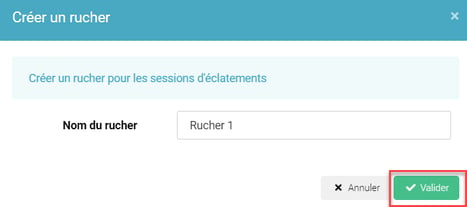
- Click on Add to create a beehive:
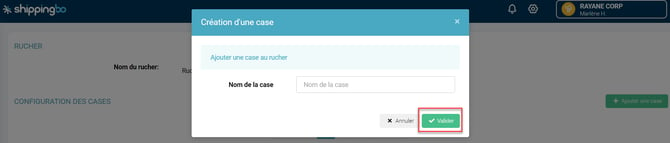
- Once on the apiary's page, add boxes by clicking on Add a box:
5. Use the burst session
- Access the menu Preparation and select a preparation session for which you performed the picking with your PDA
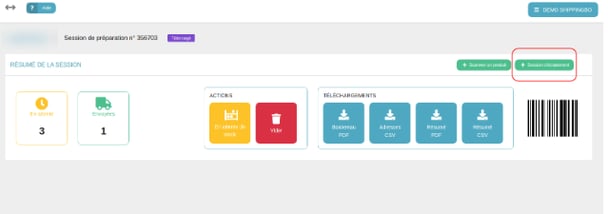
- Click on the green button Burst session:
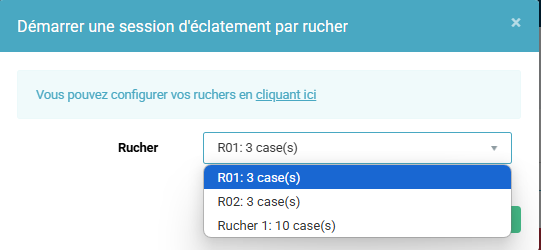
- Select the apiary in which you wish to split your orders:
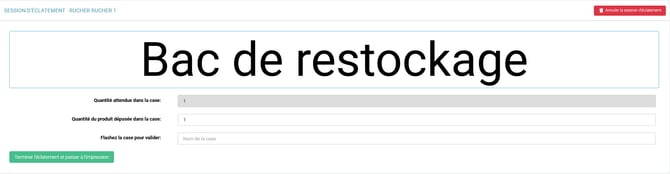
- Scan the first product, and Shippingbo will tell you which cell in the apiary to place it in. Then scan the cell to confirm the action:

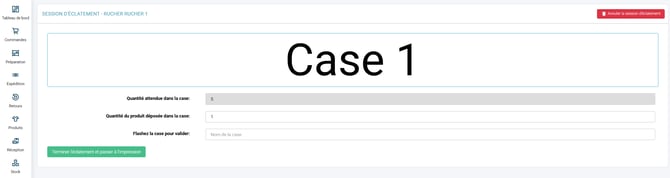
If you scan a product that is part of an order with incomplete picking, see 3.5
-
Once all products have been scanned and assigned, you will be redirected to the print page.
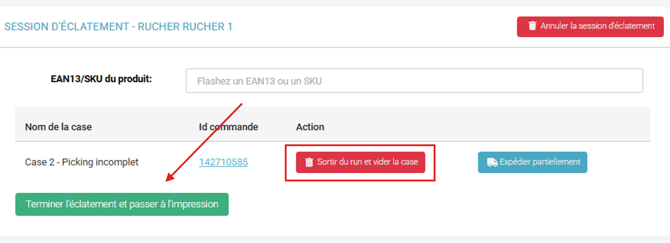
➡️ If this is not the case, at least one of your orders is incomplete or not exploded. Click on Finish the bursting and proceed to printing in order to see the commands blocking the printing process.
➡️ In the case of a non-exploded order, you will click on Exit the run and empty the box.
➡️ In the case of an incomplete order, if you have activated the partial shipping option, you will have the choice between Exit the run and empty the box to postpone order preparation, or Ship partially(See tutorial on partial shipping) here)
-
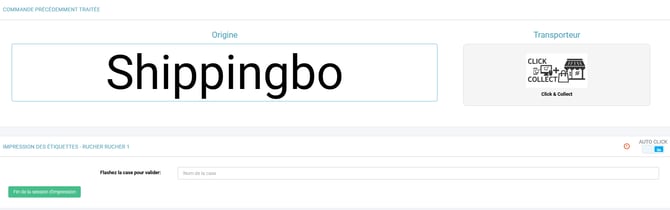
Scan the first box and you will access the print page. If you have automated the label generation, the label will print as soon as you scan your apiary box.
Once the first label is generated, the screen takes you back to the page where you scan the apiary boxes, and you will need to scan all of your boxes. :
6. Check the availability of your beehives
To check the status of your beehives, follow the steps below:
- Go to the menu Configuration → Logistics → Apiary.
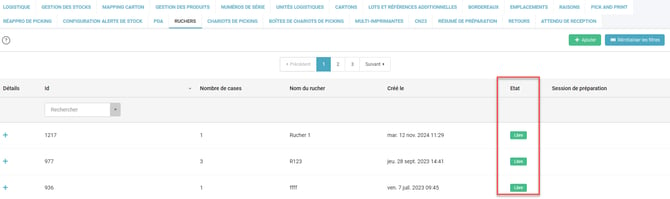
- In the table that appears, you will see the current status of each apiary:
- Free The apiary is available for a new splitting session.
- Busy The apiary is already in use in an ongoing splitting session. The ID of this session will be displayed.
💠Note:
This allows you to efficiently manage your apiaries and plan your next splitting sessions according to the availability of the apiaries.
We also invite you to watch our video showing you how the fixed apiary preparation process works by clicking on the image below:
⚒️ Recommendation:
Before fully using the functionality described in this tutorial, it is strongly recommended to performa testing phasefollowing your own parameters to verify that the result meets your expectations. The remaining customerfully responsibleThese tests, based on actions performed on the Shippingbo account, are essential to ensure the tool can be used with complete peace of mind.
To go further 🛫:
- Perform a burst session from your PDA