.png?width=210&height=40&name=bleu%20et%20gris_Sigle+logo%20SBO%20(4).png)
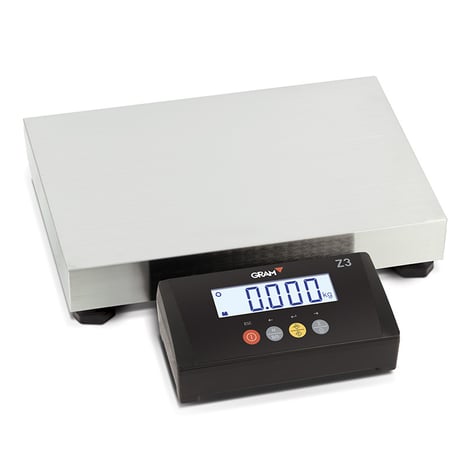
The GRAM Z3 scale, connected to Shippingbo, allows you to weigh your parcels at the end of the shipping process, just before the label is printed. This tutorial explains the different configurations required to make it compatible with our solution.
NOTICED
In addition to this tutorial, there is online documentation on the printer (pdf at the bottom of the page) as well as an explanatory video produced by GRAM:
I. Configure the weight capacity of your scale
Step 1:Press and hold the M key until you hear a beep to enter the first menu.
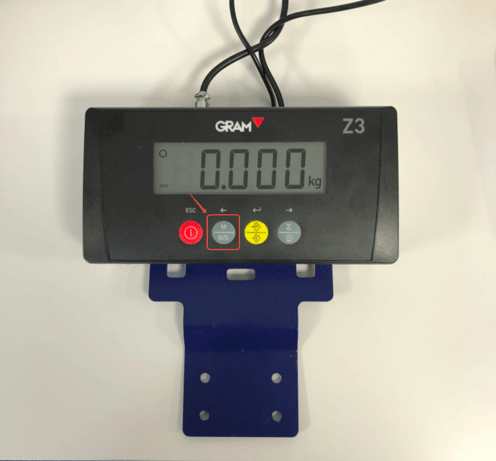
Step 2:Press the right button to navigate through the menus until the scale displays "Scale":
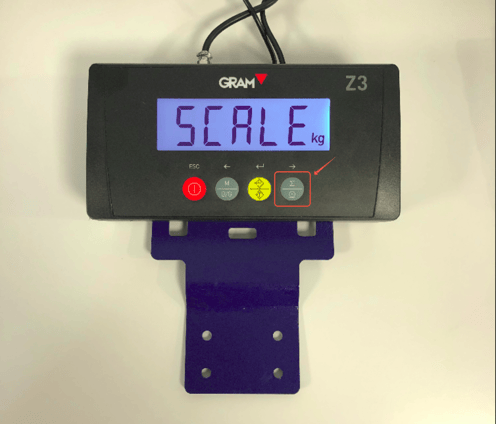
Then press the yellow button to enter this menu.
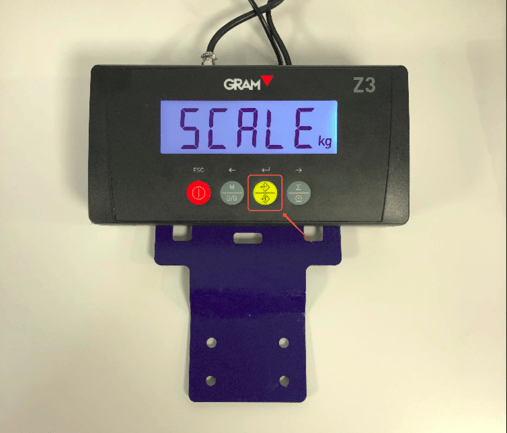
Step 3:Press the right button to scroll through the menus until the scale displays "unit" and click the yellow button to confirm.
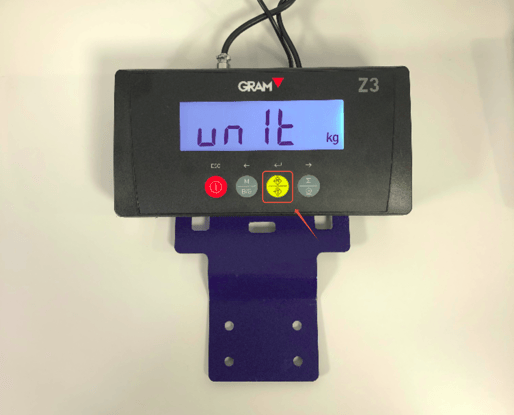
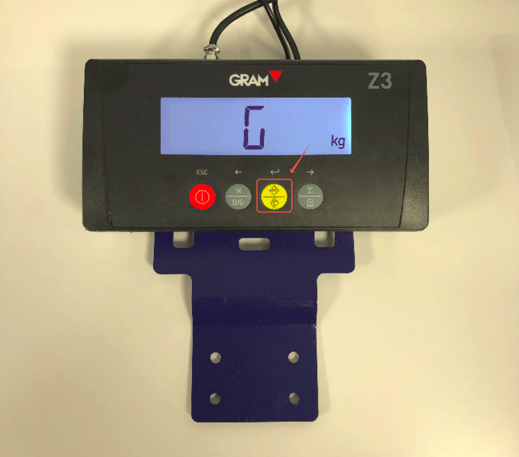
Step 4:Press the right button to scroll through the menus until the scale displays "g" (for grams) and click the yellow button to confirm.
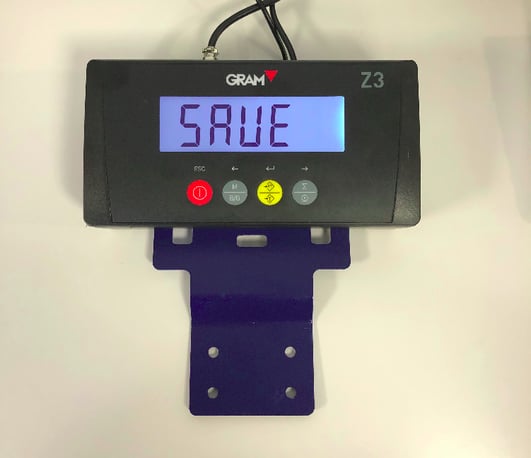
The scale displays "Save" when the change is saved.
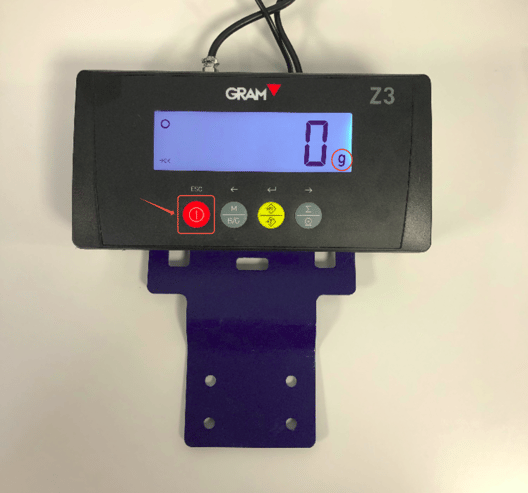
Your scale is set to grams; you can click the red button on the left several times to return to the main menu.
II. Configure the number of decimal places displayed on your scale
Step 1:Follow the first two steps of the paper weight configuration to return to the "Scale" menu, then scroll down to the "dec" menu and click the yellow button.
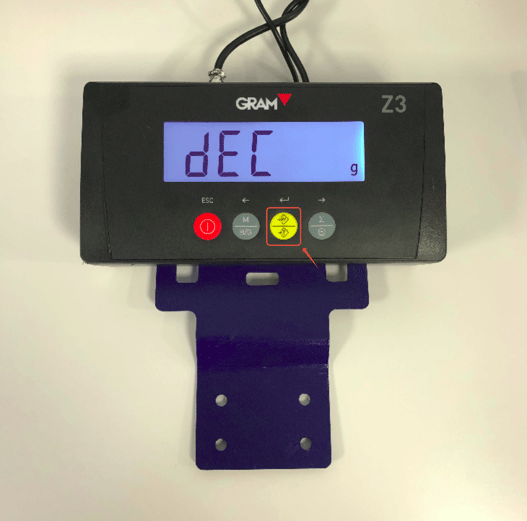
Step 2:Press the left arrow to decrease the number of decimal places until it displays 0. Then click the yellow button to confirm.
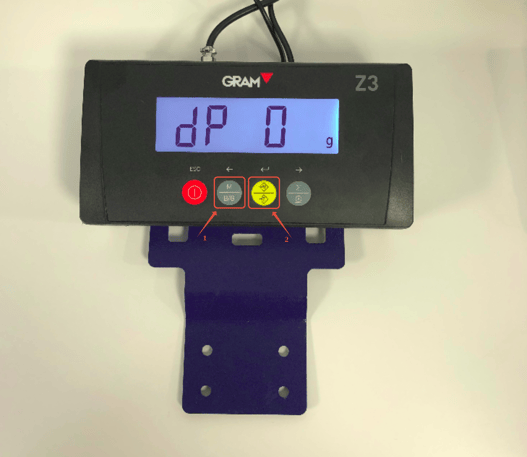
The scale displays "Save" to indicate that the change has been applied. You can return to the main menu by clicking the red button.
III. Configure the sending of information via USB to the computer
Step 1:Press and hold the M key until you hear a beep to enter the first menu.
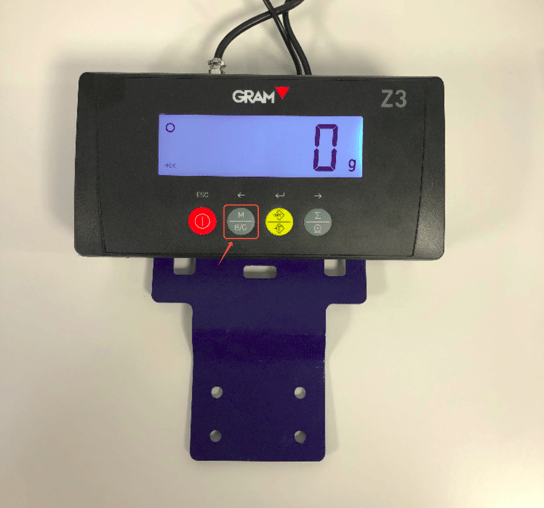
Step 2:Press the right button to navigate through the menus until the scale displays "r5232" and click the yellow button.
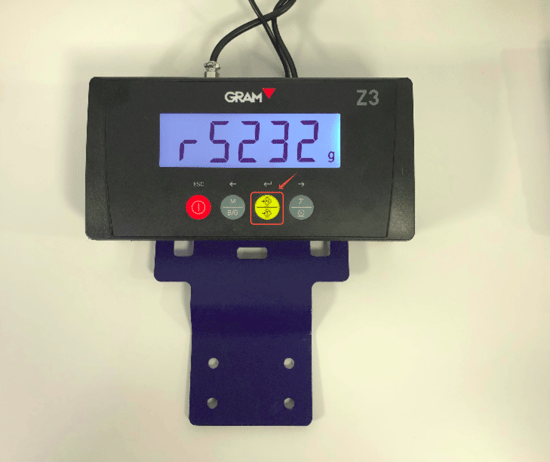
Step 3:Scroll through the menus until the scale displays "Form" and click the yellow button.
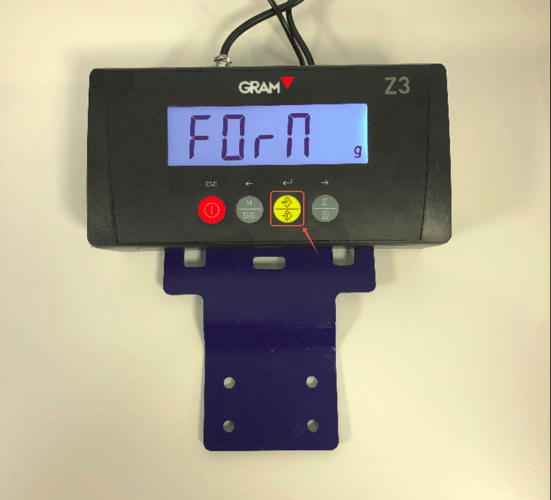
Step 4:Navigate through the menus by clicking the right arrow until the scale displays "usbFR" and click on the yellow button.
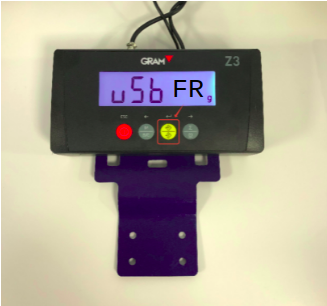
The scale displays "Save" to indicate that the change has been applied. You can return to the main menu by clicking the red button.
Step 5:Go back to step 2 and enter the "r5232" menu, then select the "S-Mod" menu and click the yellow button.
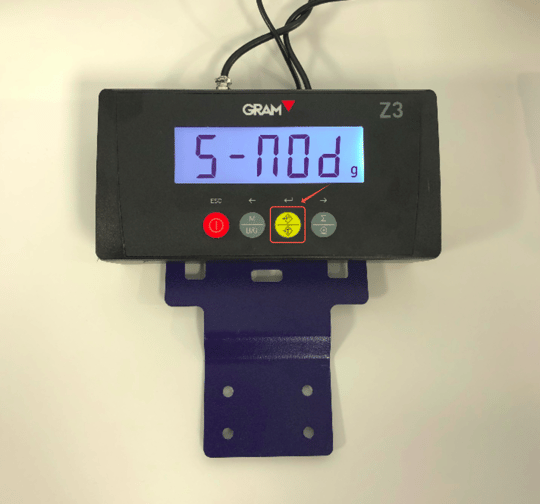
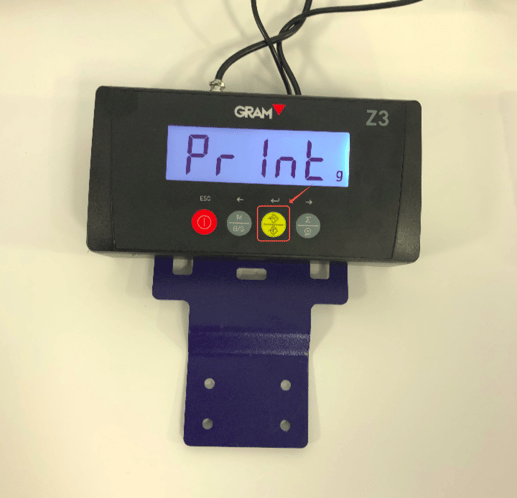
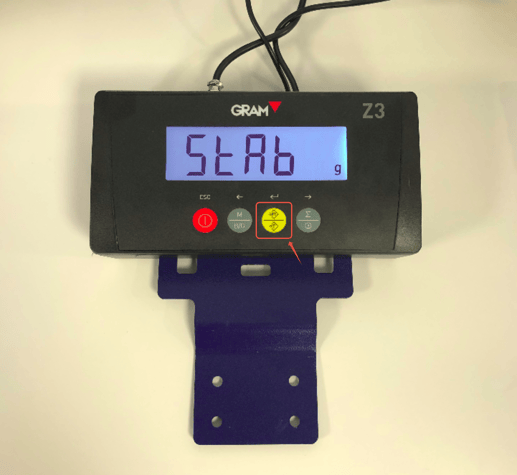
Step 6:Two solutions here: either you wantClick the print button to start printing., either you want theprinting starts automaticallyOnce the package weight has stabilized, in the first case you will need to select the "Print" menu and for automatic printing the "Stab" menu.
- "Print": To select this menu, please click on the yellow button; the scale will display "Save" and you can return to the main menu by clicking on the red button.
Noticed :
If you choose the "Print" option, the button to start printing will be the button to the right of the scale.
- "Stab": To select this menu, please click on the yellow button; the scale will display "Save," and you can return to the main menu by clicking on the red button.
Your scale is now ready to work with Shippingbo.